
The Odoo 17 Sales module offers complete quotation management: it lets you create, customize and follow up every commercial proposal. With it, companies can turn opportunities into clear, professional offers, control the status of each proposal and convert a quotation into a sales order with a single click.
Overview
The Sales module manages the whole sales cycle:
- Opportunity generation.
- Quotation creation and follow-up.
- Sales order management.
- Automation of part of the sales process.
- CRM integration.
- Performance reports.
It integrates with other modules, such as Inventory and Invoicing, to give a complete view of commercial operations.
Orders
Order management in Odoo is centralized:
- Create, track and manage customer orders.
- Flexible customization of products, inventory and discounts.

Quotations
Quotation management makes commercial follow-up easier:
- Create, review and adjust quotations.
- Send them to the customer and track their status.
- Convert them into sales orders when the customer accepts.
Quotation form
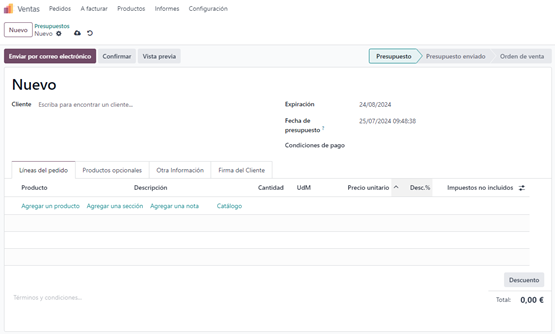
When you open the quotation form, you will find several options at the top:
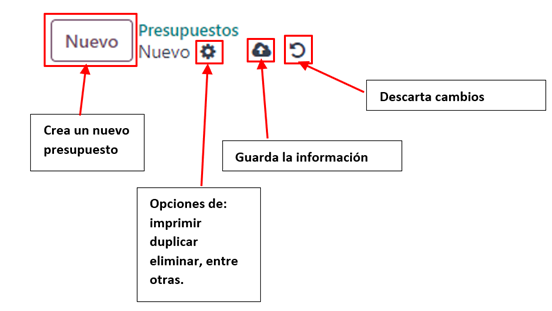
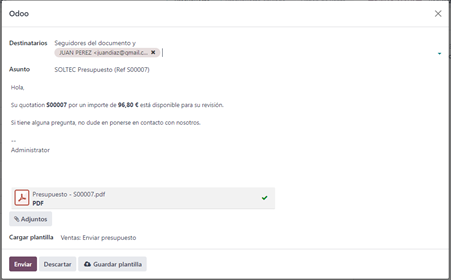
- Send by Email: generates an email with the quotation attached, addressed to the selected customer. Once sent, the quotation moves to the Quotation Sent status.
- Confirm: when you confirm the quotation, it becomes a sales order.
- Preview: lets you see the quotation as the customer will see it.
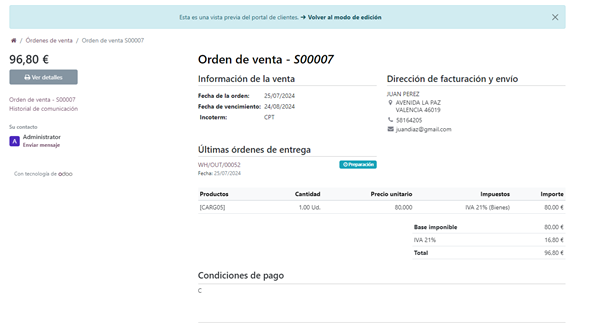
Quotation stages
- Quotation: initial status when it is created.
- Quotation Sent: after sending it by email.
- Sales Order: when the quotation is confirmed.
Step 1: form header
From the form header we can define the general data:
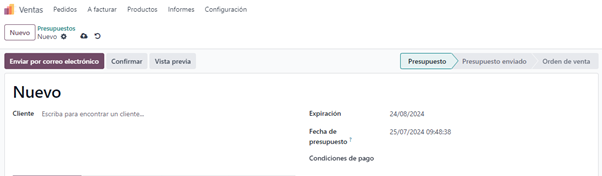
- Customer: select or create a customer.
- Expiration: the quotation's expiry date.
- Quotation Date: date and time of creation.
- Payment Terms: term defined in the accounting module.
Step 2: order lines
In the order lines tab we can include the following:

- Add a product: define product, description, quantity, unit of measure (UoM), unit price, taxes and discounts.
- Add a section: text to divide groups of products.
- Add a note: an inline note within the document.
- Catalog: multiple selection of products from the product master.
- Terms and Conditions: text shown on the output report.
Step 3: optional products
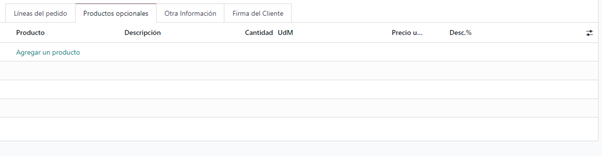
In the optional products tab we define additional items:
- They work like the product lines.
- They are used to suggest additional products to the customer.
Step 4: other info
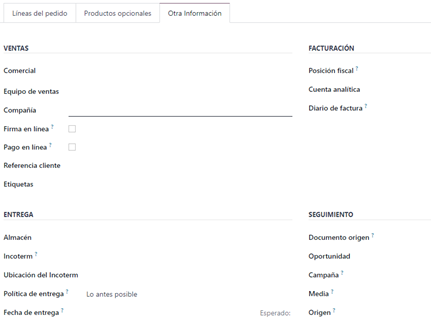
The Other Info tab gathers the rest of the quotation data:
Sales
- Salesperson: responsible user.
- Sales Team: a previously defined team.
- Company: company name.
- Online Signature / Online Payment: digital signature and payment options.
- Customer Reference: free text.
- Tags: organization and classification of transactions.
Delivery
- Warehouse: selection of the company's warehouse.
- Incoterm: international delivery terms.
- Incoterm Location: place where the Incoterm applies.
- Shipping Policy: all products together or according to their delivery times.
- Delivery Date: date promised to the customer.
Invoicing
- Fiscal Position: applicable taxes.
- Analytic Account: detailed tracking of costs and revenue.
- Invoice Journal: accounting record of sales invoices.
Step 5: customer signature
Finally, the customer signature tab records the customer's acceptance of the quotation:
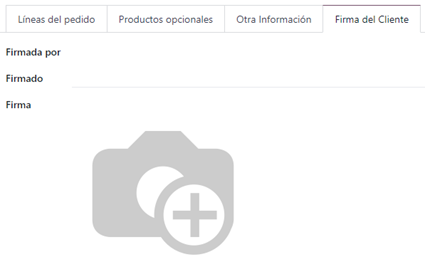
- Signed By: customer's name.
- Signed On: date of the signature.
- Signature: digital signature.
👉 Want to see how this workflow applies to construction estimates? Request a BIM 2.0 demo.