Where BIM › Execution › Tickets › Tickets
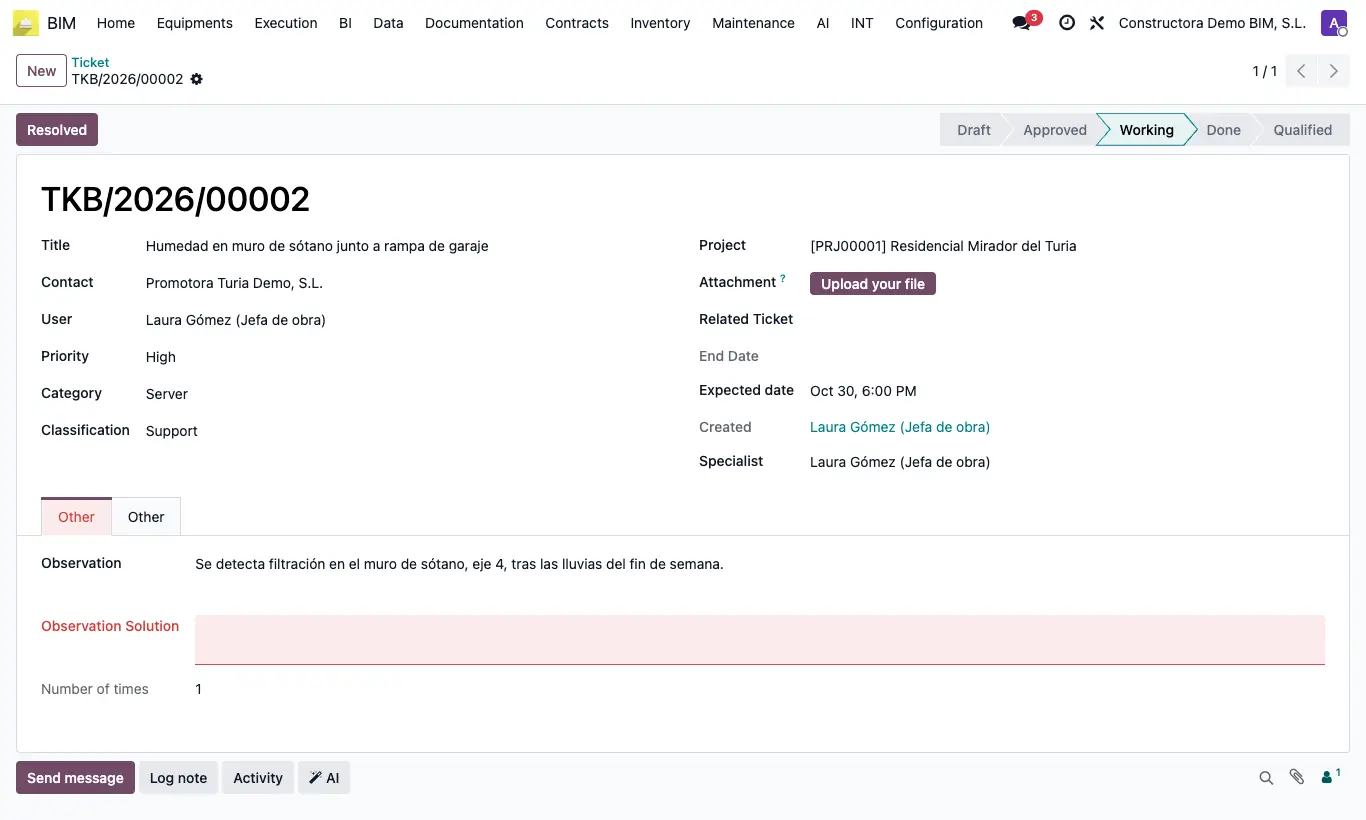
Steps
- Click Tickets from the project, or go to BIM › Execution › Tickets › Tickets, and click New.
- Write the Title, choose User, Priority and Category (required) and, if applicable, Contact, Classification and Project.
- Describe the incident in Observation and attach a file in Attachment; enter the Expected Date.
- Click Authorize and then Working.
- Write the Observation Solution and click Resolved.
- Choose the Qualification (Bad, Regular, Good or Excellent), write the Qualification Note and click Set to Qualified.
Warning
In Working the Observation Solution is required.
Without a Qualification you cannot move to qualified: "Please rate our work so we can improve with your help. Thank you very much." appears.
Open reopens a resolved ticket and adds one to Number of times; it is better to create a new one and link it.
Site note
The customer can also open tickets from the portal, and tickets arrive from web forms.
Use Related Ticket to link a repeated incident to the original.