Where Purchase › Orders › Payment Schedule
Before you start
BIM Valuation profile. Confirmed order and a vendor with a payment term.
Steps
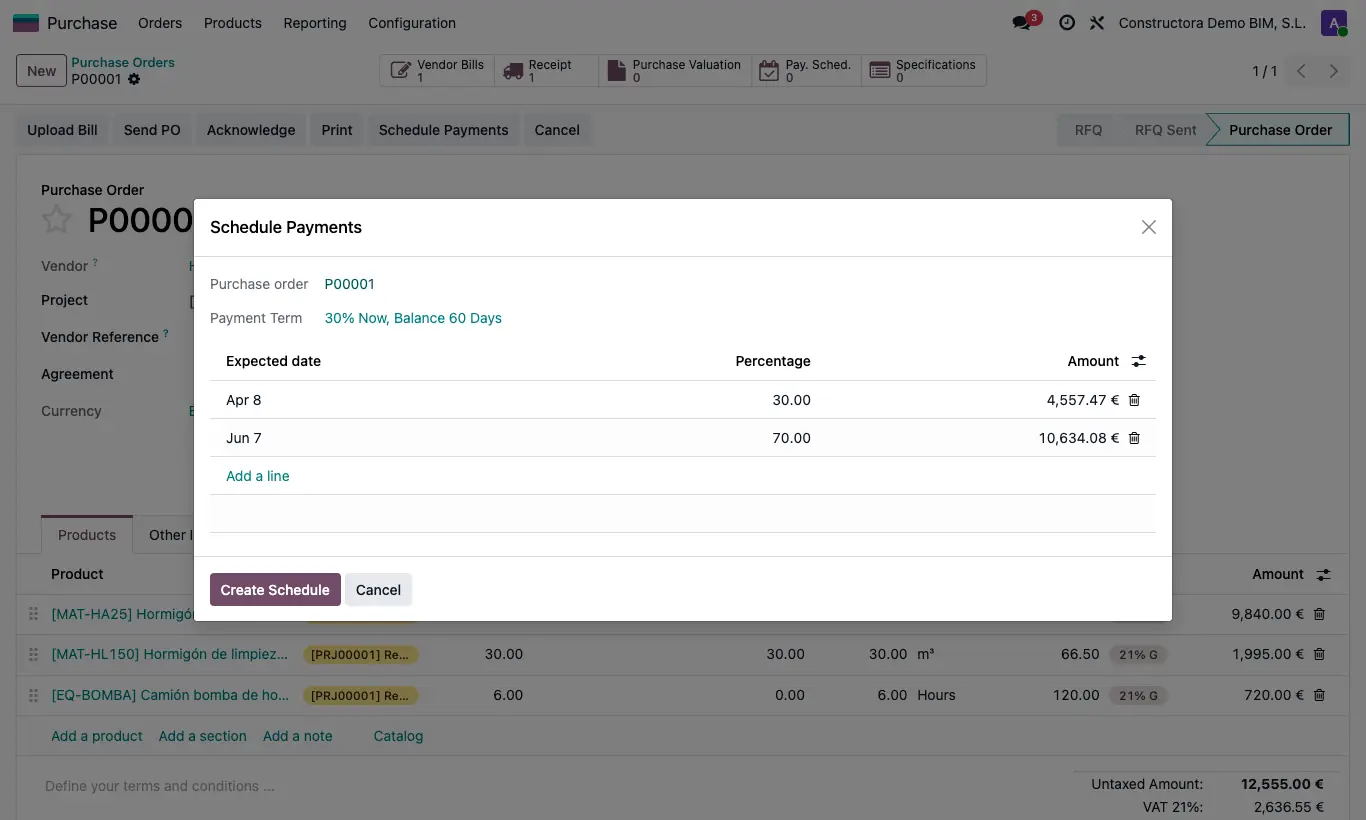
- Open the confirmed order and click Schedule Payments.
- The wizard proposes dates and percentages according to the vendor's payment term: adjust them (they must add up to 100 %).
- Click Create Schedule: one scheduled payment is created per line.
- On each payment complete How It Is Paid (Transfer or Cash), the Payment Milestone and the Notes, and click Plan.
- Whoever has the Payment Approver profile turns on Approved for Payment and clicks Approve.
- When paying, note the Actual Date and click Mark as Done.
- On the order you will see Paid and Pending in Payment Schedule Summary.
Warning
If the order already has scheduled payments, the wizard does not open: edit them from the Pay. Sched. button.
Without a payment term on the vendor you get “The vendor has no payment term configured.”.
Without Approved for Payment you get “You must tick Approved for Payment to be able to approve.”.
Site note
Milestones are defined in Purchase › Config › Payment Milestones.
If you type a % Percentage on a draft payment, the amount is calculated on the order's taxable base (or on the total, if the administrator sets “gross” in the “payment_pct_base” key of General Config).