Where Purchase › Orders › (order) › Schedule Payments
Before you start
BIM Valuation profile. Confirmed order and a vendor with a payment term.
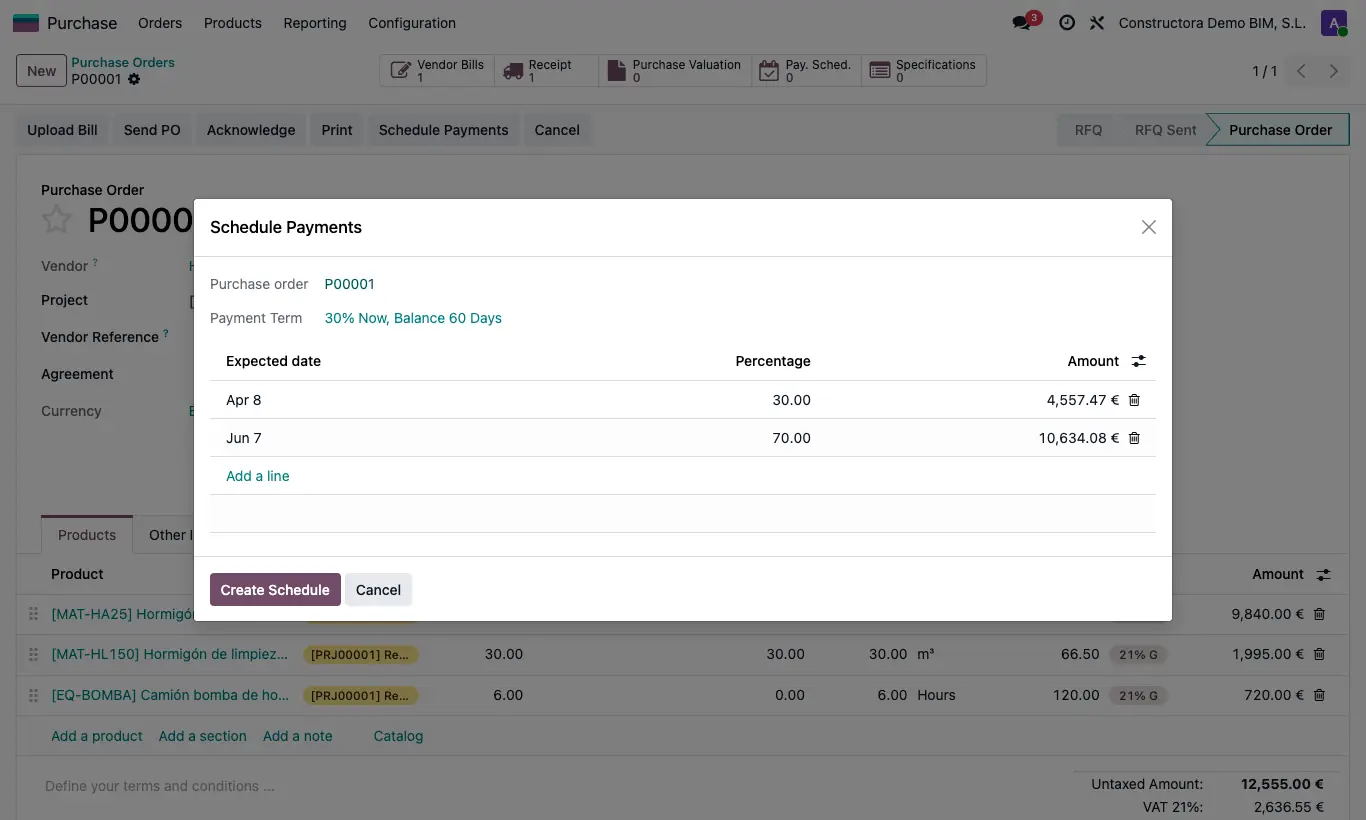
Steps
- Open the confirmed purchase order and click Schedule Payments.
- The wizard proposes the payments according to the Payment Terms: Expected date, Percentage and Amount.
- Change dates or percentages, or add lines. The percentages must add up to 100 %.
- Click Create Schedule. The payments appear on the order's Pay. Sched. button and in Purchase › Orders › Payment Schedule.
- On each payment you can set How It Is Paid (Transfer or Cash), the Payment Milestone and Notes.
Warning
The button only appears once: if the order already has a schedule, edit it from Pay. Sched.
Without a payment term on the vendor it warns “The vendor has no payment term configured.”
Site note
Payment milestones (e.g. signing, delivery) are created in Purchase › Config › Payment Milestones.
The order shows in Payment Schedule Summary the Saldo Total, what is Paid and what is Pending.
If you add a payment by hand with % Percentage, the amount is calculated on the base without taxes (or with taxes if the payment_pct_base key in General Config is set to gross).