Where Contact › BIM Portal tab (Access Credentials)
Before you start
BIM Portal Customer Odoo module installed.
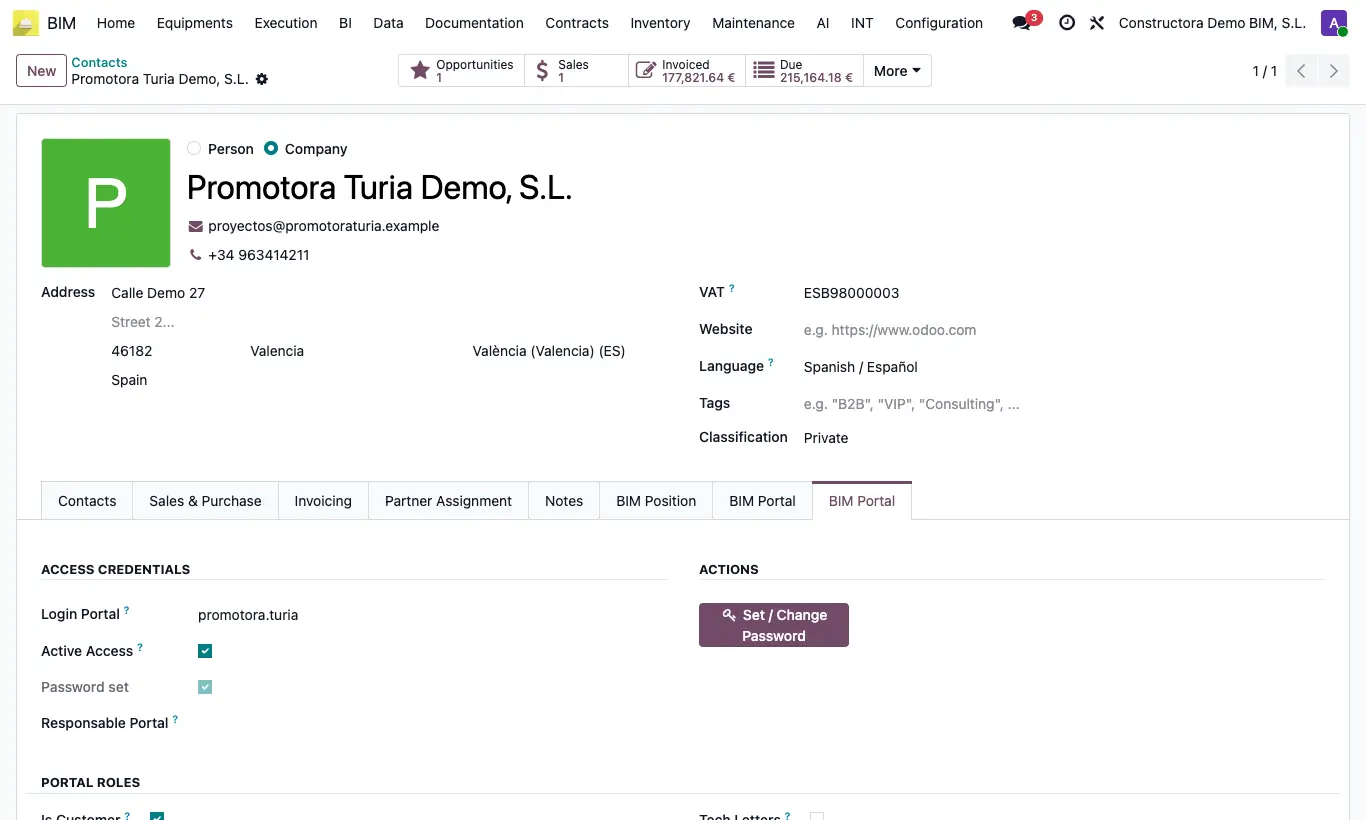
Steps
- Open the contact and go to the BIM Portal tab that has Access Credentials.
- Enter the Login Portal (for example, jose.garcia) and tick Active Access.
- Click Set / Change Password.
- Enter the New password and Confirm Password, or click Generate secure password; note it down and click Save password.
- In Portal Roles tick what they can see: Is Customer (progress, tickets and documents of their projects), Is Employee (vendor bills and leave), Tech Letters, Is Vendor, Timesheets (with their Linked Employee) or Cash.
- Save and send them their login and password.
Warning
The password is stored encrypted: it cannot be viewed afterwards. If it is lost, set a new one.
It must have at least 8 characters and not be Weak (use upper case, lower case, numbers and symbols); otherwise it is not saved.
With Active Access but no password, the tab warns "No password configured" and the person cannot log in.
The Login Portal cannot be repeated on two contacts.
Site note
If the contact shows two BIM Portal tabs, each is a different portal: the one with the Activate button is Odoo's web portal; this one, with Login Portal and roles, is the BIM Customer Portal app.
The session in the app expires after 8 hours.