Before you start
To assign them: Administrator role.
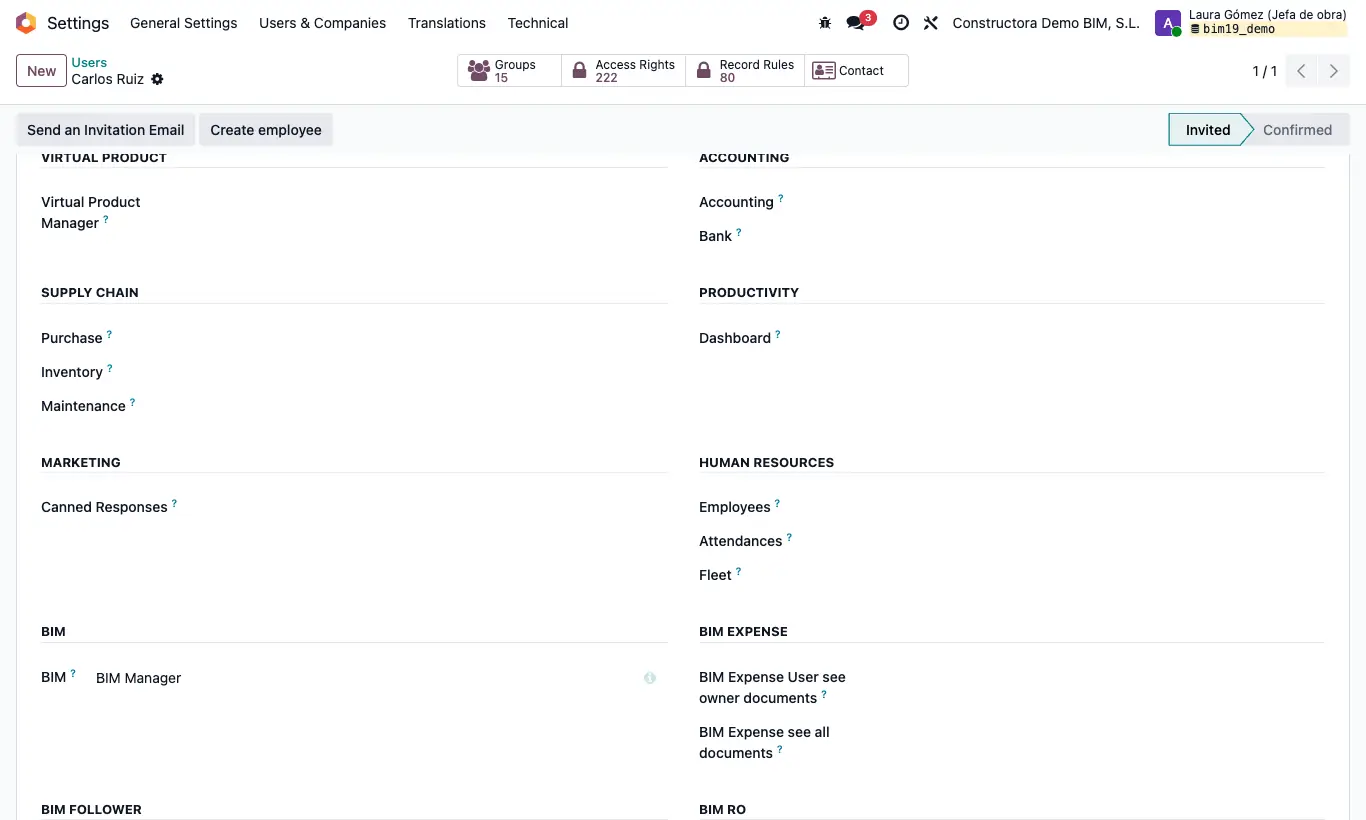
Steps
- BIM Valuation: menus Purchase › Orders › Purchase Valuation, Payment Schedule and Bim Purchase Report; on the order, the Schedule Payments button and the Purchase Valuation and Pay. Sched. buttons; and the Pay. Sched. button on the project and on the contact.
- Payment Approver: sees and ticks Approved for Payment in the payment schedule; without that box it will not let you approve the payment. Technical Purchasing Approver: sees and ticks Technically Approved, which is informative only.
- Purchase requisition admin: Approve button of the material requests in Requested state.
- Menu Material Request and Menu Service Request: Purchase Requisition app, so site staff can request without entering BIM.
- BIM Purchase Without Limits: together with BIM Manager, confirms orders without the Limit Purchase control, and sees that box in the Limits tab of the project.
- Reports by Lines: reports Purchase Order x Line, Purchase Invoice by Line, Delivery Note per Line and Valuation x Line in Purchase › Reporting.
Warning
To skip the purchase limit you need both profiles at once, BIM Manager and BIM Purchase Without Limits; with only one the control stays active.
Purchase › Reporting is only seen by users with Purchase at Admin level.
If the purchase confirmation module is installed, only the Purchase Admin sees Confirm Order on draft orders, and is asked to confirm the delivery place.