Where Settings › Users & Companies › Users
Before you start
Administrator role.
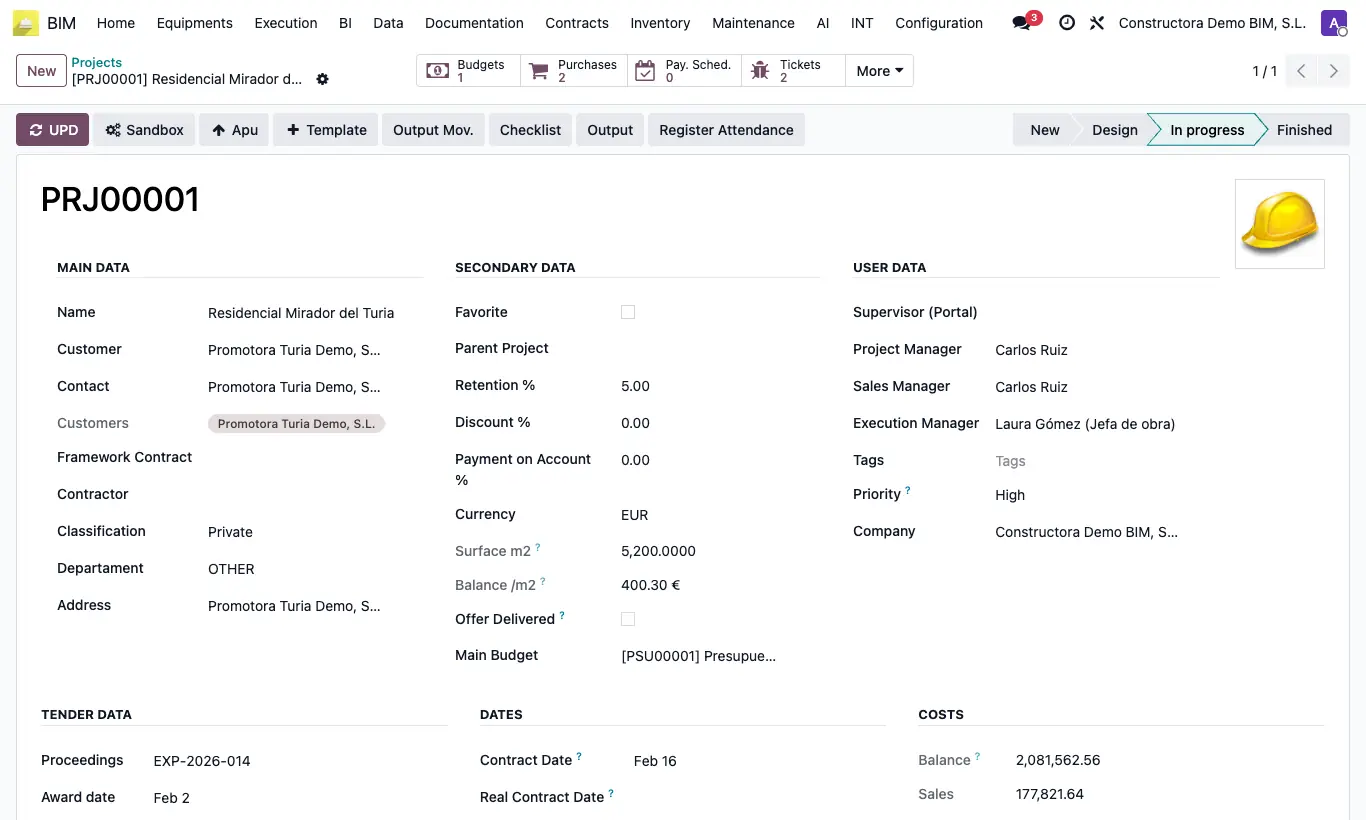
Steps
- On the user form, Access Rights tab, choose the BIM User see owner documents option in the BIM dropdown (not BIM User see all documents or BIM Manager).
- Open each of their projects and, in User Data, set that person as Supervisor. Save.
- Review the other projects: none must have them as Supervisor. Projects without a supervisor are seen by everyone.
- Review the Responsible of the budgets of other projects: if it is them or empty, they will see those too.
- So that they only request material for their projects, fill in the Purchase › Users Requisition tab on the other projects.
- Do not give them BI User if they must not see figures of other projects.
- Ask them to reload the page and check that in Home › Projects › Projects only theirs appear.
Warning
The Project Manager and Execution Manager fields do not give visibility: what counts is Supervisor.
Daily reports, material requests already created, purchases, invoices and cash flows are not filtered by project.
Site note
The Result Table filters by the project's Execution Manager field: fill it in too if you use it.