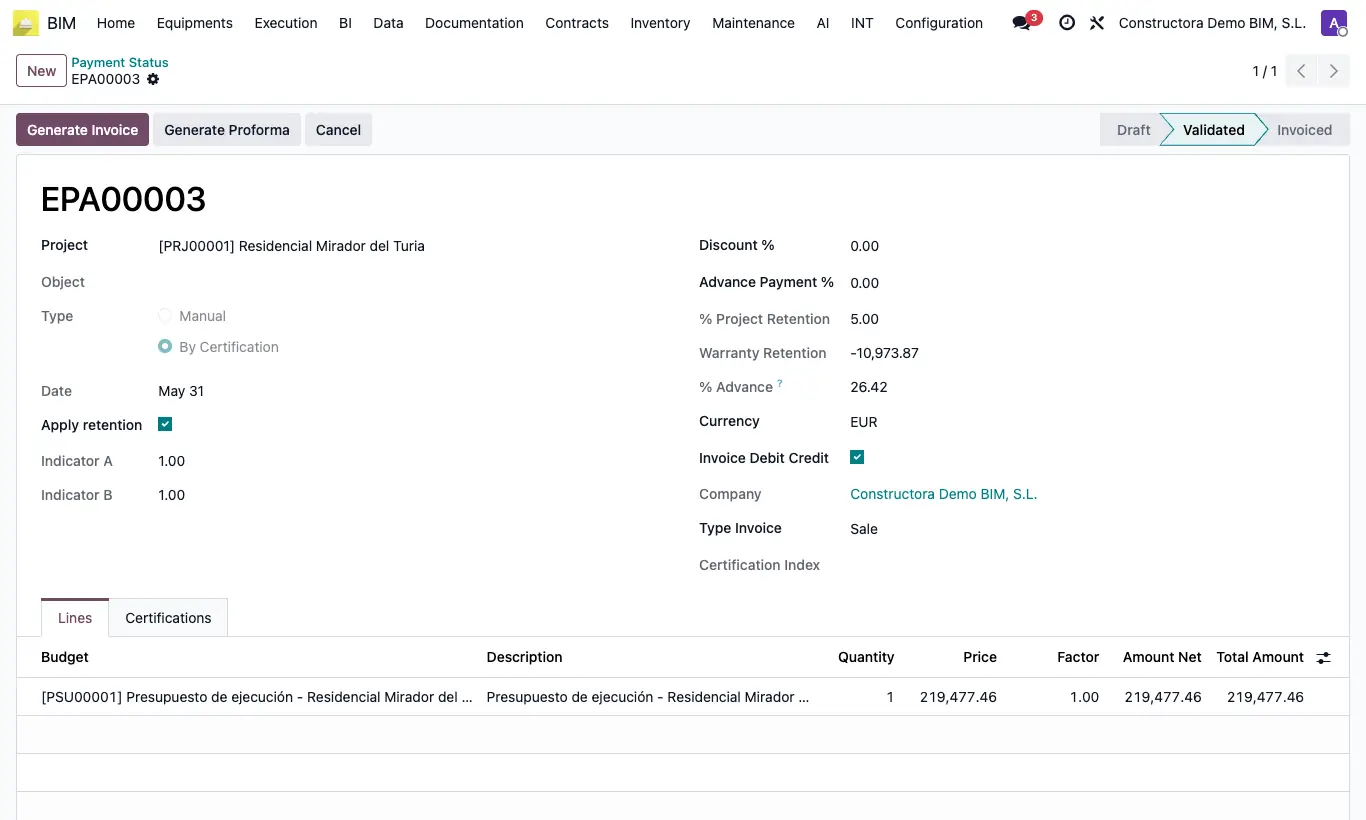
Where Payment status › Generate Invoice button
Invoicing permission in Accounting. Payment status in Validated and a project with a customer.
Steps
- Open the payment status in Validated and click Generate Invoice.
- The draft is created: one line per payment status line and, as negatives, the discount, the advance payment and the retention.
- The payment status changes to Invoiced and the Invoice field links to the draft.
- Check the draft: customer (or the project's Invoice Address), the project's Payment Terms and notes.
- Administration reviews it and posts it.
With no customer on the project: "A customer must be added to the project before invoicing."
It is invoiced with the Payment Status Product from the project form (Accounting tab); if the project has none, with the Product from Settings › Bim 2.0 › INVOICING, and if there is none either, with Accounting's default income account.
If there is no income account: "There is no income account on the product, its category or the Accounting settings".
With Invoice Debit Credit ticked, the Total Amount is invoiced (with factor); otherwise, the Amount Net.
The quantity of each line is multiplied by Indicator A.
The level of detail of the invoice is chosen in General Config (key invoice_breakdown).
With Type Invoice Purchase a vendor bill is created to the project's Contractor (see "How do I invoice a payment status to the contractor…?").
If you want to send a proforma to the customer first, click Generate Proforma instead of Generate Invoice.