Where BIM › Documentation › Contact Surveys › Survey Templates
Steps
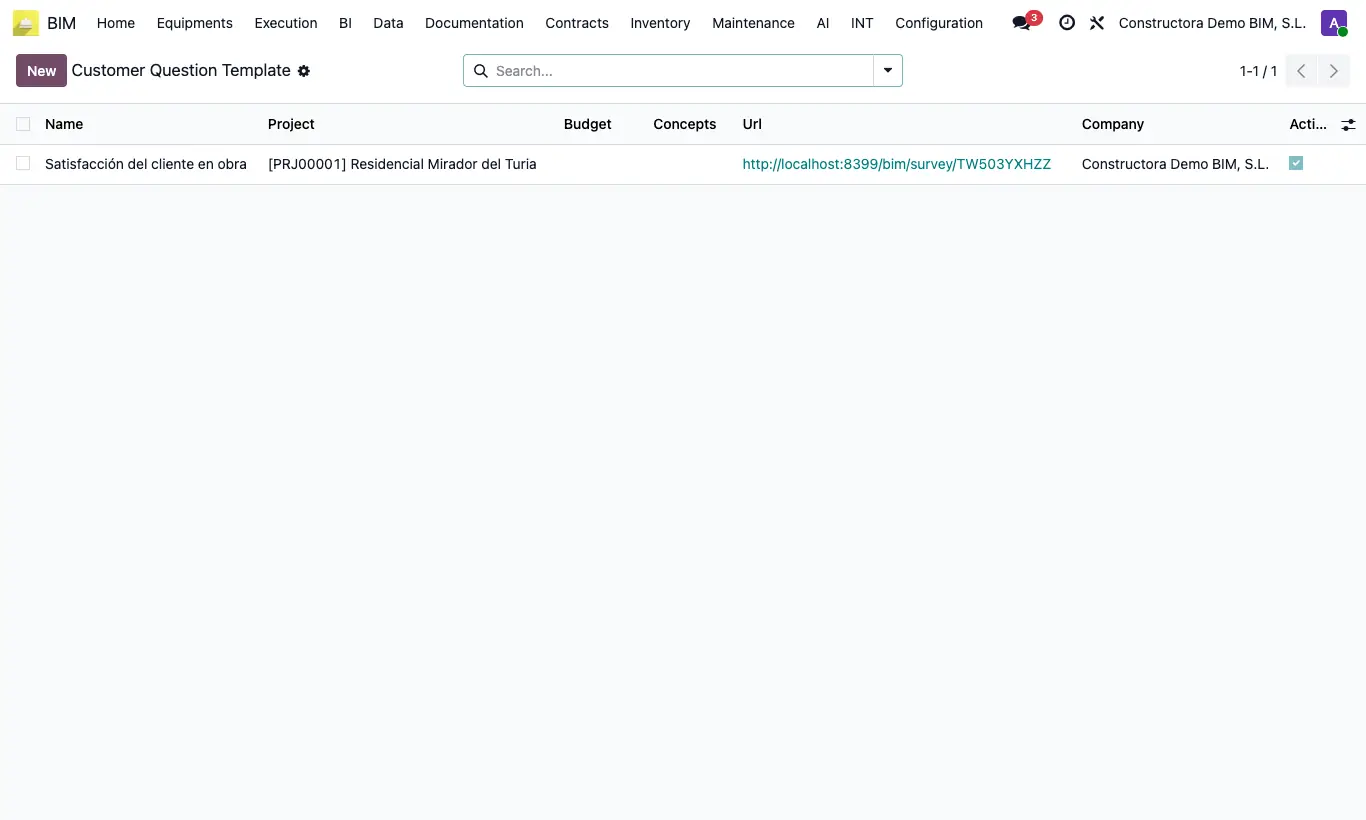
- Open the template and copy the link in the Url field (it also appears in the template list).
- Send it to the customer by email, WhatsApp or as a QR code in the handover record.
- The customer opens the Survey page, types their Name and their Company and ticks an answer for each question.
- Click Send.
- They see the message “Survey submitted successfully. Thank you very much.” and the form disappears. The answer is saved as a new survey in Done state, with the template's project.
Warning
If they leave the name or the company empty, the browser asks them to fill them in before sending.
Questions the customer leaves unticked are not saved: the survey will have fewer lines.
Site note
The same link works for all customers: each submission creates a separate survey.