Where Certification › Create Paid State button
BIM Certification profile to create it and BIM Paidstate to validate it. The certification must be in Certified.
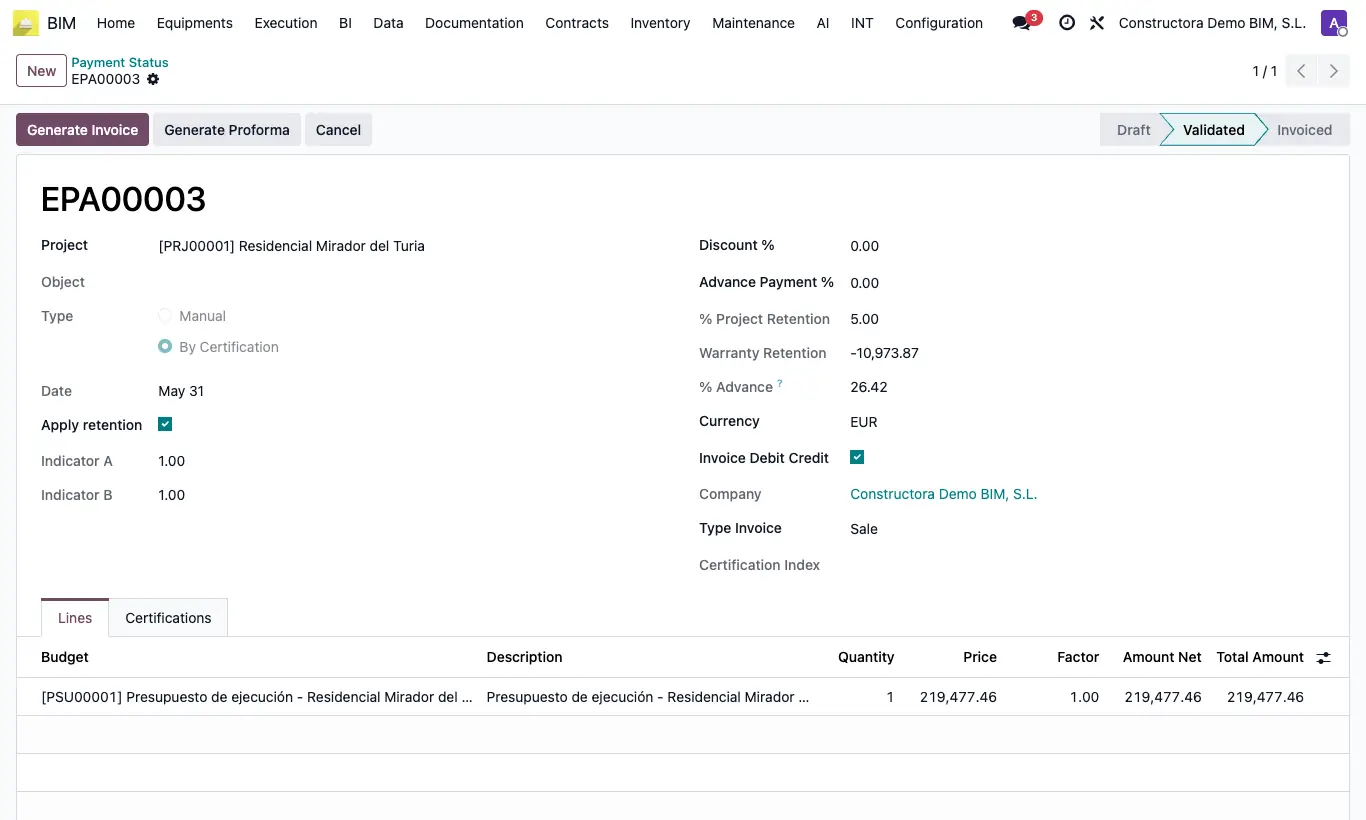
Steps
- Open the certification in Certified state and click Create Paid State. The button only appears if it does not have one yet.
- The payment status is created in Draft, of type By Certification, with one line for the budget's certified amount and its Factor. Open it from the certification's payment status field or in Home › Certifications › Payment Status.
- Check Apply retention: when ticked, it calculates the Warranty Retention with the % Project Retention from the project form.
- Check Discount % and Advance Payment %: they come from the project and you can change them as long as it is not invoiced.
- If you want, write notes for the invoice in the box below.
- Click Validate: it changes to Validated.
- Click Generate Invoice to create the draft invoice: to the customer with Type Invoice Sale, or a vendor bill to the project's Contractor with Purchase.
Once the payment status is created, Create Paid State and Undo disappear from the certification; only Pasar Validado remains. If you correct the certification this way, check the payment status afterwards.
Validating without lines gives "There are no lines to validate".
If the budget has indices and the one for the certification's month is missing, "There is no index for this month" appears and it is not created.
States: Draft › Validated › Invoiced, and Canceled.
The Certifications tab shows the linked certifications; the certification shows the Invoiced ribbon when its invoice is posted.
Chapter certifications have the same Create Paid State button.
If the budget has certification indices, the one for the certification's month is applied in Indicator A.
You can also create it from the menu and load several budgets at once.