Where Budget › RC tab · Project › Limits tab
Before you start
The Limits tab is only visible to BIM Manager and See project costs.
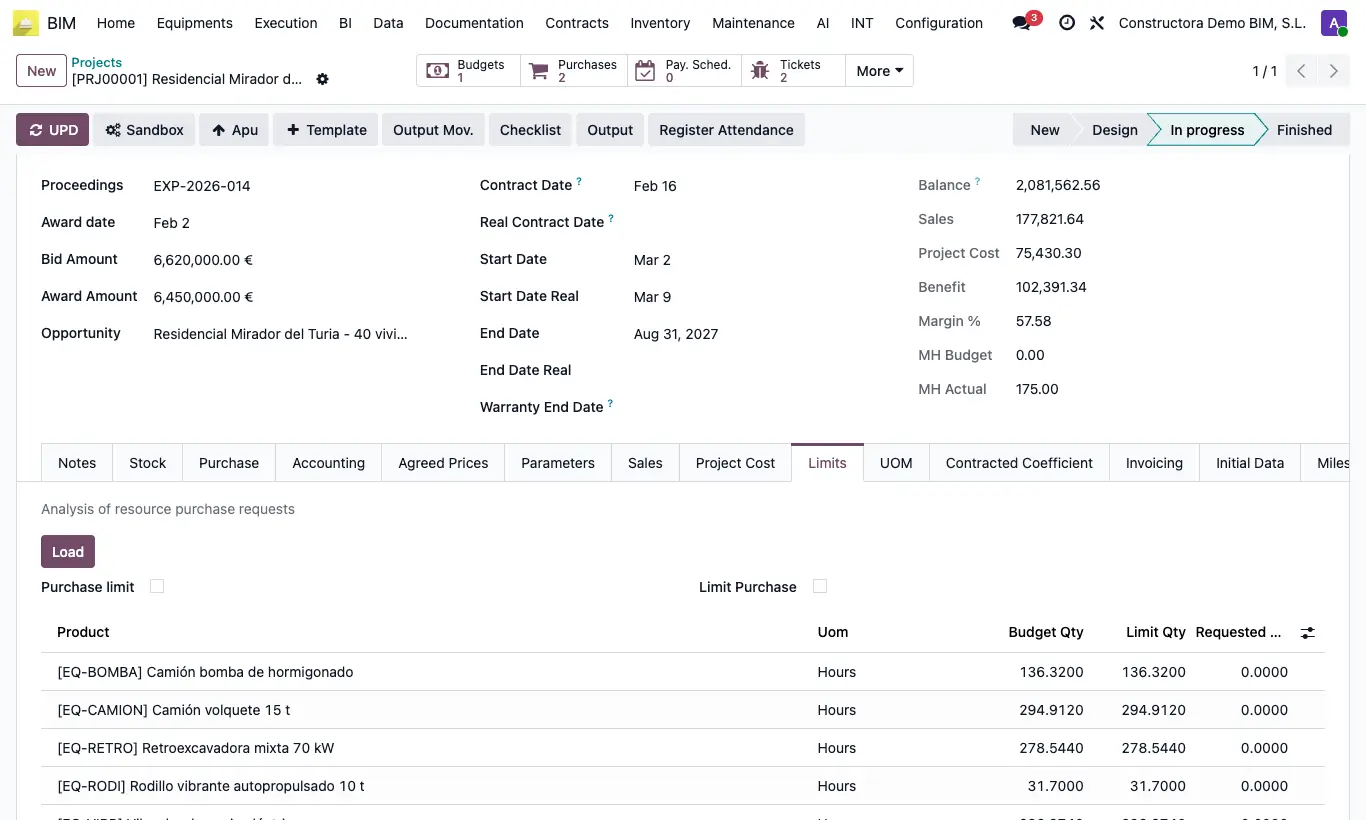
Steps
- In the budget open the RC tab: per resource you will see Budget Qty and Requested Qty (what is approved in requests loaded from that budget).
- For a per-project control, open the project and go to the Limits tab.
- Turn on Purchase limit and set the Percent Limit (100 = do not exceed the budgeted amount; 110 = a 10 % margin).
- Click Calculate to generate the resource lines and Load to update quantities.
- Review per resource Budget Qty, Limit Qty and Requested Qty.
Warning
Only what is approved from requests that have a budget is recorded, that is, loaded with Load Resources. Lines added by hand do not count in the RC tab.
Site note
With Purchase limit on, when approving a material or service request that exceeds what is left up to the limit, you get “The product … exceeds its limit on project …” and it is not approved.
The More Materials and More Services options in the BIM 2.0 settings (“Allows buying more Materials than those set”) are copied to each request as Allow to Buy More.