Where BIM › Documentation › Recurring Contract
A sale order with the lines to be invoiced each period. To enable automatic invoicing: Administrator role and developer mode.
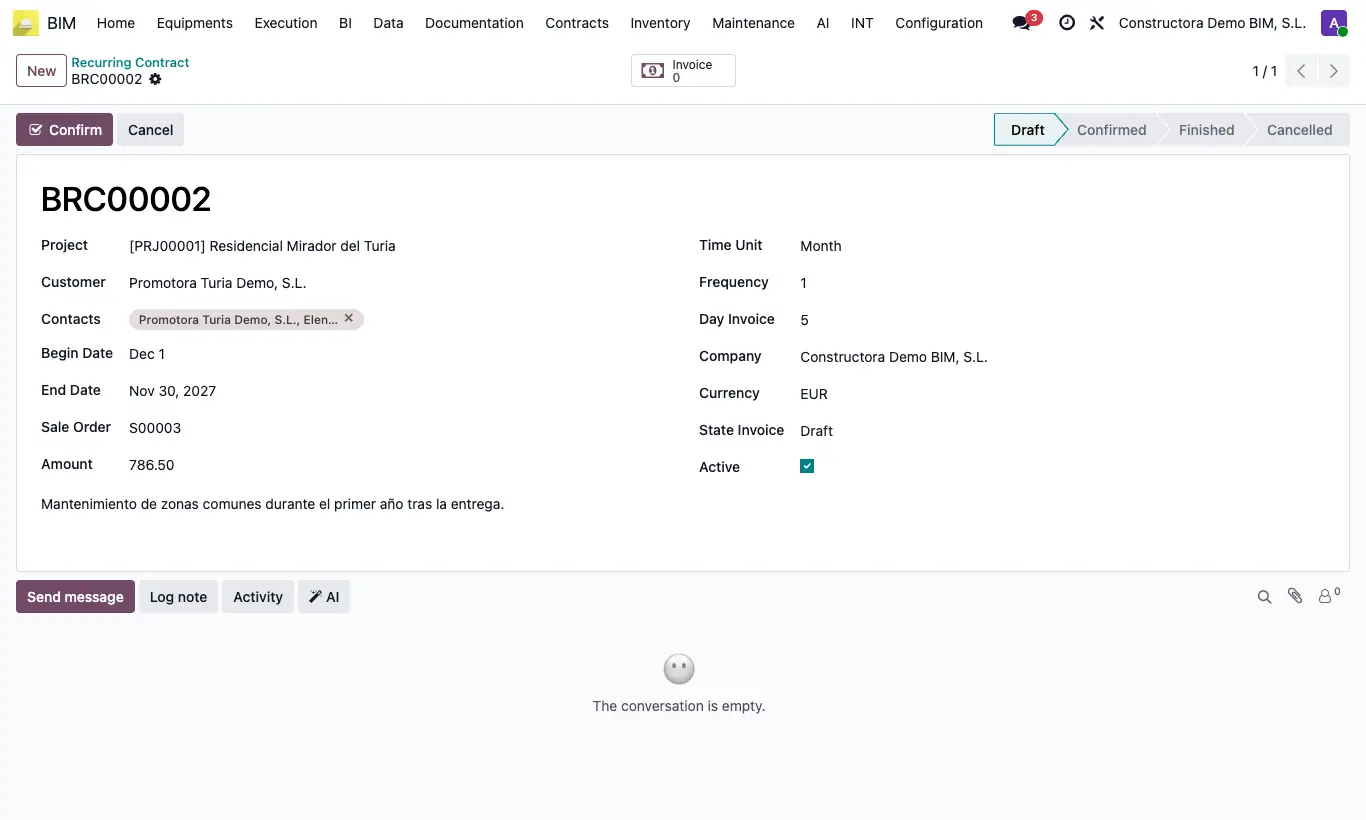
Steps
- Click New and choose Project, Customer, Contacts, Begin Date and End Date.
- Choose the Sale Order: the Amount is filled in with its total. Each invoice copies the order lines (product, quantity and price).
- Set how often to invoice: Time Unit (Day, Week, Month or Year) and Frequency (for example, 3 with Month = quarterly). For monthly, Day Invoice sets the day of the month.
- Choose the State Invoice: with Open the invoice is posted; with Draft it stays as a draft for review.
- Click Confirm. To issue the invoice due now, click Execute; the invoices are shown with the Invoice button.
- For them to be issued on their own, enable the automatic task once: with developer mode go to Settings › Technical › Automation › Scheduled Actions, open BIM Recurring Contract, tick Active and save. It checks confirmed contracts every 8 hours.
The automatic task comes disabled: without enabling it, invoices are only issued when you click Execute.
With Email the invoice also stays as a draft and is not sent to anyone: send it from Invoicing.
Without a sale order it does not invoice: “There is no sale order associated with this contract.”. The Amount is informative; what is invoiced are the order lines.
Outside Draft the contract data is locked. Cancel only appears in draft.
The first invoice is issued on the Begin Date (for monthly, the Day Invoice of that month or the next); the others, the last invoiced date plus the frequency. If the day does not exist in the month, the last day is used.
If the contract starts in the past, each run issues one pending invoice until it catches up.
The invoices are created with Include For Bim, the project and its analytic account, so they count as project income.
When the End Date passes, the next run sets it to Finished without invoicing. Finish ends it manually and Draft reopens it.