Where Purchase › Orders › Orders
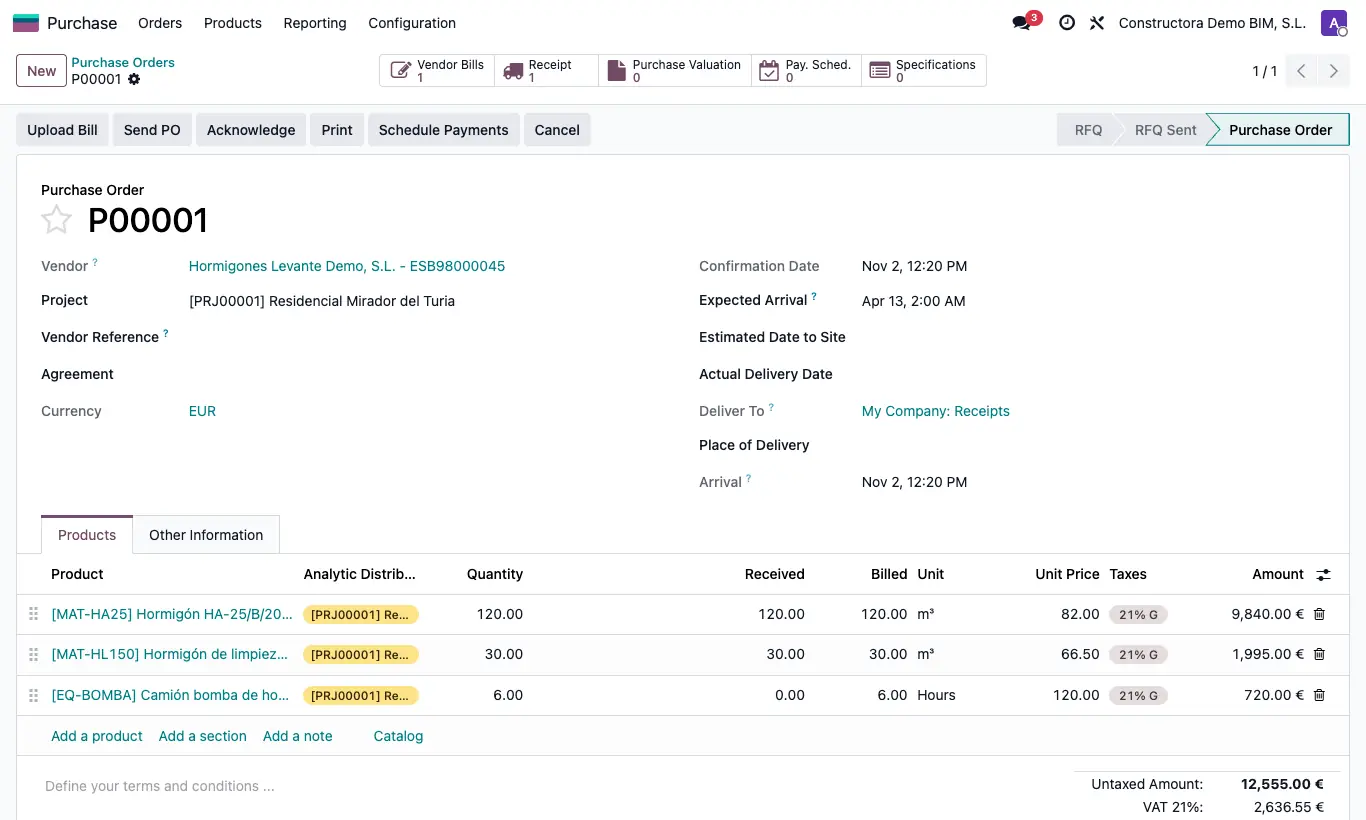
Steps
- On the order choose the Project (only projects whose state has Create Purchase Orders appear) and, if you want, the Budget and the Concept (item).
- Set the Place of Delivery, the Estimated Date to Site and, later, the Actual Delivery Date.
- Click Confirm Order. With the purchase confirmation module installed, the button is Confirm Order and asks you to accept “Are you sure the place of delivery is correct?”.
- On confirmation, the receipt that is created carries the order's project, budget and item, and the price is kept in the product's purchase history.
Warning
If the project state does not have Create Purchase Orders, you get “You cannot confirm a purchase order on a project that is not in the 'Create Purchase Orders' state”.
If the budget state does not have Allow Supplier Purchase, the equivalent warning appears for the budget.
With the purchase confirmation module, the Confirm Order button on a draft order is only seen by Purchase administrators.
Site note
On the order PDF, Place of Delivery appears: the order's place of delivery or, if empty, your company's address.
With Use Project Warehouse on in settings, when you choose the project the order takes the receipt type of the project's warehouse.