Where BIM › Inventory › Products
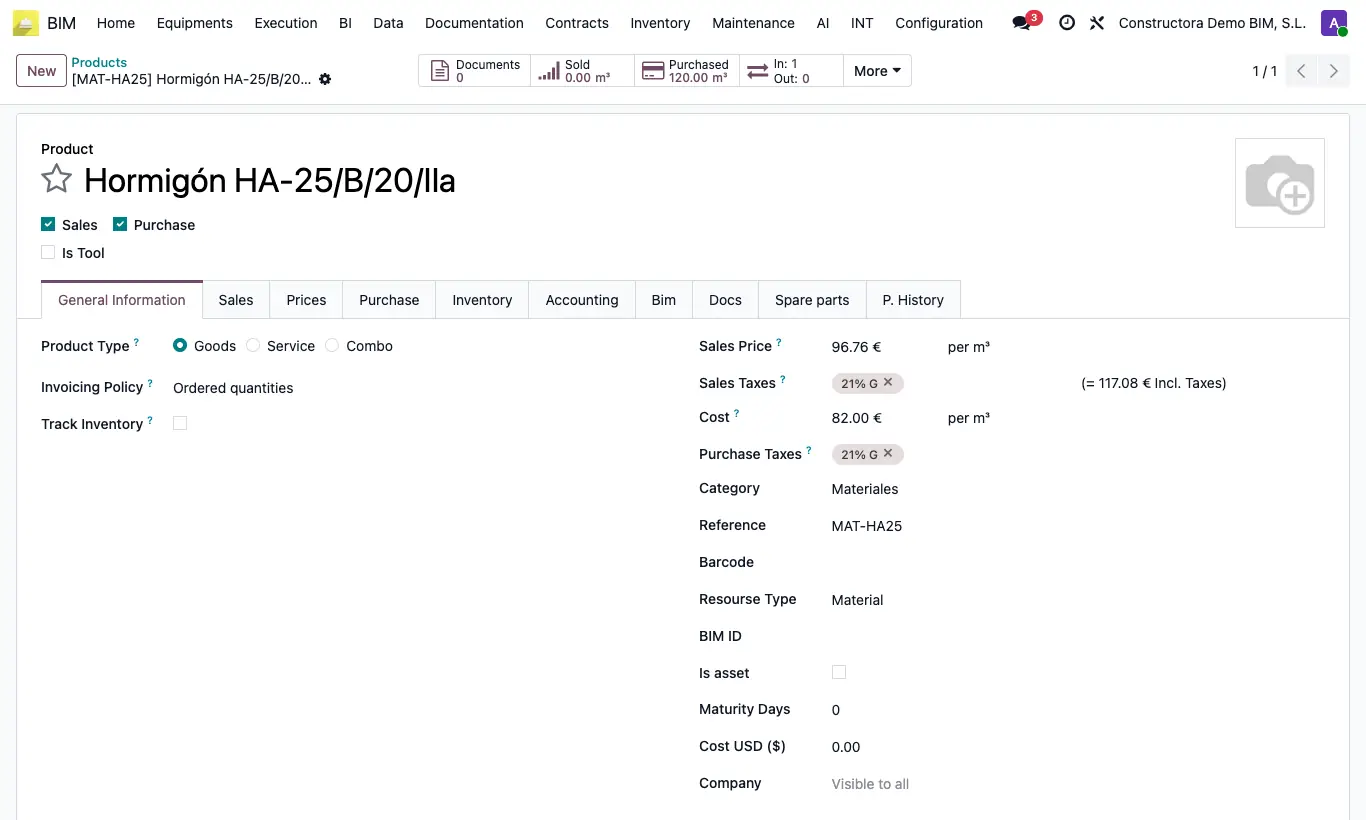
Steps
- Open the product in Inventory › Products.
- Change the Cost or the Sale Price, according to your company's rule in Price in Budget.
- If you buy in dollars, type the Cost USD ($): the Cost is calculated automatically with the latest dollar rate.
- Save: resources you add from now on will take the new price.
- To bring it into an existing budget, use its Up. button. For your library, Update Prices on the unit prices.
Changing the product price does not modify the resources already in budgets or unit prices.
Typing a Cost USD ($) overwrites any existing Cost.
The rate is divided or multiplied according to the Exchange Operator of the dollar rate.
There is a daily automatic task that recalculates the cost of products with Cost USD ($). It comes disabled; an administrator can enable it.
If your company works with a master price server, Update From Master (on the form) or Action › Update Product From Master (in the list) bring in the name and cost by Default Code. First you must fill in Master Url, Master Region and Master Token in the BIM 2.0 settings.
If the product has an ITE in the Bim tab, its Sale Price is set equal to the ITE total when you choose it.