Where BIM › Inventory › Mobile Warehouse
Before you start
Inventory profile; to create the warehouse, Inventory Administrator.
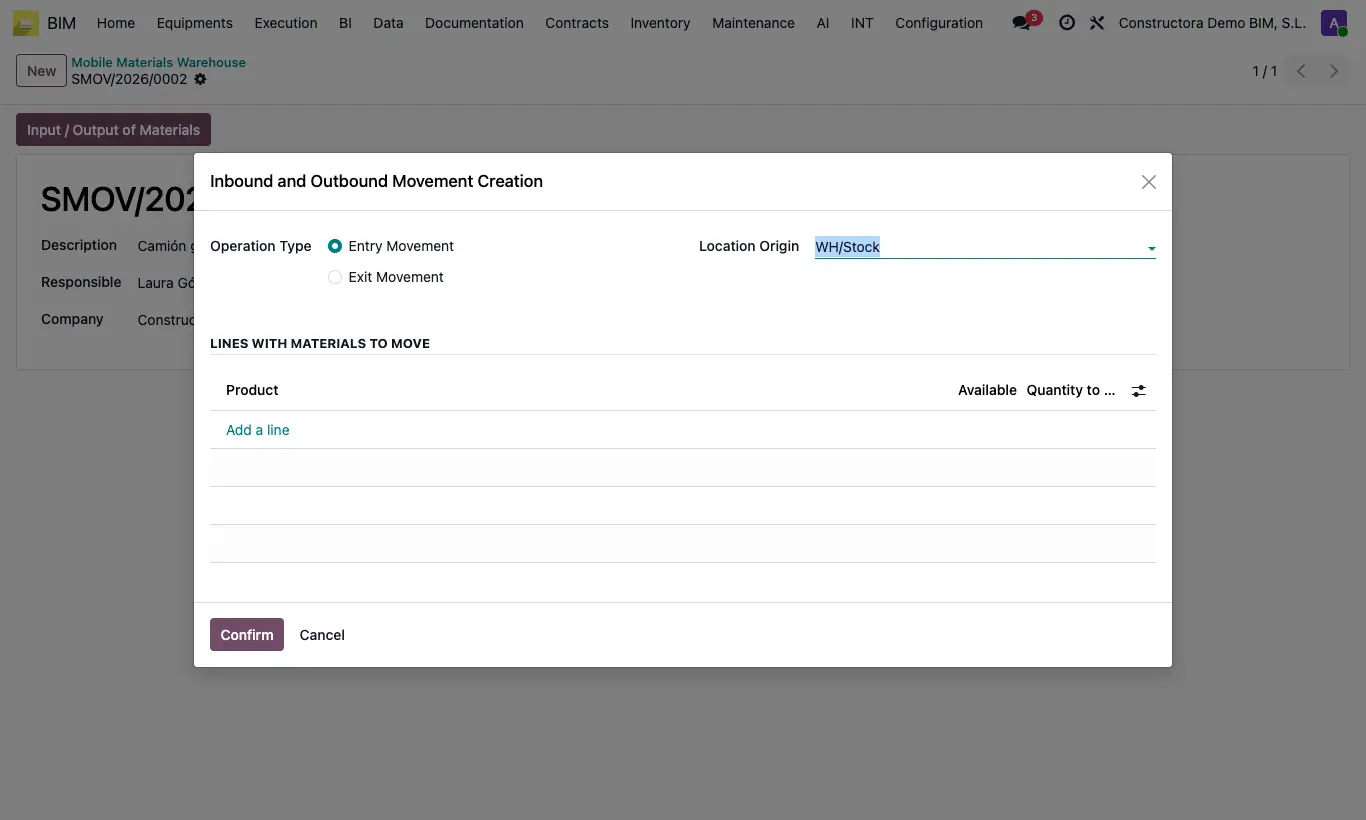
Steps
- Click New, type the Description (it will be the warehouse name), the Responsible and the Date, and save: its warehouse is created in Location.
- To load it, click Input / Output of Materials, choose Entry Movement and the Location Origin the material comes from.
- In the lines add each Product (materials only) and the Quantity to move; the Available column shows what is at the origin.
- To take material to a project, choose Exit Movement and the project in Destination Location: the lines are loaded with what is in the warehouse.
- Click Confirm: the delivery note is created and, with Validate Stock Movements active in the settings, it validates itself.
- Check the movements with the warehouse's Inputs and Outputs buttons.
Warning
If the destination project has no warehouse you get “There is no inventory location associated with the destination project”.
The outbound to the project does not carry the project in its BIM information nor Include for BIM: it only moves stock. The consumption is charged afterwards, with an outbound from the project warehouse.
Site note
The Location Origin proposed for entries is Mobile Warehouse Location in the BIM 2.0 settings (INVENTORY section) or, if empty, your company's main warehouse.