Where Inventory › Operations › Transfers
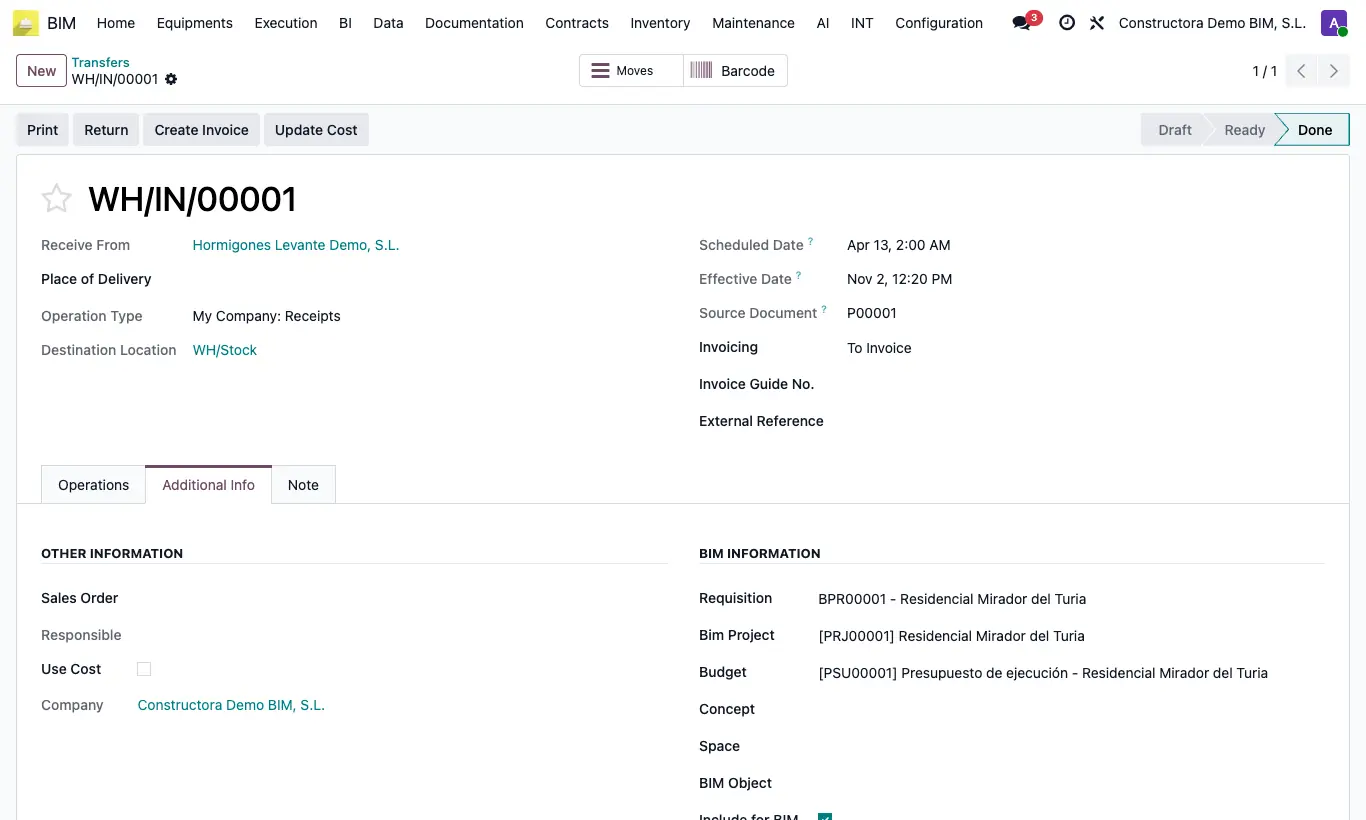
Steps
- Open the delivery note and go to the Additional Info tab, BIM Information section.
- Fill in the Bim Project and, where applicable, the Budget, the Concept (item), the Space and the BIM Object. When you choose the project, Include for BIM is ticked automatically.
- Check Include for BIM: untick it if that delivery note should not count.
- For several delivery notes at once, select them in the list and in Actions choose Include or Not in BIM (it ticks or unticks the box on each one).
- Click UPD on the project to see the updated cost.
Warning
If the delivery note's budget state lacks Register Material Request, you will not be able to enable Include for BIM.
Site note
Delivery notes created with a project (receipts from orders with a project, BIM outbounds) come with Include for BIM ticked, unless their budget state lacks Register Material Request.
Delivery notes without a project start with the box unticked, unless the administrator enables the system parameters stock.picking.in (receipts) or stock.picking.out (deliveries) with the value True.
With the standard configuration (key “type_cost” = 1, Outbound Delivery Note, in General Config) what counts as consumption is validated outbounds; receipts do not count on their own.