Where BIM › Inventory › Material Request › Material Request
Before you start
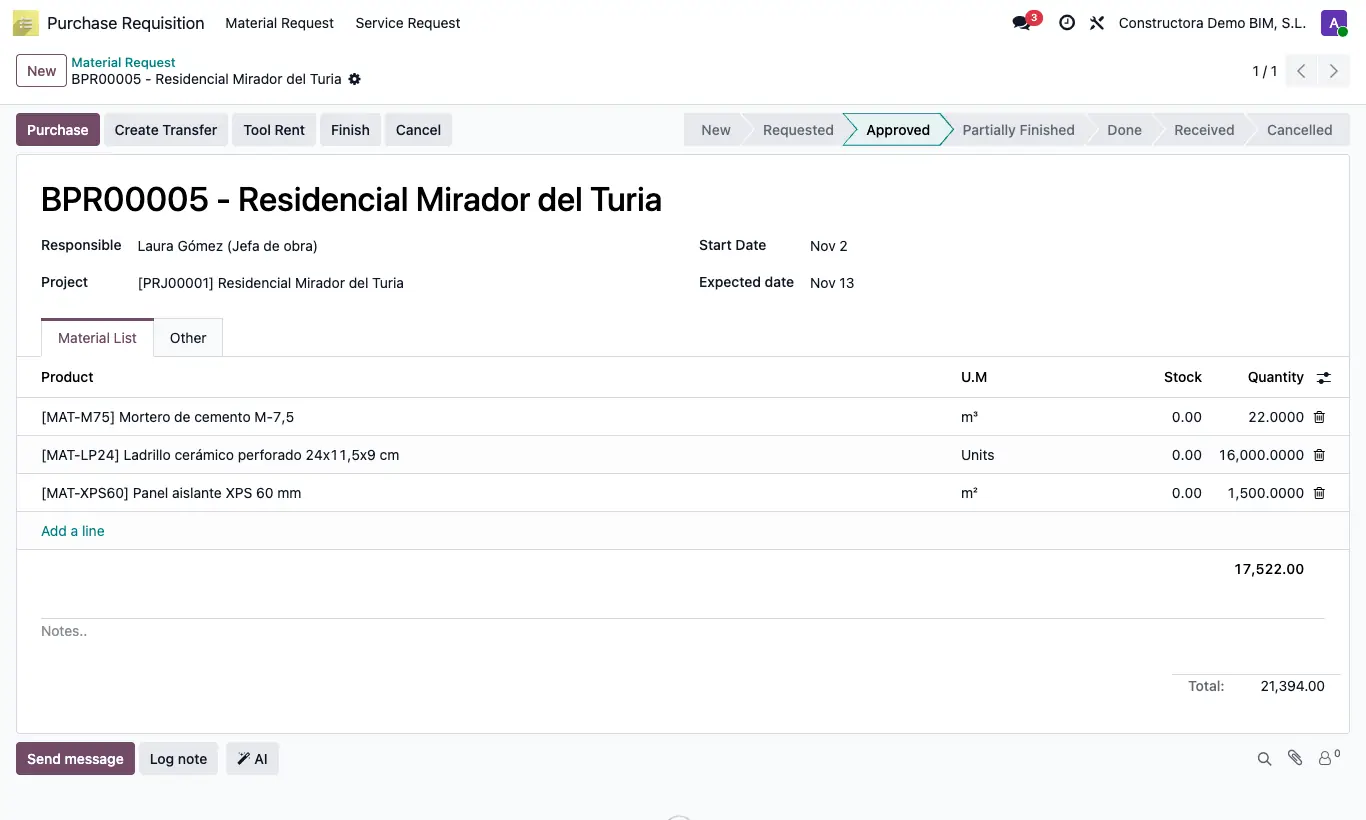
Request in Approved state. The project with a warehouse.
Steps
- If you do not want to bring everything, type in the Dispatched column of each line the quantity you will supply (show the column with the columns icon).
- Click Create Transfer: an internal transfer linked to the request (Requisition) opens, with the Bim Project and the project location as destination.
- Change the source location to that of the warehouse supplying the material.
- Review the products and quantities, save and validate the transfer.
- What is received counts as Dispatched Quant. in the request and is no longer To process.
Warning
If the project has no inventory location you get “The project … has no inventory location configured”. Create its warehouse first.
Without Dispatched or Picking Move All, the lines come out with quantity 0.
Site note
With Picking Move All enabled in the BIM 2.0 settings (INVENTORY section), the transfer proposes the full quantity of each line.
The request's transfers open with its Transfers button.