Where BIM › Inventory › Material Request › Material Request
Before you start
To approve, the Purchase requisition admin profile.
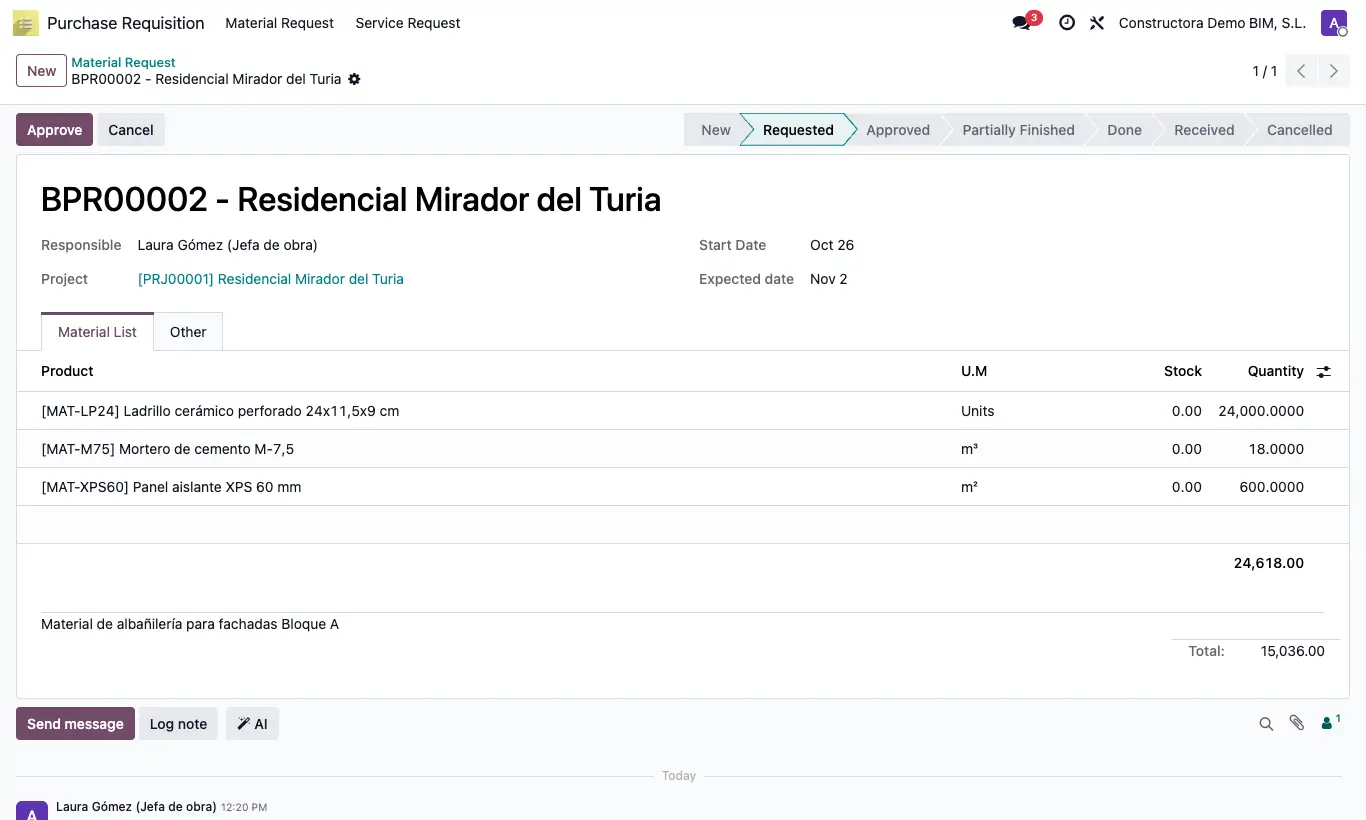
Steps
- Click New (or the project's Material Request button) and choose the Project, the Start Date and the Expected Date.
- Add lines by hand in Material List or click Load Resources to bring them from the budget.
- Check Quantity, U.M and the Stock column (product stock).
- Click To Required: it changes to Requested and lines can no longer be added.
- An administrator clicks Approve: what is approved is noted as requested in the budget.
- Purchasing clicks Purchase to create the orders, or Create Transfer to serve it from another warehouse.
- Click Finish (it changes to Partially Finished), Finish again when closing it (Done) and Received when everything arrives.
Warning
Requests can only be deleted in New state: "This record cannot be deleted in a state other than new!".
Site note
Only your company's projects in which you are in Users Requisition (the project's Purchase tab) appear, or all of them if that list is empty.
You also have the request in Purchase › Orders › Material Request and in the Purchase Requisition app (profile Menu Material Request).
Cancel returns to the budget what was requested; Set to New reopens a cancelled one.