Where BIM › SAT › Budgets
Before you start
BIM SAT profile.
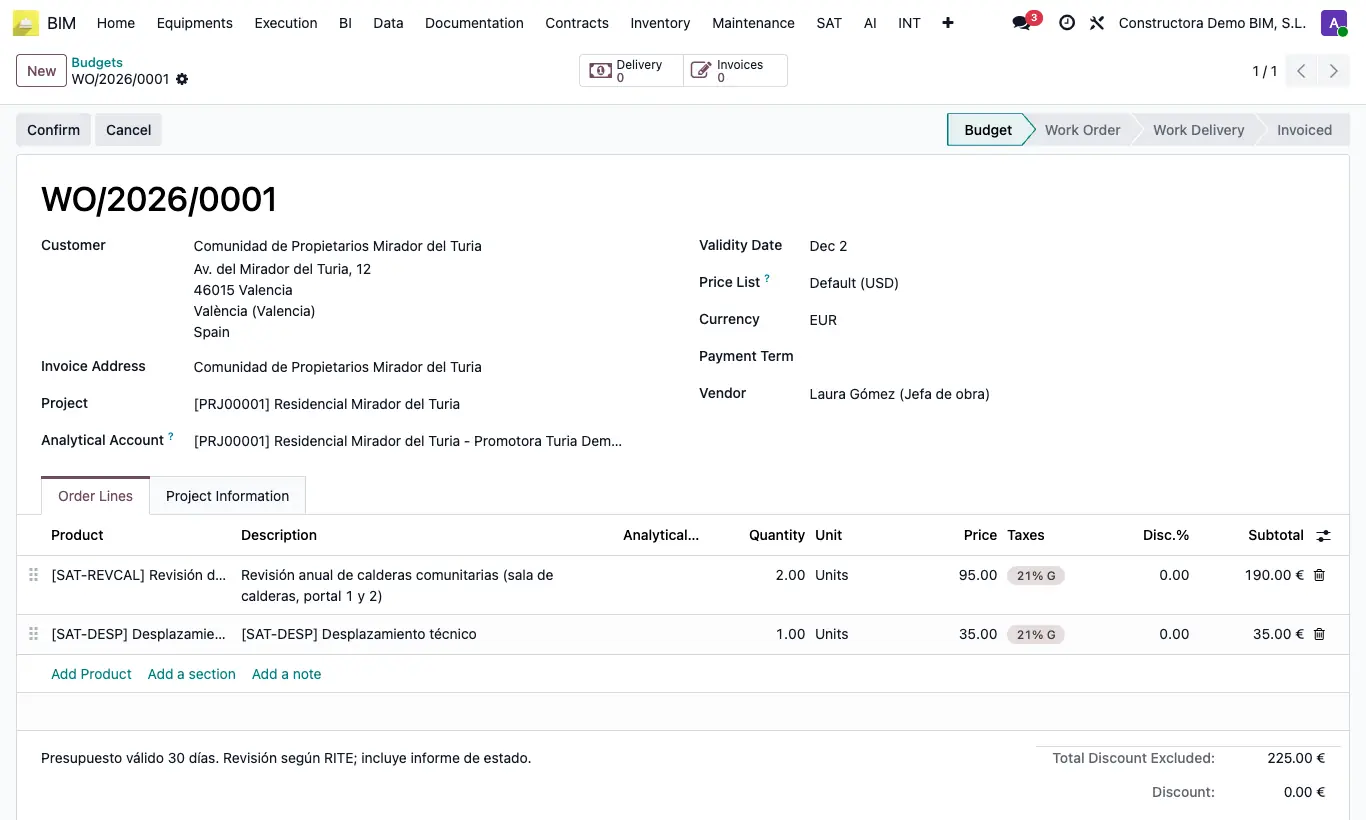
Steps
- Go to BIM › SAT › Budgets and click New.
- Choose the Project: the Customer (the project's customer), the Invoice Address, the Analytical Account and the Currency are filled in automatically.
- If the work is for a different customer (for example, the homeowners' association), change the Customer.
- In the Order Lines tab click Add Product and choose the product or service: the Description, the Price and the Taxes come from the product.
- Adjust the Quantity and, if needed, the price or the discount. Use Add a section and Add a note to organise the quote.
- If you want, set the Validity Date, the Payment Term and, in the Project Information tab, the Customer Reference.
- Save: the quote gets its number (WO/year/number) and stays in the Budget status.
Warning
Without a Project you can save and confirm, but you cannot record the delivery: you need a project with a Warehouse.
Site note
Write in Conditions and Terms (below the lines) the text the customer should see in the PDF.
Materials (goods-type products) will later leave the project's warehouse; services, such as travel or labour, do not move stock.