Where Bim Project › Exit Mov. button
Inventory profile. The project with a warehouse.
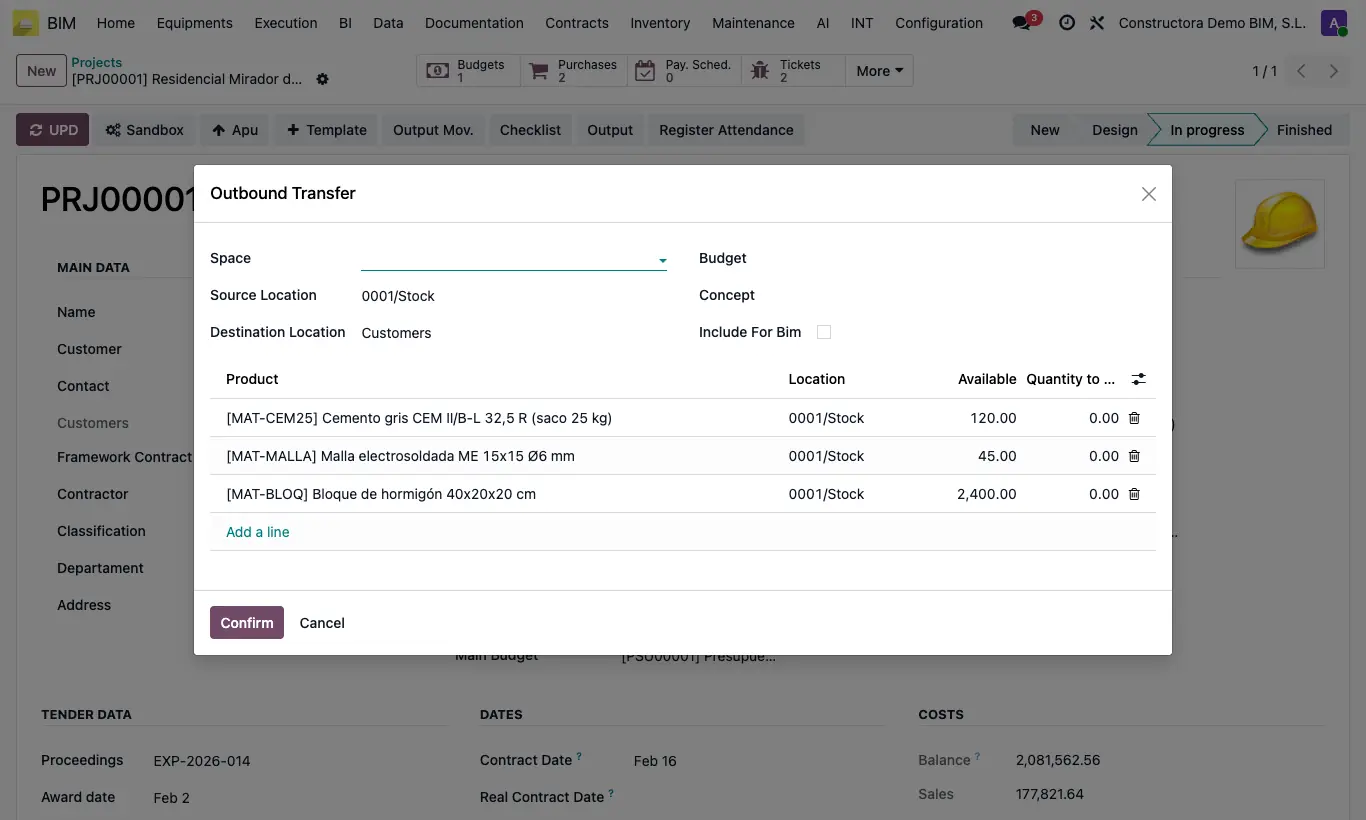
Steps
- Open the project and click Output Mov. (it appears when the project has an inventory location).
- The lines are loaded with the products of its warehouse and their Available quantity.
- Type in Quantity to move what goes out; lines at zero are not moved.
- If you want to charge it, choose Budget, Concept (item) and Space, review the Destination Location and leave Include for BIM ticked so it counts towards the cost.
- Click Confirm: the outbound delivery note is created from the project warehouse and the project cost is updated.
Without Destination Location you get “You must select a destination location”.
From the item the locations come out empty: fill them in or you get “No inventory location is configured in this project”. The material always leaves from the project warehouse.
With Validate Stock Movements active in the BIM 2.0 settings (it is by default), the delivery note validates itself; otherwise it stays pending to validate in Inventory.
Include for BIM comes ticked if Include Picking Cost is active in the settings.
From an item, the Exit Movement button opens the same wizard with a Type to load its materials: All products from Budget Item, Only outbound of products in this Budget Item, Only outbound of products in Project Location or Any product.