Where BIM › Data › Concept Template › BIM Attributes / BIM Parameters
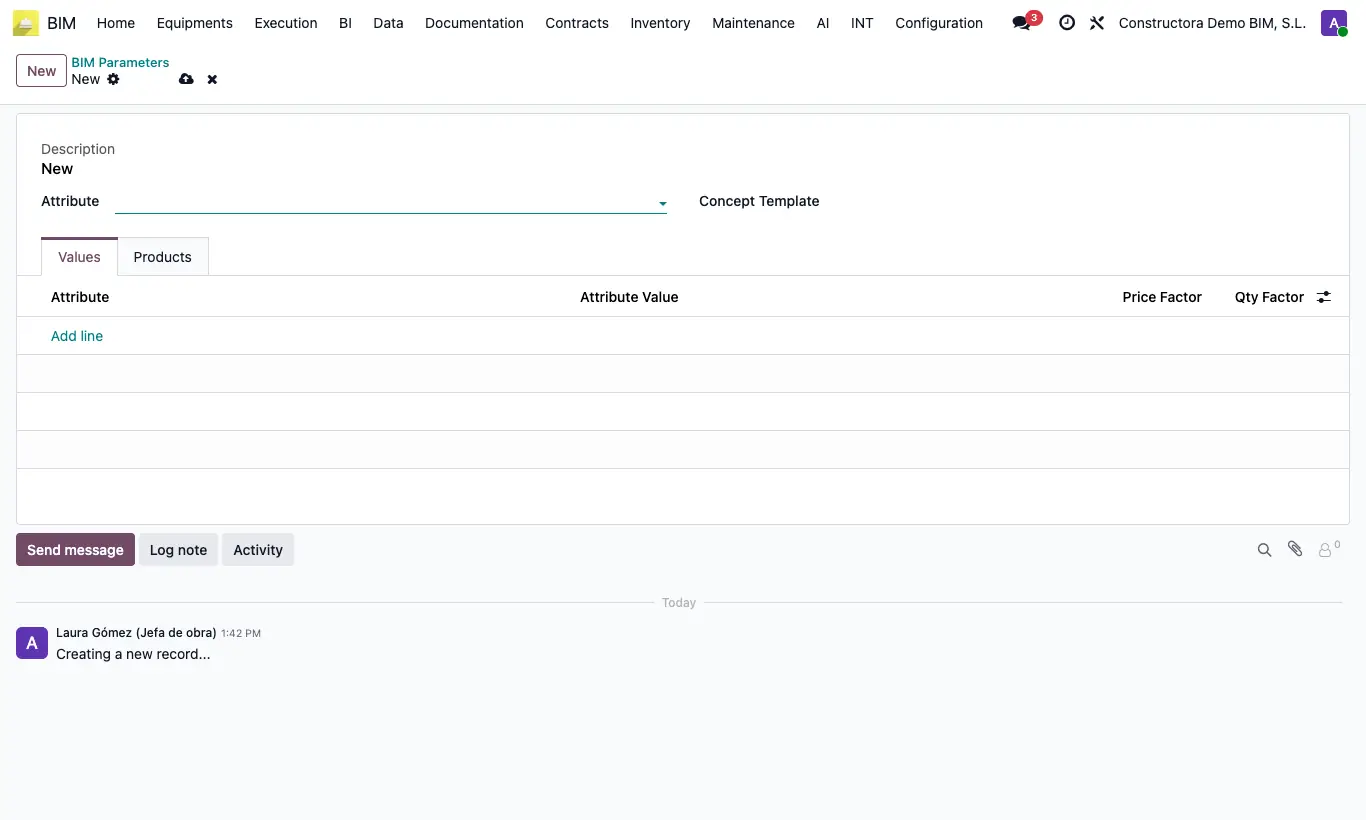
Steps
- In BIM Attributes click New, write the attribute Name (for example, working height) and add its values in the table.
- In BIM Parameters click New, choose the Attribute and the unit price it affects.
- In the Values tab add each Attribute Value with its Price Factor and its Qty Factor (1 = no change).
- In the Products tab choose the resources of the unit price to which the factors apply.
- When inserting the unit price with Apply Concept Template, the wizard's Parameters table shows each parameter with its first value: change it if needed and click Continue. The affected resources come in with the price × Price Factor and the availability × Qty Factor.
- To change it afterwards, in the item click Parameters, change the value and click Continue.
- Click UPD in the budget.
Warning
Items created with Pasting (M) carry no parameters and their Parameters button comes up empty. Use Apply Concept Template or an APU template (which comes in with the first value of each parameter).
A value cannot be repeated in the same parameter: Values cannot be repeated in the same parameter!
Site note
From the unit price form, the Parameters button shows its parameters and lets you create others.