Where BIM › INT › BIM importer › Bim Expenses Import
Before you start
BIM Integrations profile.
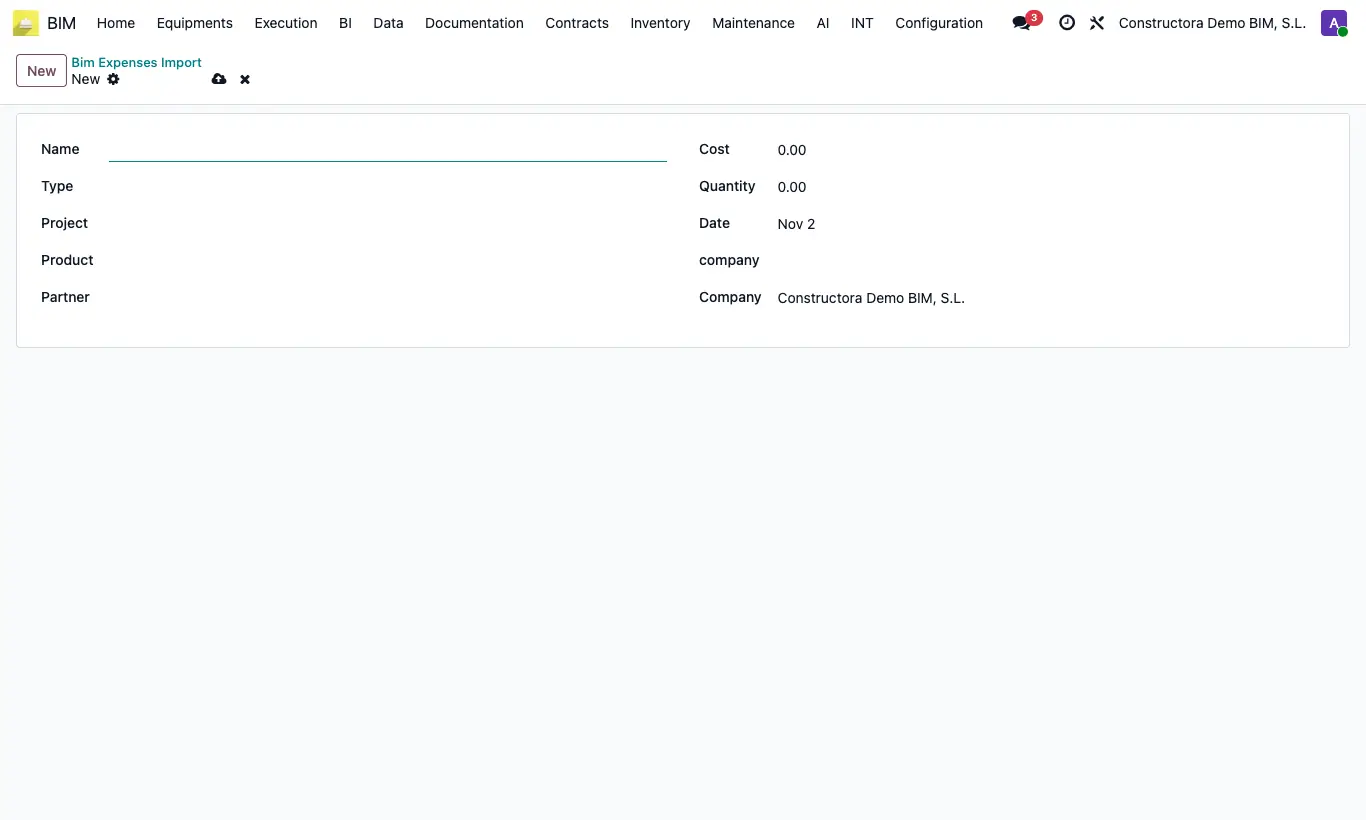
Steps
- Go to INT › BIM importer › Bim Expenses Import.
- Create the lines by hand or with the list's standard import: Name, Type purchase_invoice, Project (code or name of the project), Product, Customer (vendor), Cost, Quantity and Date.
- Tick the lines in the list.
- Open Actions and choose Migrate Expenses.
- Each line generates a posted vendor bill, charged to the project and its analytic account, and is marked as Migrated.
Warning
Only the purchase_invoice type is migrated: with an hr_attendance or purchase_order line it stops with "The expense type … is not yet supported. Only purchase_invoice can be migrated.".
If the project is not found, it stops with "Project not found".
Write the vendor with its exact name: if it is not found, a new contact with that name is created and you will have a duplicate vendor.
If cost × quantity is zero or negative, a credit note is created.
Site note
If the product does not exist by name or reference, it is created.
If the project has no analytic account, the bill is still created, but without analytics on the line.