Where BIM › INT › Attendance › Assistance Importer
Before you start
BIM Integrations profile. Employees with a Code BIM equal to the clock ID.
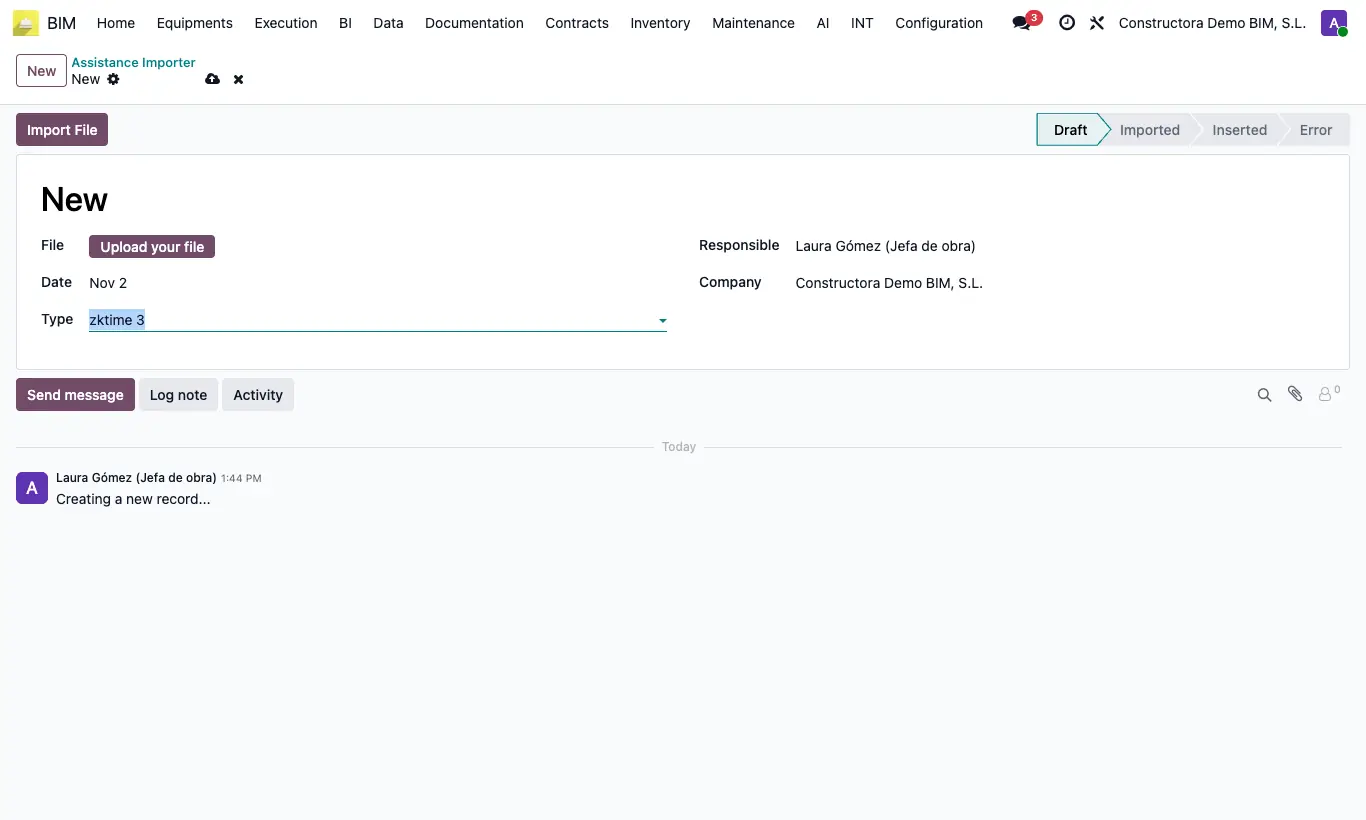
Steps
- Go to INT › Attendance › Assistance Importer and click New.
- Upload the File and choose the Type: zktime 1, zktime 2 or zktime 3.
- Click Import File: the lines appear with Code, Employee, In Hour and Out Hour.
- Check that each line has an employee and click Insert: attendance is created on each employee's Default Project.
- If something is wrong, click To Draft: the attendance created is deleted and you can import again.
Warning
Dates in MM/DD/YYYY format and times as HH:MM, as text. With any other format the import fails.
In zktime 2 and 3, rows with no check-in or check-out, and those whose codes match no Code BIM, are dropped without warning. In zktime 1 those rows are imported without an employee and Insert fails: remove them first.
If the file cannot be read, the record is left in Error.
Site note
zktime 1 and 2: ID in column A, date in B, check-in in D and check-out in E. zktime 3: ID in B, date in C, check-in in F and check-out in H. The first row is headings.
The times are corrected with Hours of difference in settings.