Where Inventory › Operations › Transfers › Receipts
Before you start
BIM Invoice From Picking profile. Receipt with Project and Purchase Order.
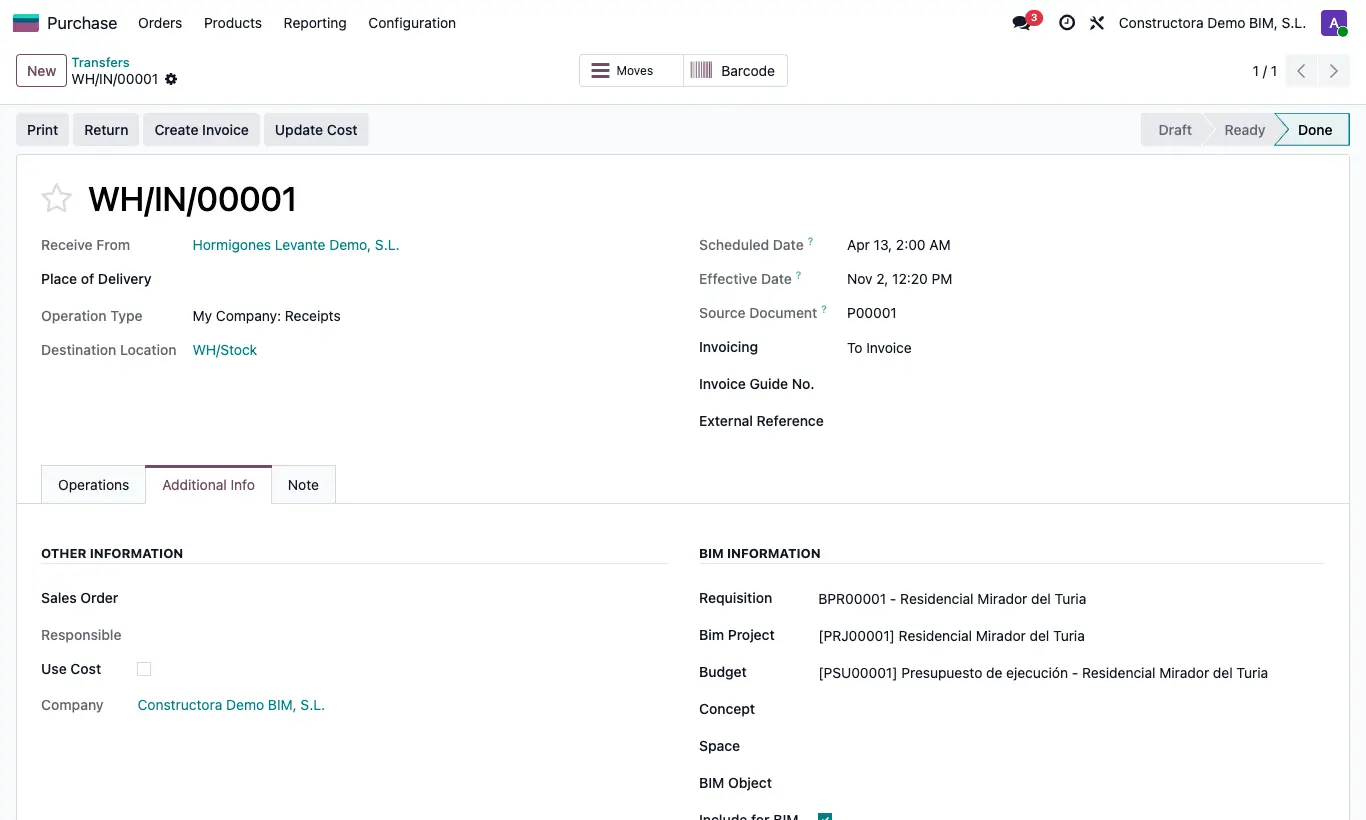
Steps
- Open the receipt. If it comes from a purchase order with a project, the Additional Info tab, BIM Information section, already holds the Bim Project and the Purchase Order; if not, fill them in.
- Validate the receipt with the quantities received.
- Click Create Invoice: a draft vendor bill is created with what was received on each line, the price, the discount and the taxes of the order line, the project, the budget, the project's analytic account and Include For Bim.
- The invoice opens: check the vendor, the date (the delivery note's expected date) and the amounts, and post it.
- The delivery note is linked to the invoice in the Invoice field.
Warning
Without lines, project or order, "There are no lines to invoice", "No project has been selected" or "No purchase order has been selected" appears.
All products in the delivery note must be in the order chosen in Purchase Order; otherwise the invoice cannot be created.
The button disappears when the delivery note already has an invoice: for several receipts from the same vendor use Invoice Delivery Notes.
Site note
The lines are linked to those of the order, so the order no longer proposes invoicing the same thing again.