Where Paidstate › Cancel button
Before you start
BIM Payment Status profile.
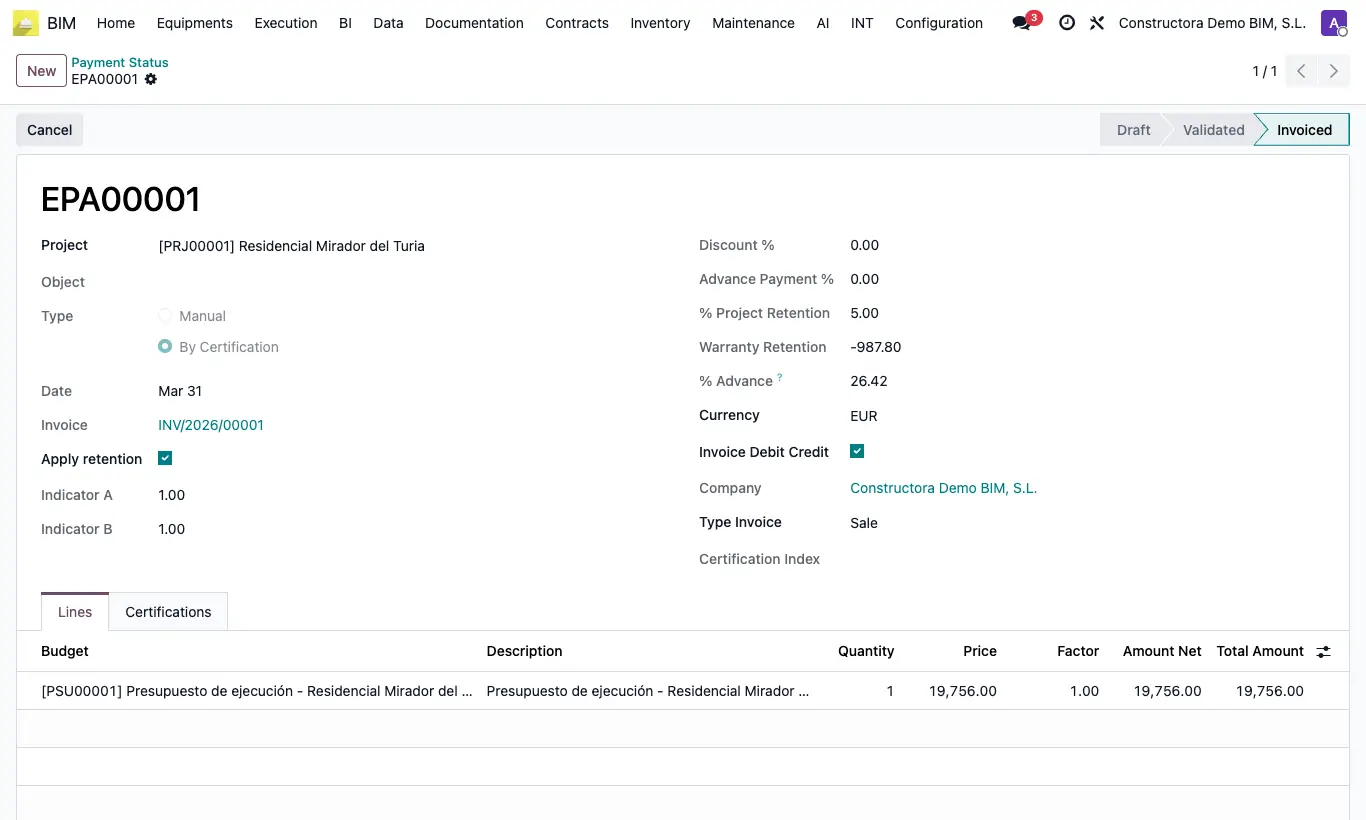
Steps
- Open the payment status and click Cancel. Confirm the notice "¿Está seguro de Cancelar este Estado de Pago?".
- If it is Invoiced and its invoice is not cancelled, the notice "Este Estado de Pago tiene una Factura asociada. ¿Desea Cancelarlo?" appears: click Process.
- It moves to Canceled: its certifications are unlinked and the amount goes back to To invoice in the budget.
- To reuse it, click Back to Draft, correct it and Validate again.
Warning
Cancelling the payment status does not void the invoice: void it yourself in Accounting.
An Invoiced payment status cannot be deleted: "No es posible eliminar un estado de pago facturado". Cancel it instead.
Site note
With the certification now free you can correct it with Undo or create another payment status with Create Paid State.
After going back to Draft, click UC in the Certifications tab to relink the certifications.