Where BIM › Contracts › Progress Captures
Before you start
A subcontractor contract in BIM › Contracts › Contracts.
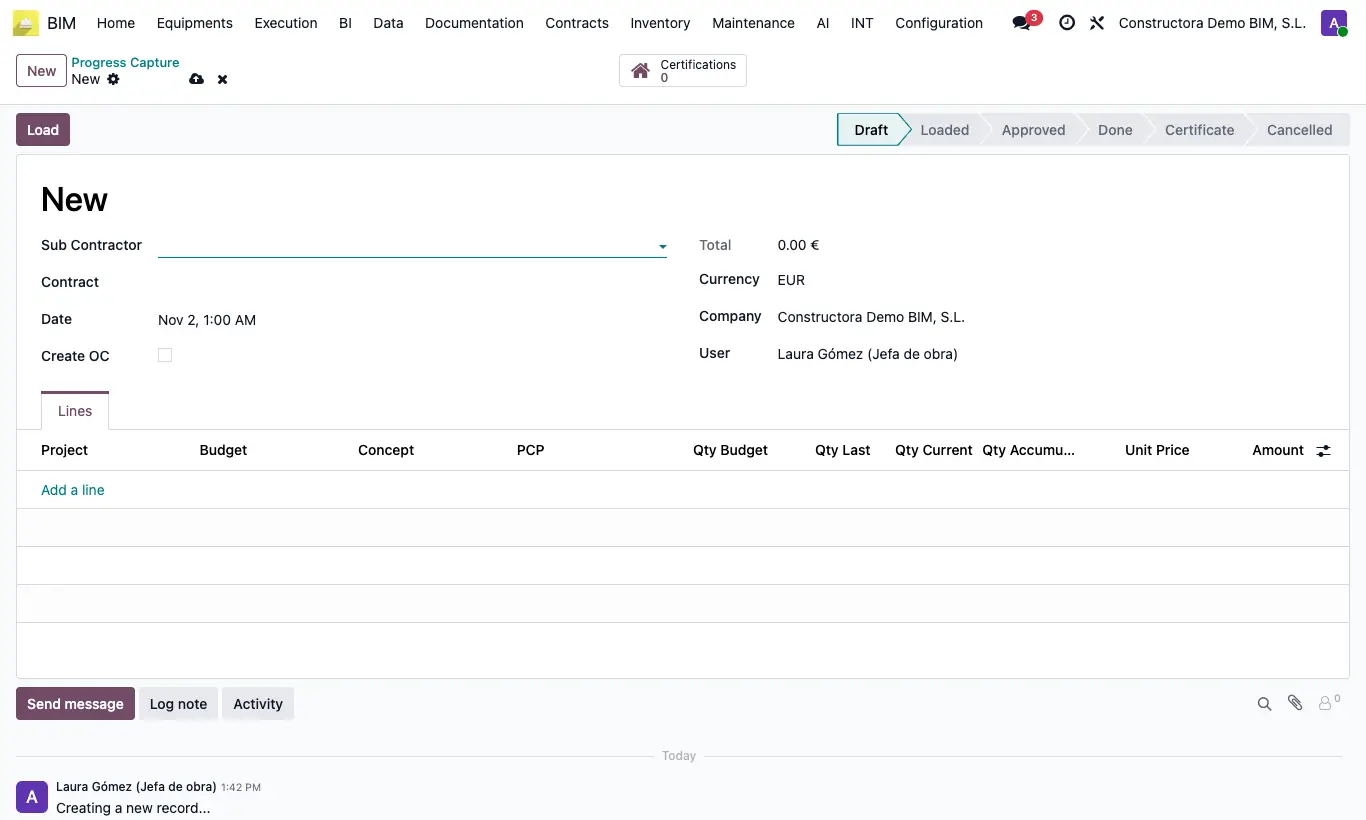
Steps
- Click New, choose the Sub Contractor, their Contract and the Date. Tick Create OC if you want a purchase order.
- Click Load: the contract lines are created with Qty Budget, Qty Last and Unit Price.
- Write in Qty Current what was executed in the period: Qty Accumulated adds the previous and the current.
- Click To approve and then Done. With Create OC ticked, a draft purchase order is created to the subcontractor with what was executed; open it from Purchase Order.
- Click Certify: the customer certification of each budget is prepared, in the current stage, with those quantities. You can see it in the Certifications button.
- Open the certification, review it, validate it and certify it.
Warning
To move to Done at least one quantity greater than zero is needed: "You must enter at least one quantity greater than zero.".
If the budget already has a certification in Draft or Loaded, that certification is reused and its lines are reloaded only with the capture's items.
Site note
Make one capture per period on the same contract: Qty Last adds up that item's earlier captures that are in Done or Certificate.
The order lines use the Payment Status Product from the settings; if there is none, a product named after the item. Check the product before confirming the order.