Where Purchase › Orders › Purchase Valuation
BIM Valuation profile. The purchase order confirmed.
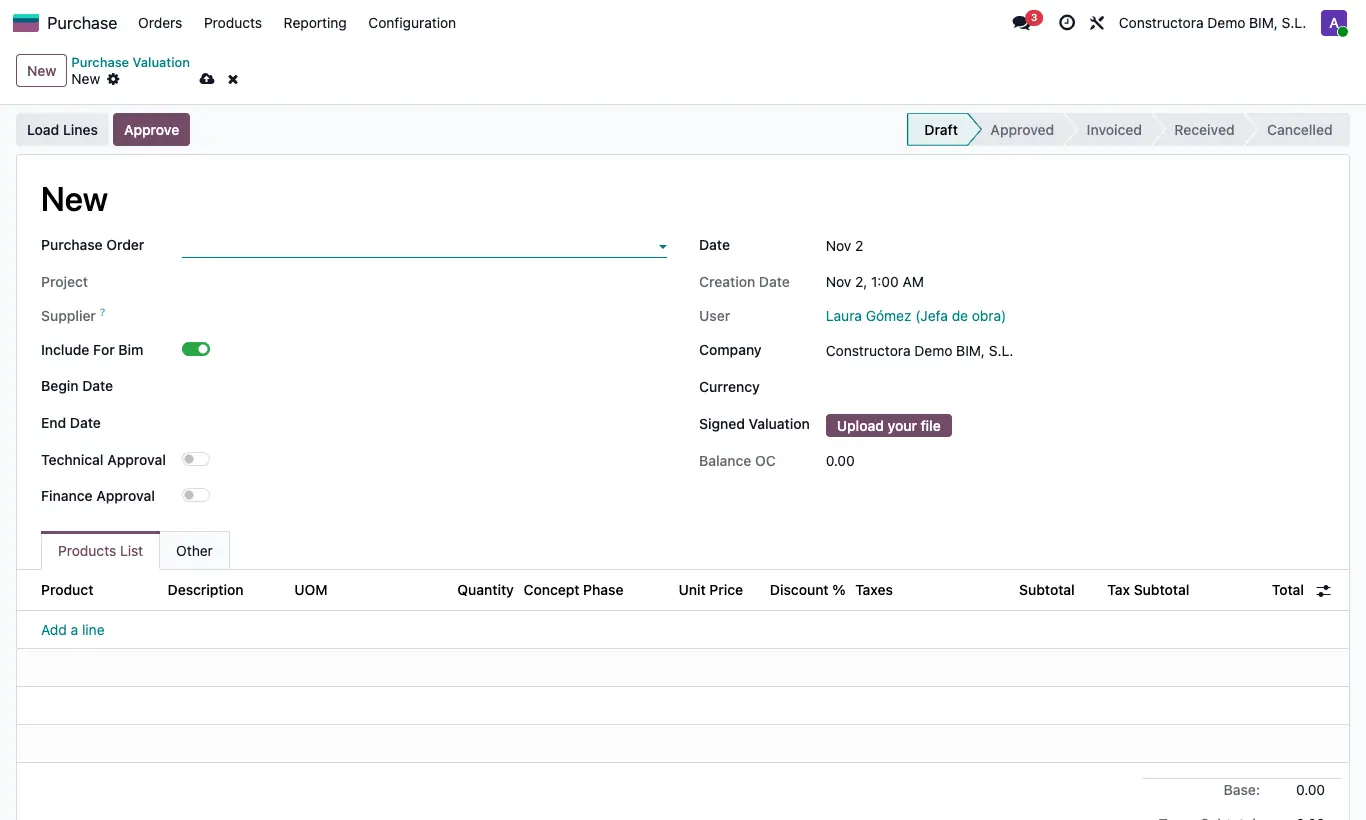
Steps
- Open the order and click the Purchase Valuation button, or create a new one from the menu and choose the Purchase Order.
- Set the Date and the period (Begin Date and End Date).
- Click Load Lines and adjust in Products List the quantity actually executed on each line.
- Attach the Signed Valuation if you have it and review the Balance OC (what is left of the order).
- Turn on Technical Approval and Finance Approval and click Approve.
- Click Create Invoice: the vendor bill is created with the project, the analytic and Include For Bim.
- When you receive the document, click Receive.
Without both approvals you get “You must tick Technical Approval and Finance Approval to be able to approve.”.
If the order has Closed Valuation, Load Lines gives “The purchase order has a closed valuation”.
The program does not stop you valuing more than the order: watch the Balance OC.
The cost reaches the project through the bill you create with Create Invoice; the valuation alone adds no cost.
By default Load Lines brings only the order's services. The administrator changes this in General Config, key “valoration”: 1 services, 2 storable, 3 all.
Tick Closed Valuation on the order when it admits no more valuations.
Update Invoice (Other tab) links the bill lines with those of the order.