Where Purchase › Orders › Purchase Valuation
Before you start
BIM Valuation profile. Purchase order confirmed.
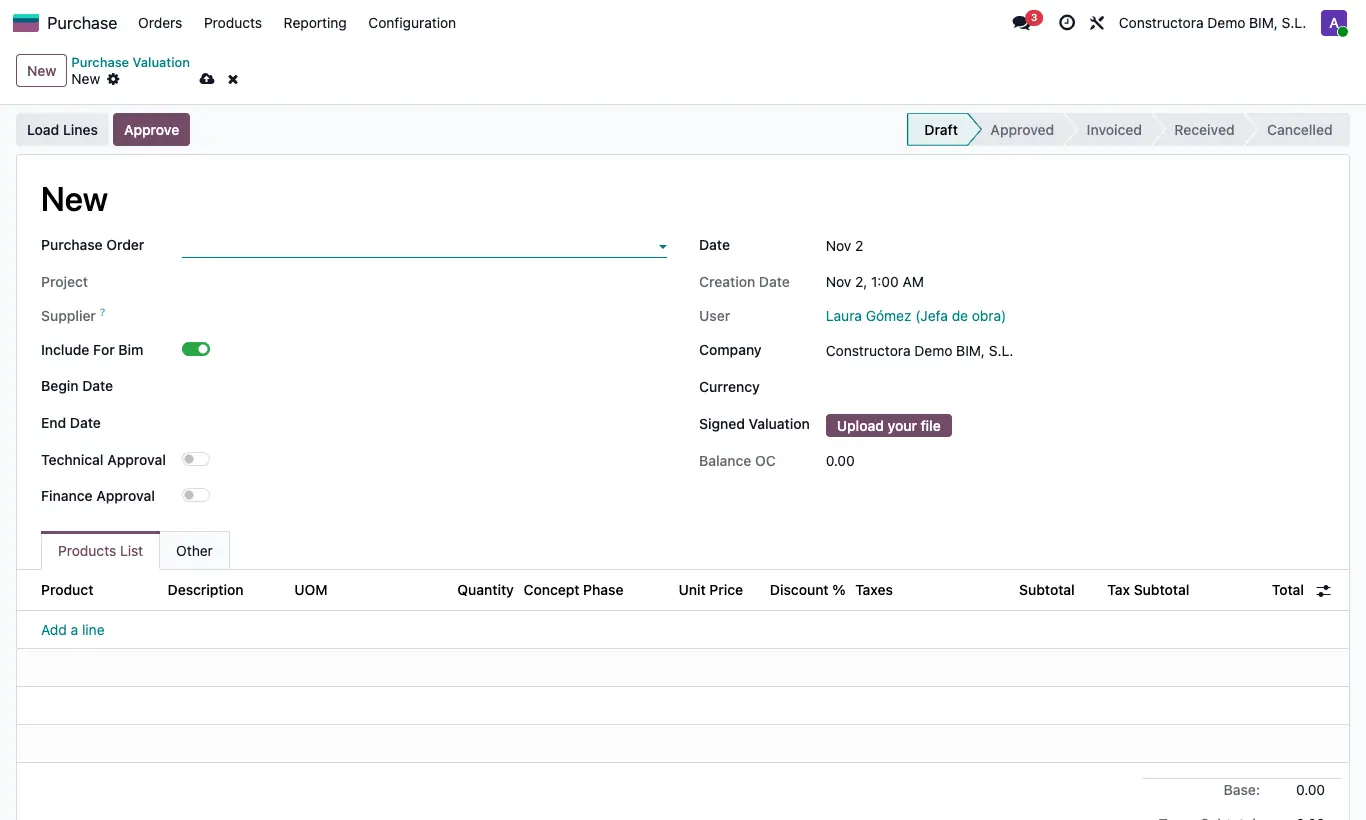
Steps
- Open the order and click the Purchase Valuation button, or go to Purchase › Orders › Purchase Valuation and click New.
- Choose the Purchase Order and, if you want, Begin Date and End Date of the period.
- Click Load Lines and adjust on each line the Quantity actually executed (the optional PO Qty column shows the order's).
- Tick Technical Approval and Finance Approval and click Approve.
- Click Create Invoice: the draft vendor bill is created with the project's analytic and budget, and it moves to Invoiced.
- When appropriate, click Receive (it moves to Received). You can attach the Signed Valuation.
Warning
Without both approvals it will not let you approve: “You must tick Technical Approval and Finance Approval to be able to approve.”
If the order has Closed Valuation, Load Lines is blocked.
By default Load Lines only brings the order's services. To also bring materials, change in General Config the Value of the valoration key (1 services, 2 storable, 3 all).
Site note
Balance OC shows what is left of the order after all its valuations.
From an existing vendor bill, BIM tab, Create Valuation creates the valuation from its lines.
The Purchase › Reporting › Valuation x Line report (Reports by lines profile) lists all valued lines.