Where BIM › Inventory › Material Request › Material Request
Request in Approved state.
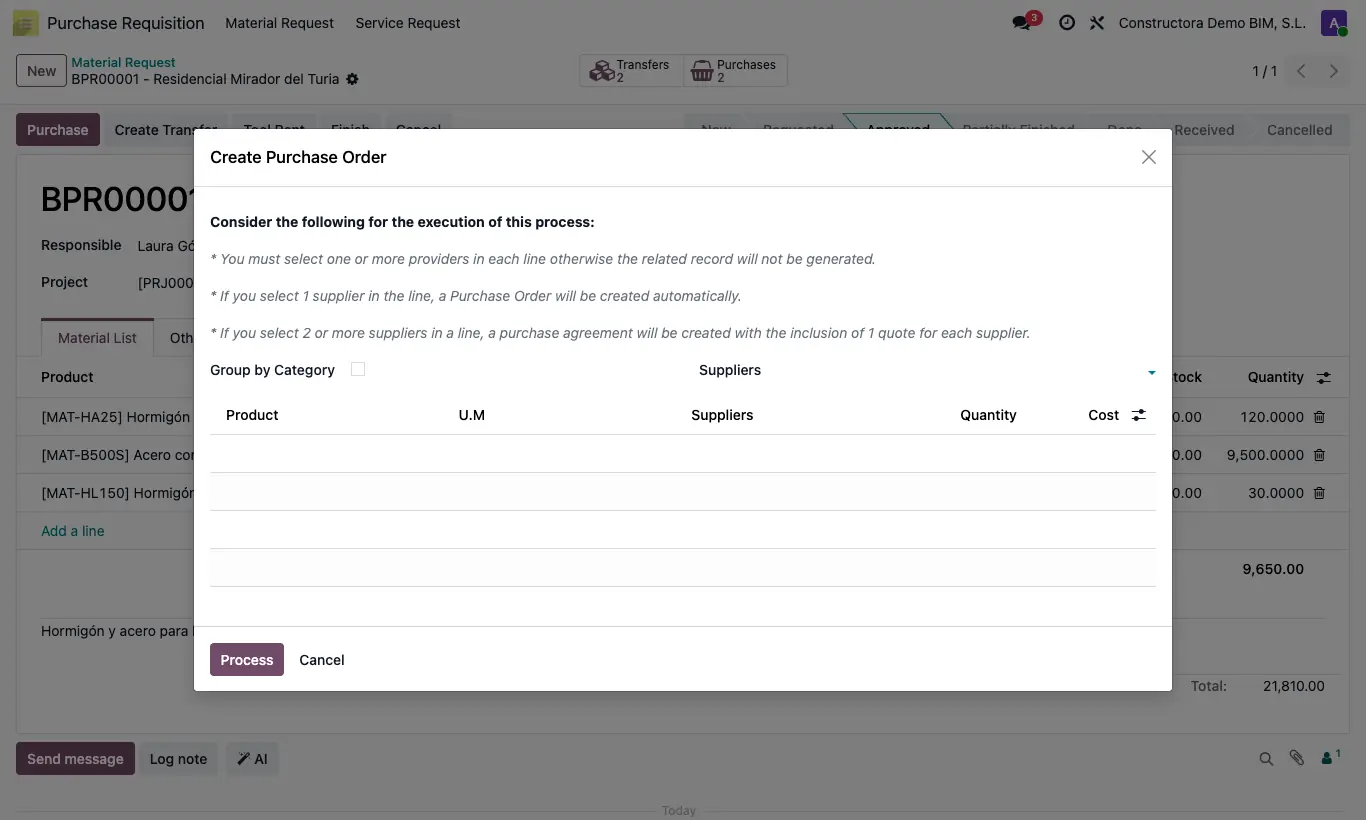
Steps
- Open the approved request and click Purchase.
- Choose a vendor in Suppliers (at the top) for all lines, or one per line.
- Adjust Quantity and Cost if needed.
- Turn on Group by Category if you want one order per vendor and product category.
- Click Process: one request for quotation per vendor is created, with the project and the receipt at the project warehouse.
- Open them from the request's Purchases button, review them and confirm them.
To process is what is pending to be received, not to be bought: if you click Purchase again before receiving, it will suggest what has already been ordered. Look at the Purchased column.
Check the Analytical Account (Other tab) before buying: the order copies it into the analytics of its lines and, if it is empty, the lines are left with an invalid analytic.
If any line has no vendor, "There are no lines with an assigned vendor" or "There are lines without Supplier assigned" appears.
The wizard suggests what is left To process on each line; those marked Done do not appear.
If you put two or more vendors on a line, a purchase agreement is created with a request for quotation for each: see "How do I ask several vendors for a price from a request?".
The order lines carry the product's purchase taxes.
Tool Rent creates a rental with the products marked as tools; with Separate tools (Other tab), one per tool.
With Cost Zero Purchase in the settings, orders are created with price 0.