Where BIM › Data › Others Reports › BIM SQL Reports
Before you start
BIM SQL Reports profile (without it the reports cannot be opened or run). Knowing how to write SQL queries for the SQL type.
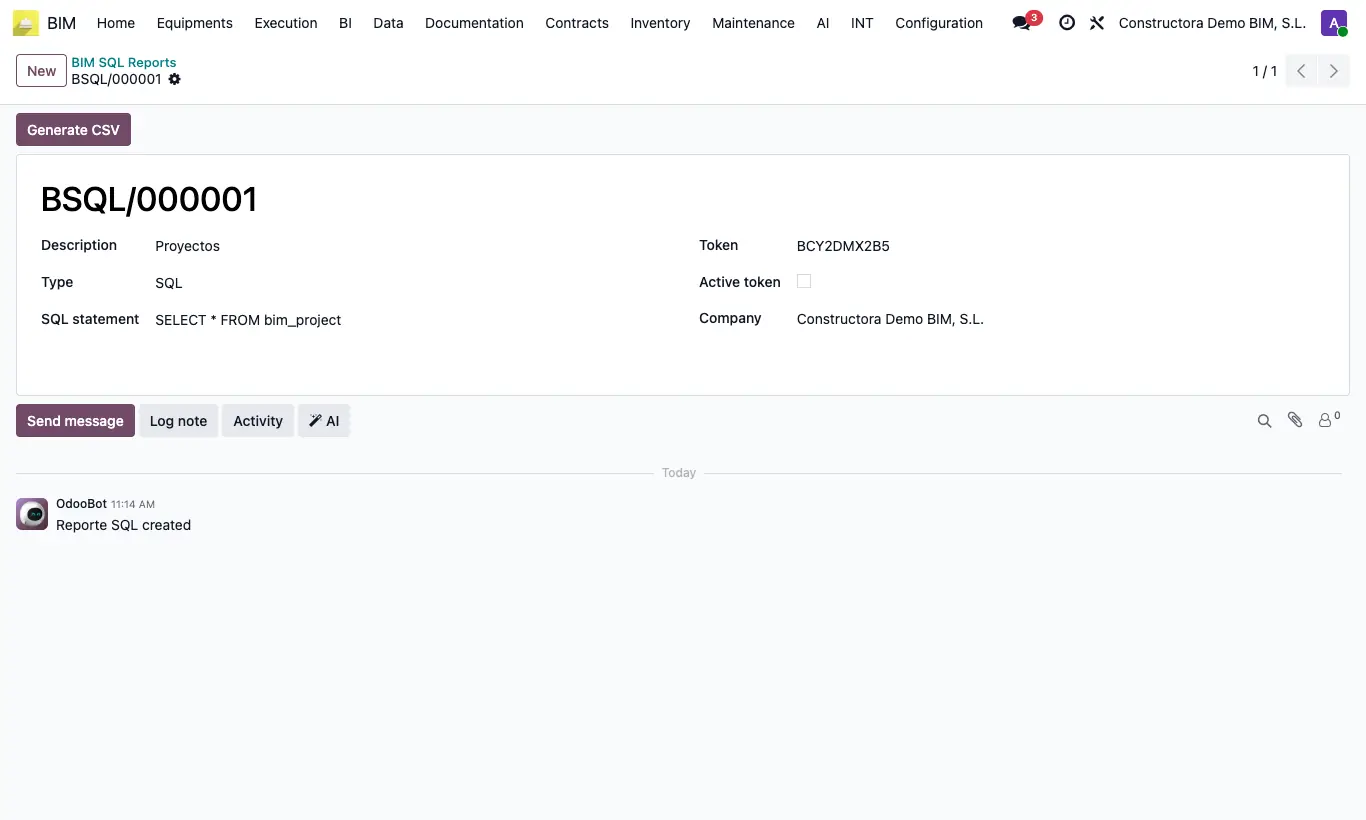
Steps
- Go to Data › Others Reports › BIM SQL Reports and click New.
- Type the Description and choose the Type: SQL (your query), Apus (all the company's APUs), Project (a project) or Budget (a budget with its items).
- For SQL, type the query in SQL statement; for Project or Budget, choose the project or the budget.
- Save. With SQL, click Generate CSV to download the result.
- To publish the data, tick Active token and copy the URL: it returns the data as JSON for Excel, Power BI or another application.
Warning
Anyone who has the URL sees that data without a user or password while Active token is ticked. Untick it to cut access, or change the Token so the previous URL stops working.
With the SQL type only a read query starting with SELECT or WITH is accepted: with several statements or any other command you get “Only a single SELECT or WITH statement is allowed.”, and the query never modifies data.