Where BIM › Inventory › Virtual Products
Before you start
Virtual Product Manager profile. A product with Resourse Type Virtual Template.
Steps
- Create once a product with Resourse Type Virtual Template (for example, Virtual product).
- In Virtual Products › Virtual Product Category create the categories, with Parent Category for subcategories.
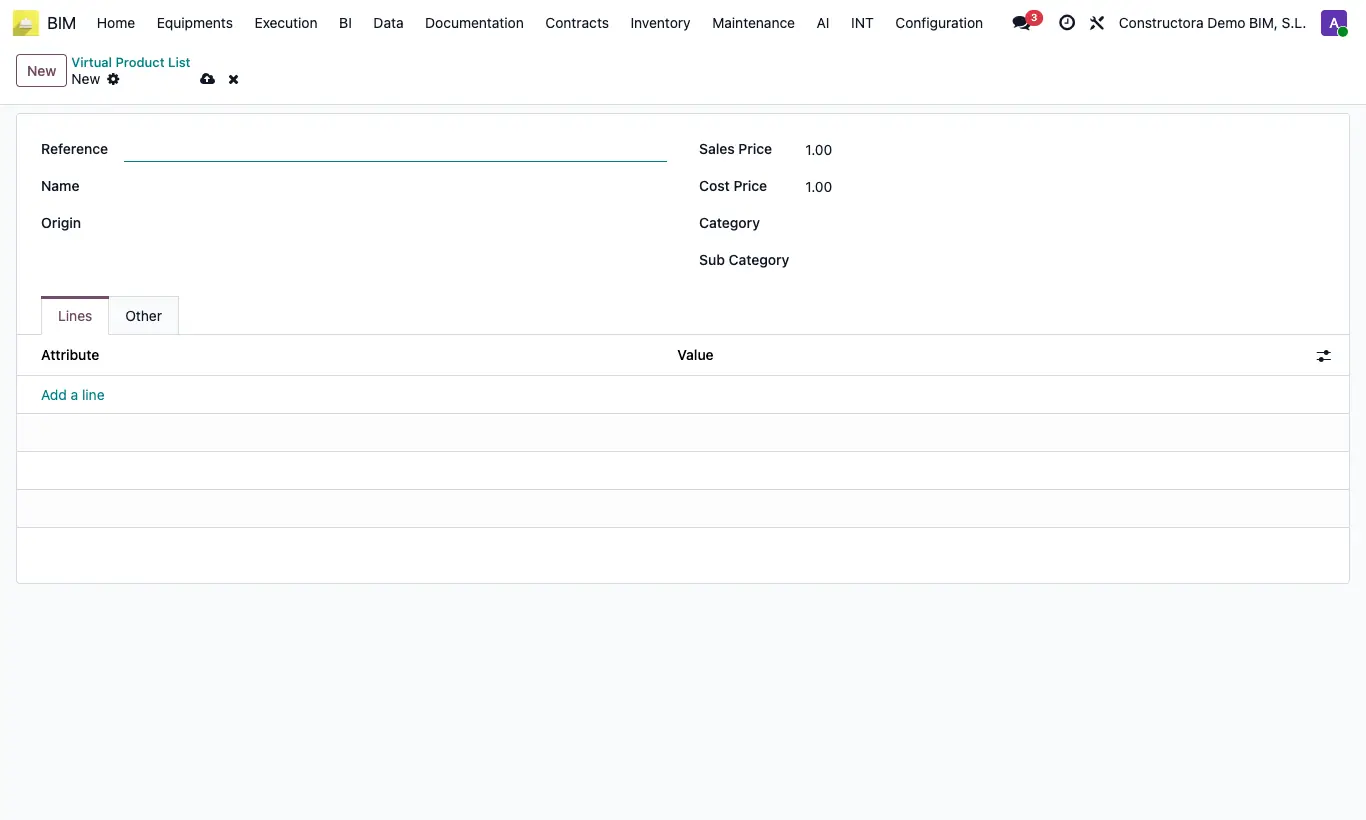
- In Virtual Products › Virtual Products click New and fill in Reference, Name, Sales Price, Cost Price, Category and Sub Category. In Lines, enter its Attribute and Value.
- In an item click VP. Write Name or Reference and turn on Calc, or filter in the Attribute Query tab by attribute and value and turn on Calc.
- Write the quantity on the lines you want and click Insert: they come in as MATERIAL resources.
- When you are going to buy it, turn it into a real product. On a resource, click Create Product: the product is created (or the one already converted is used), linked to the resource, and takes its cost.
- To convert all those in the budget at once, in the TL tab click Convert Products. You can also do it from the virtual products list: tick them, click Action › Convert Virtual Product and Accept.
Warning
Without a product of type Virtual Template, Insert gives the error: No product found with resource_type = P Virtual product.
From the list, an already converted virtual product is not converted again: the notice This virtual product has already been converted to a product appears.
The virtual product's Barcode passes to the real product: it cannot match that of another product.
Site note
The attribute query only shows attributes that have Show ticked.
Virtual resources come in with price 0: adjust it before closing the budget.
The Convert Products button only appears if the budget's state has Convert Virtual Products ticked.