Where BIM › Documentation › Vendor Bills
Before you start
BIM Portal Customer Odoo module installed. Whoever uploads the bill needs the Is Employee role.
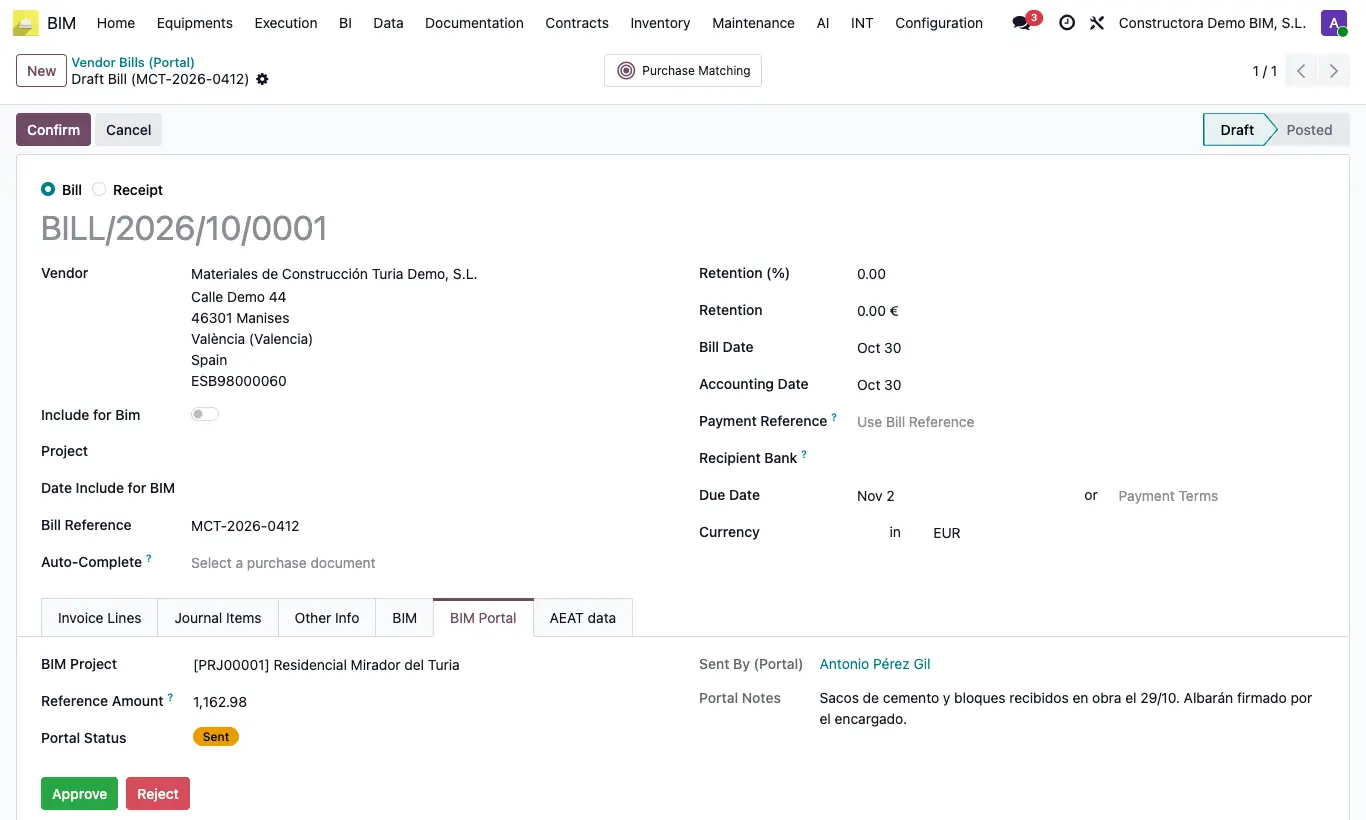
Steps
- From the portal, the employee enters the vendor, project, amount, date, notes and attaches the bill.
- Go to BIM › Documentation › Vendor Bills: you will see Sent By, Project, Ref. Amount and Portal Status.
- Open the bill, complete its lines and review the attachment.
- In the BIM Portal tab click Approve: the bill is confirmed.
- If it is not valid, click Reject: the bill is cancelled.
Warning
The bill arrives without lines, only with the Reference Amount. If you click Approve without adding lines you get “The invoice … has no lines. Add the invoice lines before approving it.” and it is not approved.
Site note
In the list, while the bill is Sent, you have the Approve and Reject buttons on the line itself.
The bill's reference is left as “Portal BIM - ” followed by the name of whoever sent it.