Where BIM › Data › Calculation sheet › Template Assets and Discounts
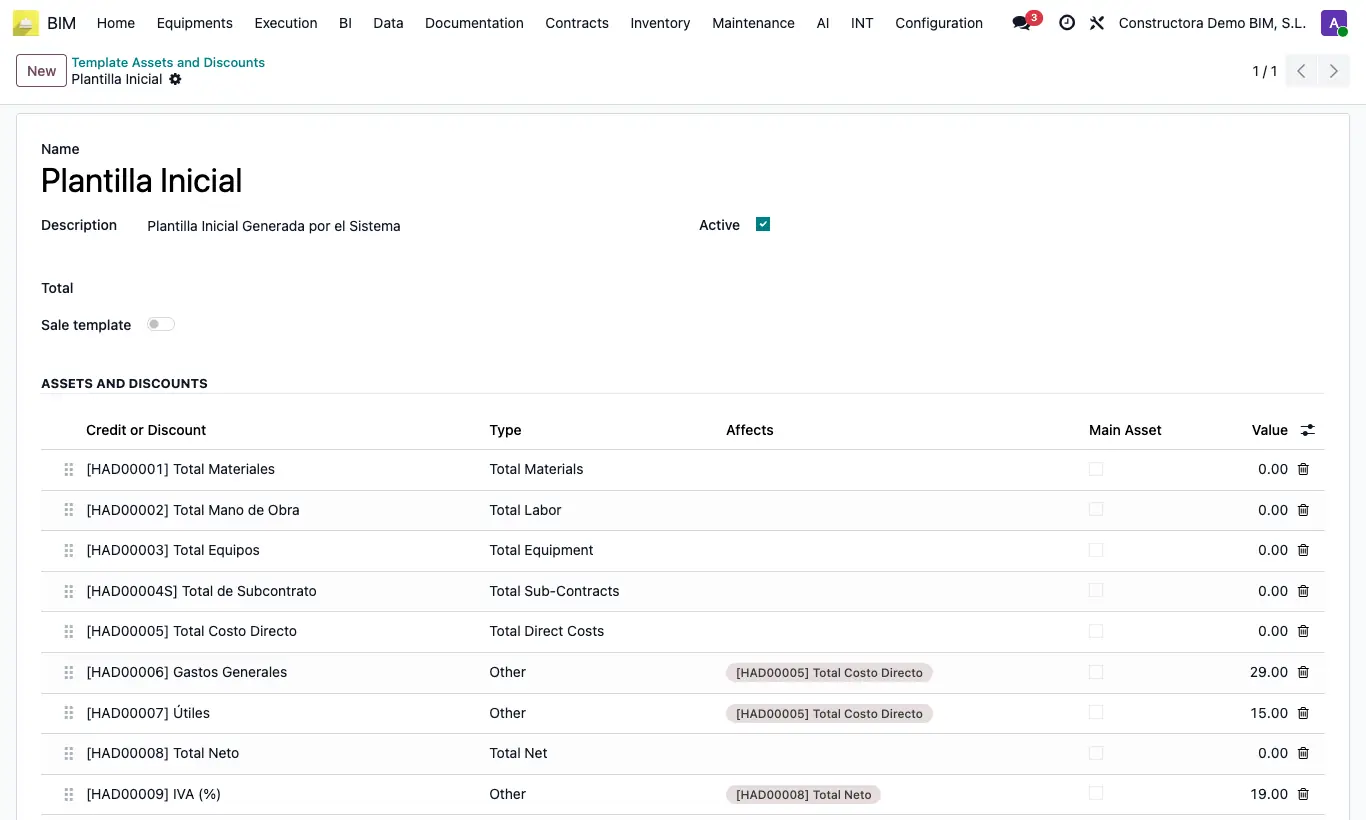
Steps
- Review the catalog in Data › Calculation sheet › Assets and Discounts: each concept has Code, Gloss, Default value and Type (Total Materials, Total labor, Total Equipment, Total Sub-Contracts, Total Direct Costs, Total Net or Other).
- Go to Template Assets and Discounts and click New. Give it a Name.
- Add the lines in order: for example Total direct cost, Overheads, Profit and, at the end, Total net.
- On lines of type Other type the percentage in Value and choose in Affects the lines it is calculated on (e.g. Overheads 13 affects Total direct cost).
- Save the template.
- Open the budget and choose the template in Template H.D.: the lines of the Assets/Discounts tab are filled in.
- Check that A.D. points to the total line and click UPD.
Warning
Choosing another template deletes and replaces all the Assets/Discounts lines of the budget.
Site note
An Other line without Affects adds its Value as a fixed amount. If you choose an Aux Budget, it adds that percentage of its amount.
Total Net adds the direct cost lines and Other lines above it.
The last line of the template becomes A.D.: its amount is the budget's A.D. (Total).
Check Sale template on the template that should be used when creating budgets from sales orders with taxes.