Before you start
To assign them: Administrator role.
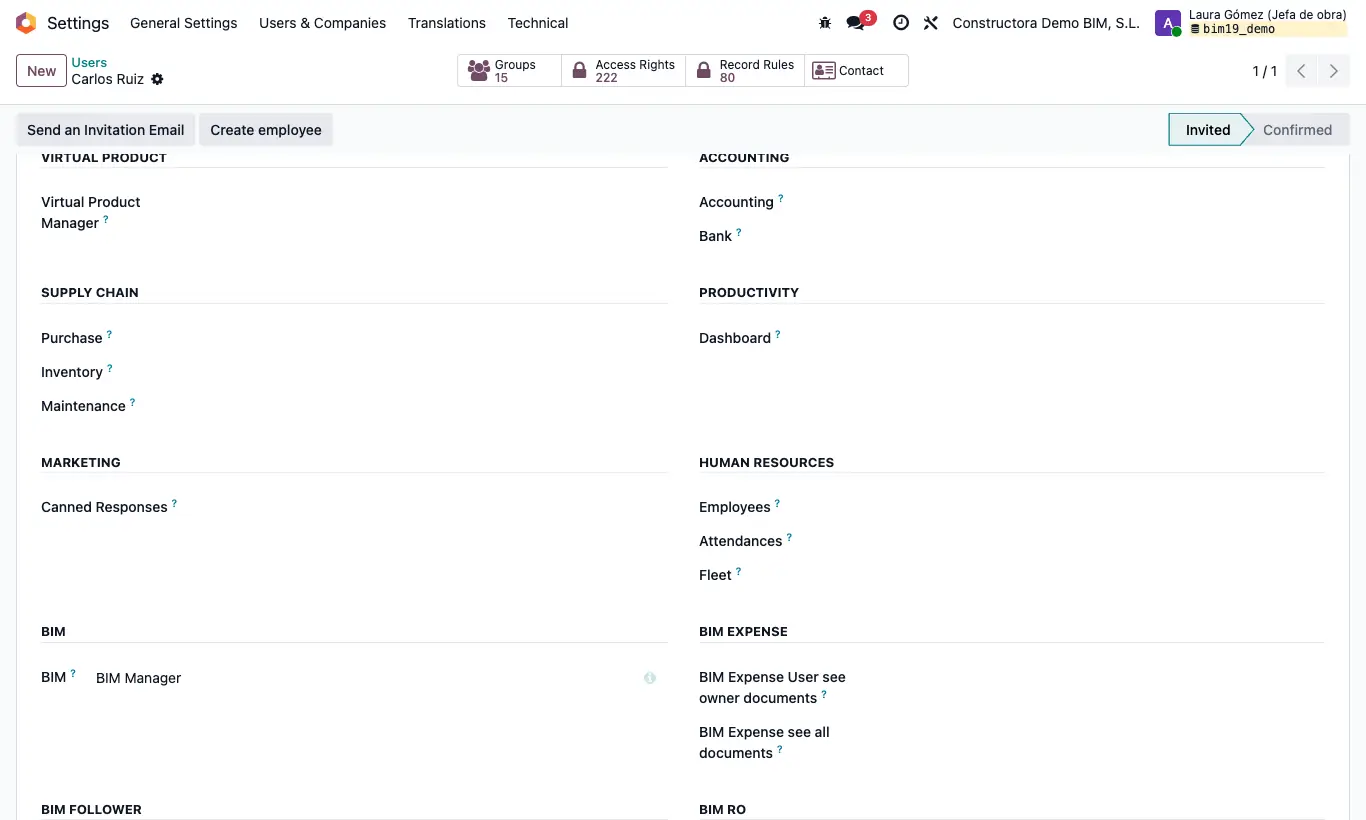
Steps
- Diary Part: Diary Parts app.
- Construction Employees: menus Home › Management › Project Employee and Documentation › Task Report › Timesheet employee, and the project's BIM Employees, Employees and Timesheets buttons.
- Bim Attendance: menu Home › Management › Employee Attendance, the project's Attendance button and the wizard's Register Attendance button.
- See budget and concept in documents: budget and item fields in attendance, rentals, tool uses, sales and purchases.
- Employee documentation: E. Documents app.
- In the Bim Expense section: BIM Expense User see owner documents opens the Bim Expense app with their own expenses; BIM Expense see all documents, all expenses and the To Approved, To Deposited, To Rejected, To Cover, To Finish, Create Invoices and Delete Invoices buttons.
- BIM TRIPS USER: Trips app. BIM TRIPS ADMIN: also sees the price, quantity and total of each trip.
Warning
To whoever must see all expenses give only BIM Expense see all documents: if they also have the “own documents” one, they will only see their own.
The BIM › Data › Attendance menus also require the Odoo Attendance permission.