Before you start
To assign them: Administrator role.
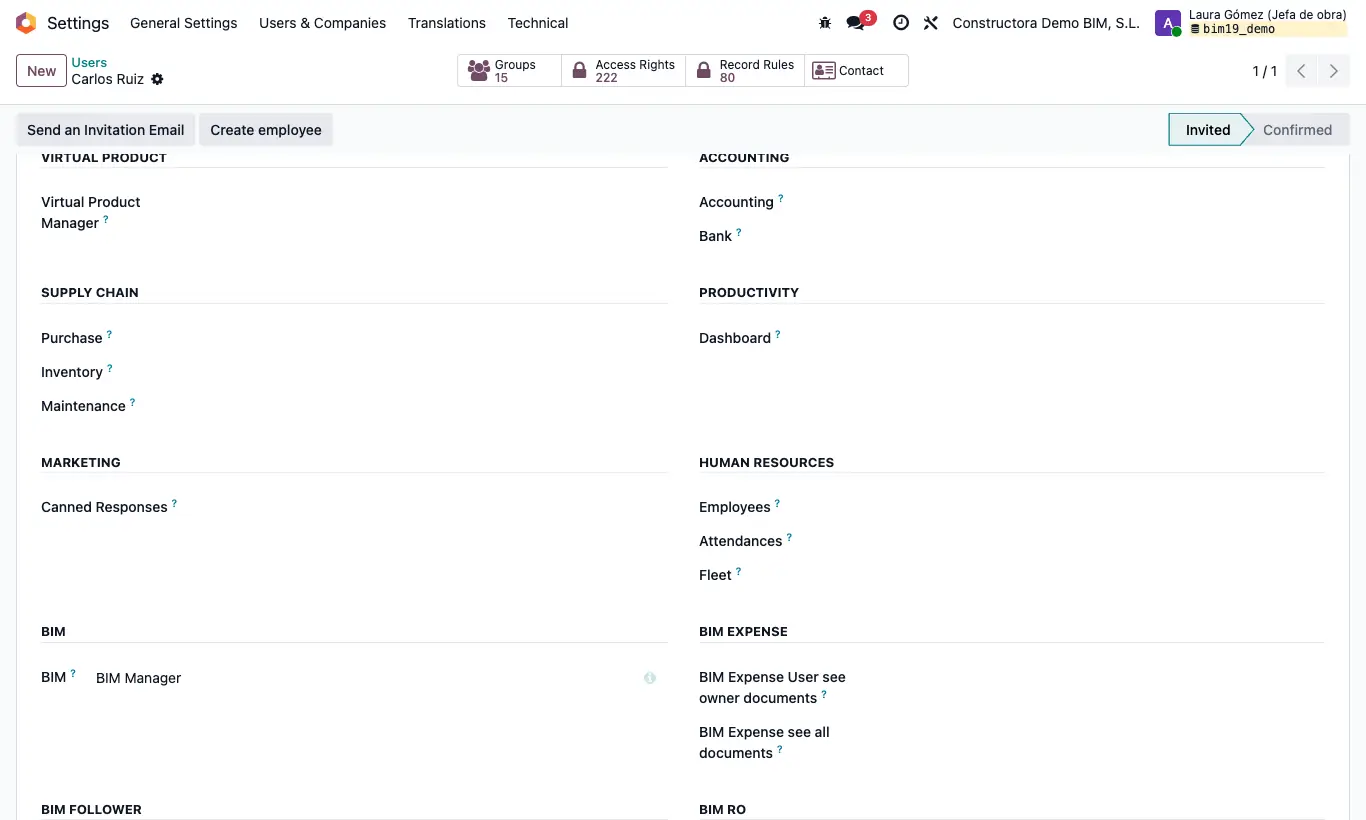
Steps
- BIM Certification: certification buttons Load, Validate, Mark All, Clear, Certify, Load Consume, Cancel, Update Price, Create Paid State, Undo, Pasar Cargado, Pasar Validado and Certification Report.
- Certify chapters: menu Home › Certifications › Massive Chapter Certification and the budget's chapter certification button (if the Certificate Chapters setting is active).
- BIM Paidstate: payment status buttons Validate, Load Amount, Cancel and Back to Draft.
- Invoicing, the Odoo Accounting permission: the payment status's Generate Invoice button and the Invoice Debit Credit box.
- Certification Index: shows the Certification Index field of the payment status.
- BIM Blockade: the budget's Blockade tab, with Block certification and Amount Block.
Warning
Without BIM Certification you see the certifications but there is no button to advance them.
With an amount block, a certification whose total exceeds it gives “The Certification Exceeds the Maximum Amount Allowed by the Block in the Budget, which is: …”.
Besides the profile, the budget's state must have Allow Certification.
Site note
Separate duties: the technician certifies with BIM Certification, administration validates with BIM Paidstate and accounting invoices with Invoicing.