Before you start
To assign them: Administrator role.
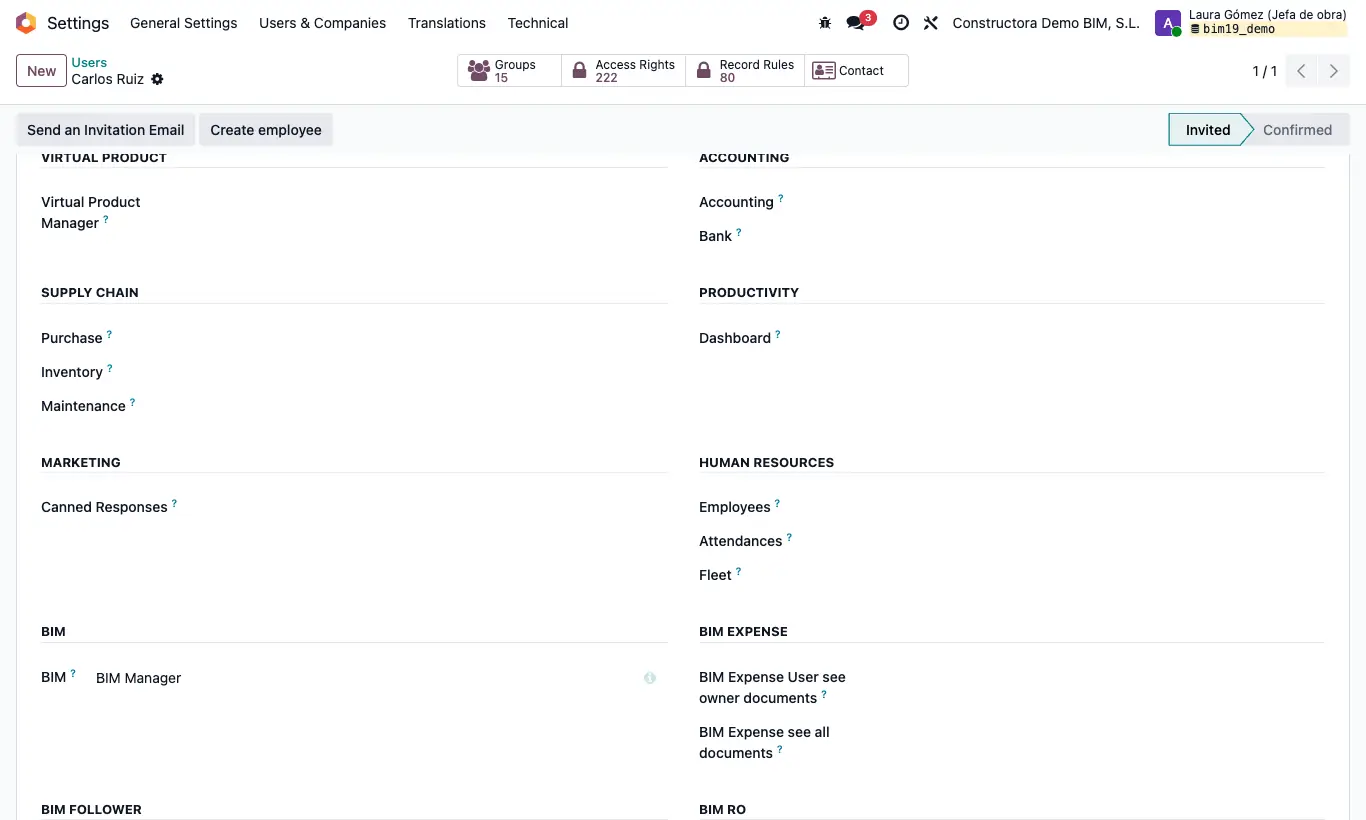
Steps
- BIM User see owner documents opens the BIM app and shows only the projects where the person is Supervisor (or that have no supervisor).
- Of those projects they also see their budgets, stages, spaces, certifications, payment statuses, checklists, quality controls, attendance, project employees, rentals and imports. They also see the budgets and payment statuses of other projects if they are the Responsible or there is no responsible.
- BIM User see all documents sees all projects and those documents of the active companies.
- BIM Manager includes “sees all” and adds the BIM › Config menu, the Indicators, Control, Analysis and CF tabs and the Budget History button of the budget, the UOM tab and the Opening Balance and Quality Control buttons of the project, the cost and margin columns of the project list and the BIM configuration of the CRM.
- Choose according to the job: site manager or technician → BIM User see owner documents; technical office or administration → BIM User see all documents; system owner → BIM Manager.
- They are chosen on the user form, Access Rights tab, in the BIM dropdown of the BIM section: they can only have one of the three.
Warning
BIM Manager sees all projects: do not give it to someone who should only see their own.
Daily reports, material requests, purchases, invoices, cash flows and BI dashboards are not filtered by project: whoever has access to those menus sees them all.
To enter the Bim 2.0 settings BIM Manager is not enough: you also need the Role Administrator.
Site note
Ticking BIM Manager automatically ticks BIM User see owner documents, BIM User see all documents, BIM SAT and BIM USD Currency User.