Where Purchase › Orders › Bim Purchase Report
Before you start
BIM Valuation profile.
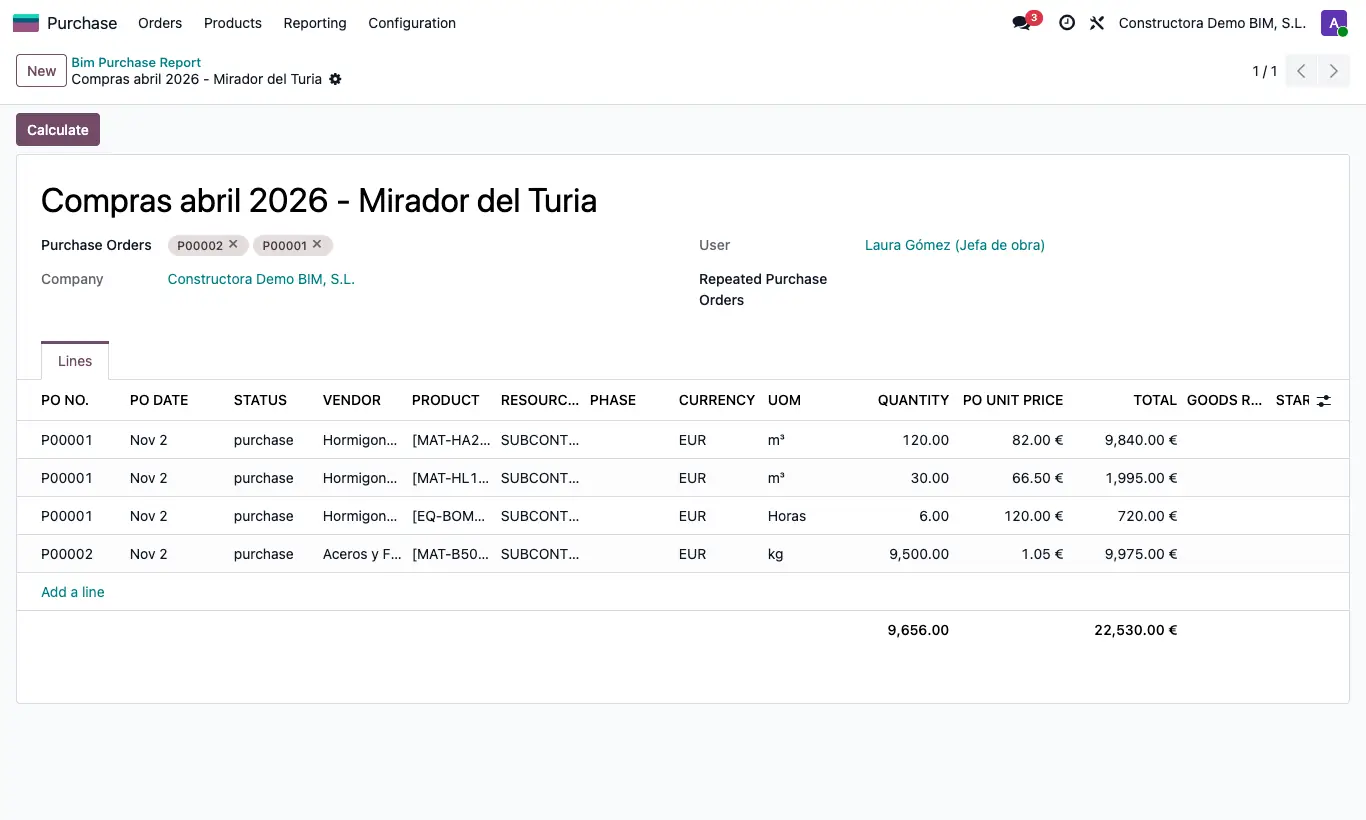
Steps
- Click New and write a Name.
- Choose in Purchase Orders the orders you want to analyze, or leave it empty to include all confirmed, finished or cancelled orders.
- Click Calculate: the Lines tab is filled with one row per receipt or valuation of each order line.
- Check per row the order (PO NO.), the VENDOR, the QUANTITY and the PO UNIT PRICE, the GOODS RECEIPT NUMBER or the VALUATION NUMBER, the VALUED QUANTITY, the BALANCE QUANTITY and the INVOICED QUANTITY.
- Hide or show columns with the icon at the end of the header; totals appear at the bottom.
Warning
Each Calculate deletes the previous rows and creates them again.
If any order repeats the same product on several lines, "ERROR - There are purchases that have Lines repeating the same product." appears and those orders are listed in Repeated Purchase Orders: their received and invoiced quantities are not reliable.
Site note
If an order has Closed Valuation, its TOTAL BALANCE comes out as zero (OCV STATUS column).
The TC column shows the invoice's exchange rate when it is in another currency.