Where BIM › INT › Budget Importer › Importation job
Before you start
BIM Integrations profile.
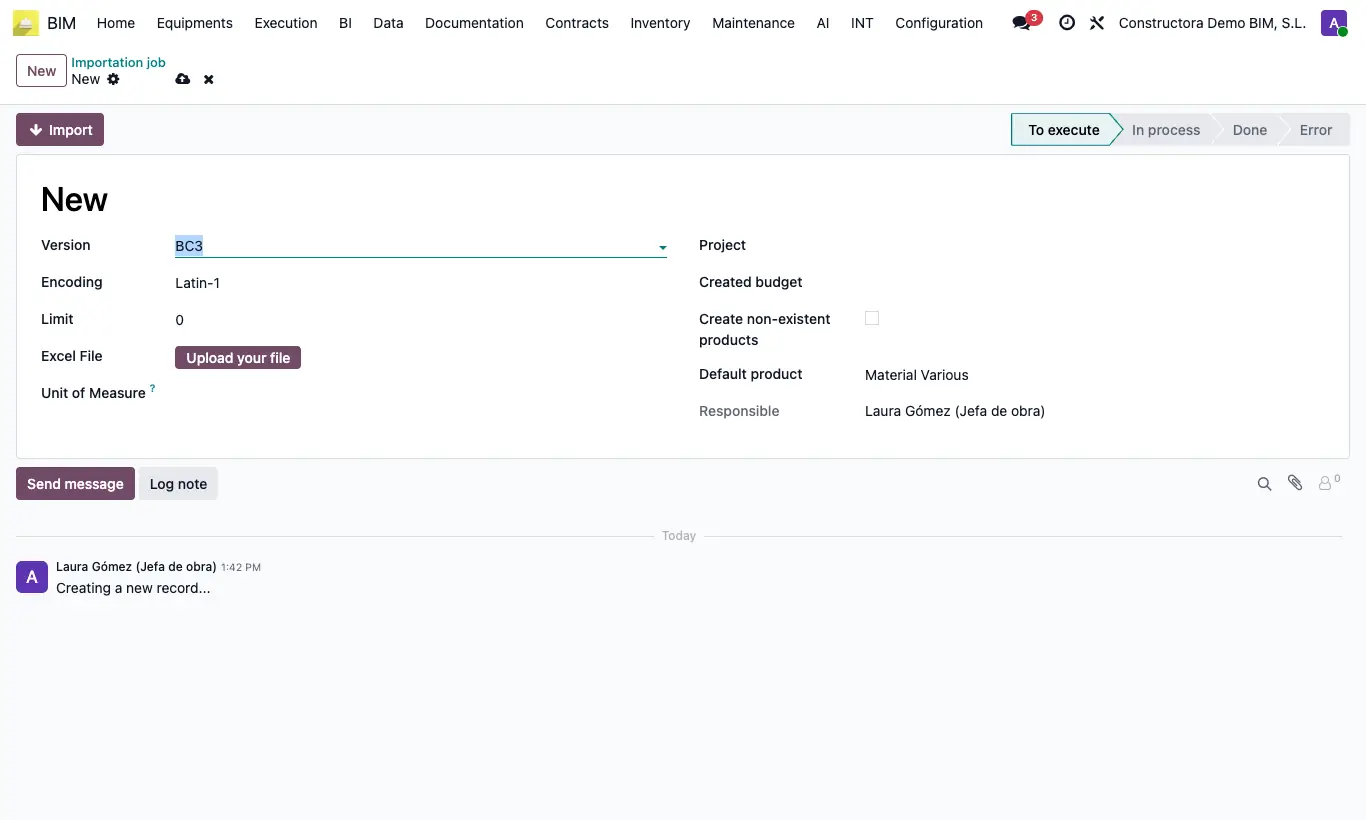
Steps
- Prepare the Excel file on the first sheet: row 1 with the budget name; rows 2 and 3 are the header (ignored).
- Columns: Code, Nature, Unit, Summary, Quantity and Price. If it includes measurements: Code, Nature, Unit, Summary, Comment, N, Length, Width, Height, Partial, Quantity and Price.
- The nature must say "Capítulo", "Partida", "Mano de obra", "Maquinaria", "Material" or "Otros". The row with "Total" and the chapter code in the Partial column closes that chapter.
- Go to INT › Budget Importer › Importation job, click New and choose Version: Excel Template 8.8.
- Choose the Project, upload the file and tick Create non-existent products (with Assign To: Product Cost or Sale Price).
- Click Import. If the state stays at In process, click Import again until it says Done.
- Open the Created budget and click UPD.
Warning
The file must be .xls or .xlsx; otherwise "The file extension does not match the import version" appears.
With an old .xls, if the server does not have the xlrd library "Old .xls files cannot be read…" appears: save it as .xlsx.
Without Create non-existent products, all resources use the Default product.
If there is an error, the state changes to Error and the Error tab shows the detail; fix the file and click Try again.
Site note
Limit sets how many rows are processed per pass; with large files it stops the browser from waiting.
The IP-3, IP-3 V2, IP-3 DB1 and Lulo V1 formats are sheets from specific clients: use them only if your Excel has that format.