Where BIM › Data › Concept Template › Concept Template
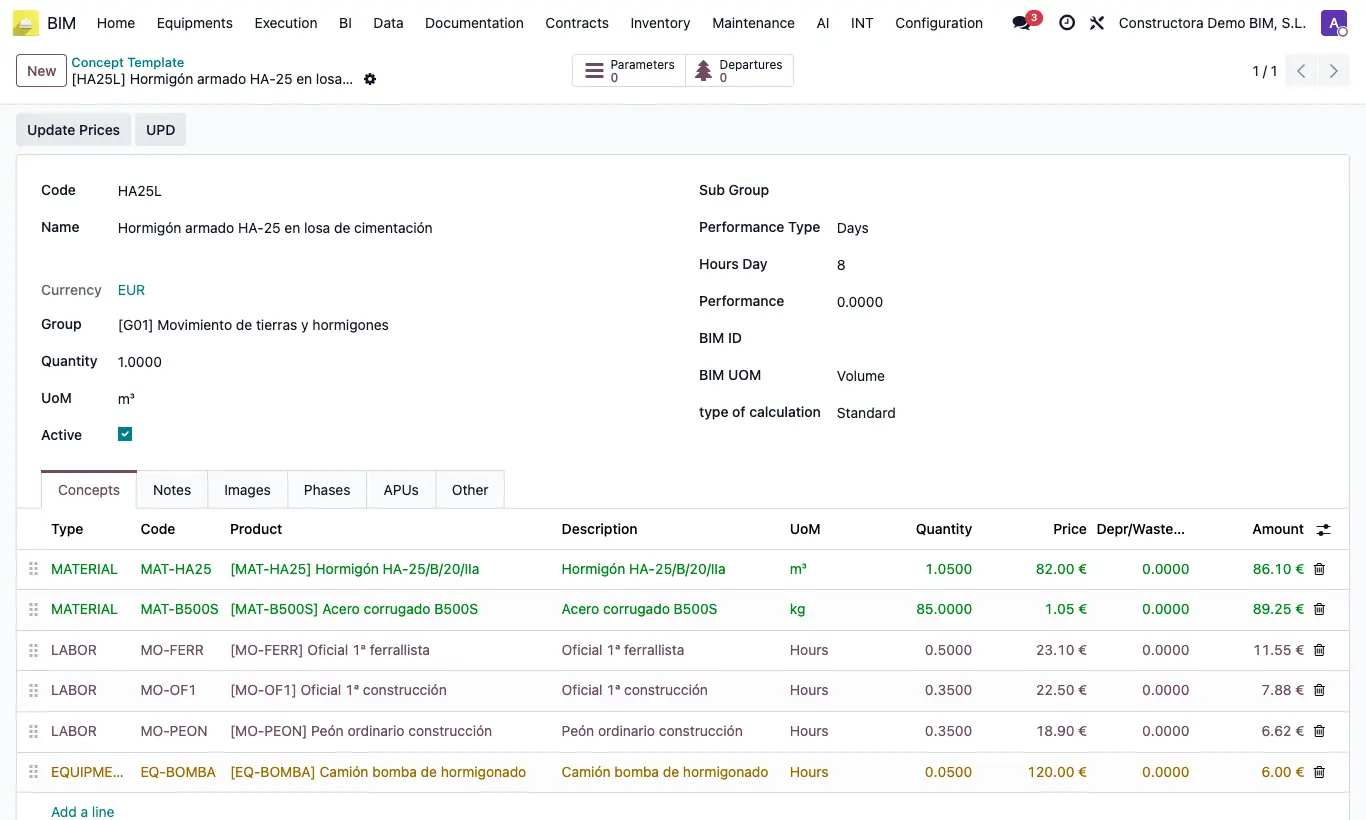
Steps
- Click New. Choose Group and Sub Group: the Code is proposed with that of the group or subgroup; adjust it.
- Type the Name (the item description), the Quantity, the UoM and the type of calculation (Standard, Apu or Apu HH).
- Enter the Performance and Performance Type (Hours or Days). With Days, also check Hours Day.
- In the Concepts tab add one line per resource: first the Type (LABOR, EQUIPMENT, MATERIAL, SUBCONTRACT or FUNCTION / ADMINISTRATIVE) and then the Product. Code, Description, UoM and Price are filled in.
- Type the Quantity of each resource. In Depr/Waste/Bonus note the waste of a material or the depreciation of an equipment: they pass to the item when it is loaded.
- If you know the cost per day, show the Day Price column and type it: the Price becomes Day Price ÷ Hours Day.
- If you wish, complete the Notes, Images and Phases tabs (Phase, Sub Phase and Specialty).
- The total is in Amount Total. With Apu or Apu HH, the breakdown by resource type is in the APUs tab.
The Product selector on each line only shows products whose Resourse Type matches the line Type.
With Performance Type Days, if Hours Day is 0 the error ¡Las horas por día no pueden ser cero o menos! appears.
If you uncheck Active, the unit price no longer appears when loading items.
Auxiliary means in %: add a FUNCTION / ADMINISTRATIVE line whose Code starts with % (for example %MA) and enter the percentage in Price. The quantity is calculated automatically as 1 % of the sum of the lines above. With a prefix in front (MO%) it only adds the lines whose code starts that way. You need a product with Resourse Type Administrative.
In the list, the Resources column marks unit prices with no resources in red.
The form's Departures button shows the budget items created from this unit price.
If the analysis totals do not add up after editing, click UPD on the form.