Where BIM › Home › Projects › (project) › Secondary Data
For the general settings, BIM Administrator profile.
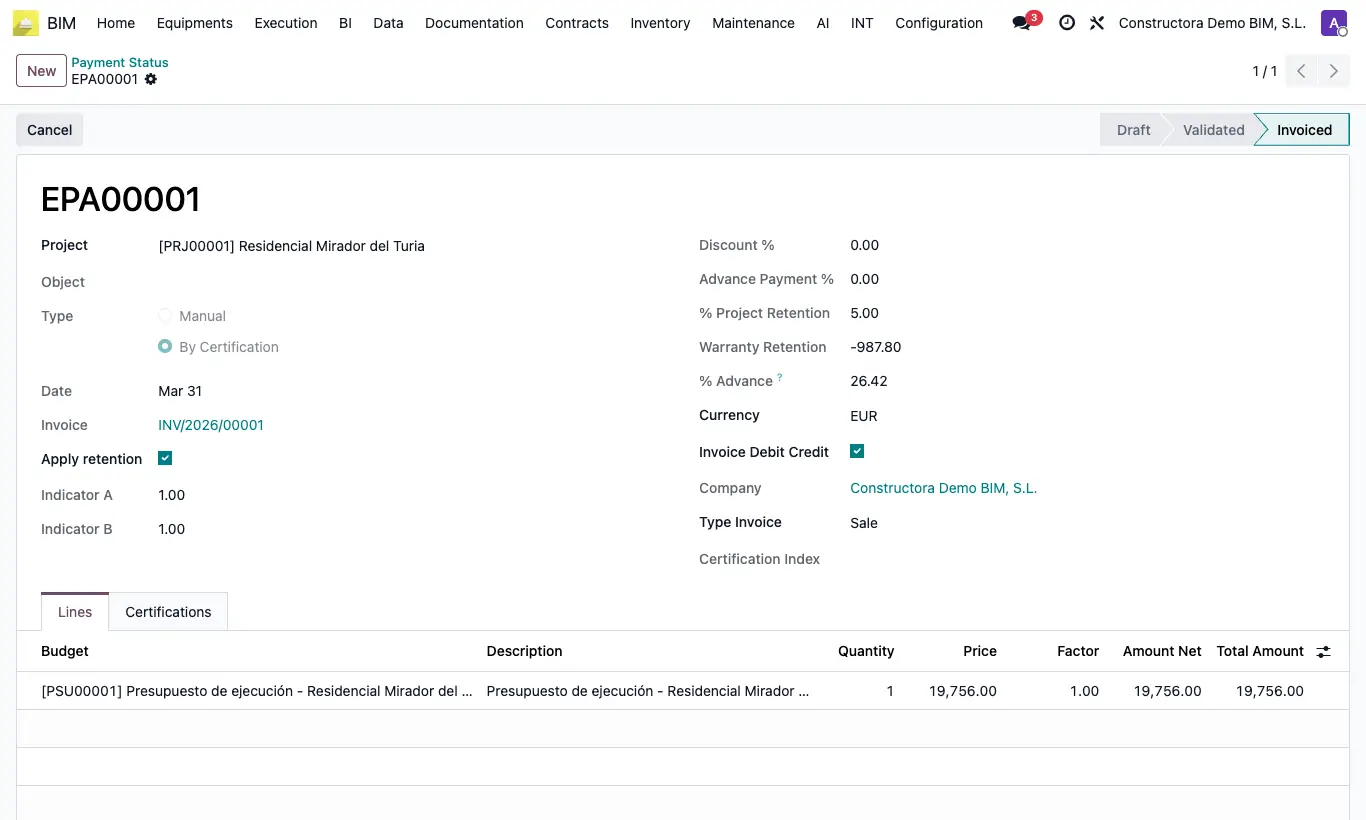
Steps
- On the project form, Secondary Data group, fill in Retention %, Discount % and Payment on Account %. Each new payment status takes them from here.
- In the project's Accounting tab choose the Retention Product. If you leave it empty, the one in Settings › Bim 2.0 › INVOICING is used.
- The retention % that new projects receive is defined in Settings › Bim 2.0 › Retention Configuration.
- Discount = − certified amount × Discount %.
- Advance Payment = − certified amount × Advance Payment %.
- Warranty Retention = − (certified amount + discount) × % Project Retention. It is only calculated with Apply retention checked.
- When you click Generate Invoice, the discount, the advance payment and the retention come out as negative lines, each with its percentage in the description.
The payment status % Project Retention is that of the project form and is not edited there: you can only turn it on or off with Apply retention.
If there is no income account for the retention (retention product, its category or the Accounting settings), Generate Invoice gives the error "No hay cuenta de ingresos en el producto de retención ni en su categoría."
BIM 2.0 does not generate the retention refund invoice. The forecast of its collection appears in the End row of the budget's CF tab; the invoice is issued separately from Accounting.
Example: 100,000 € certified, 2 % discount and 5 % retention: discount −2,000 € and retention −4,900 € (5 % of 98,000 €).
If you prefer the retention not to be a line but a data item on the invoice, change in General Config the Value of the retention key from invoice_line to invoice: the invoice receives the Retention (%) and calculates the Total to Pay.
Discount % and Advance Payment % can be changed in each payment status as long as it is not Invoiced or Cancelled.