Where BIM › Home › Certifications › Payment Status
BIM Payment Status profile. Budgets with certifications in Certified status and pending billing.
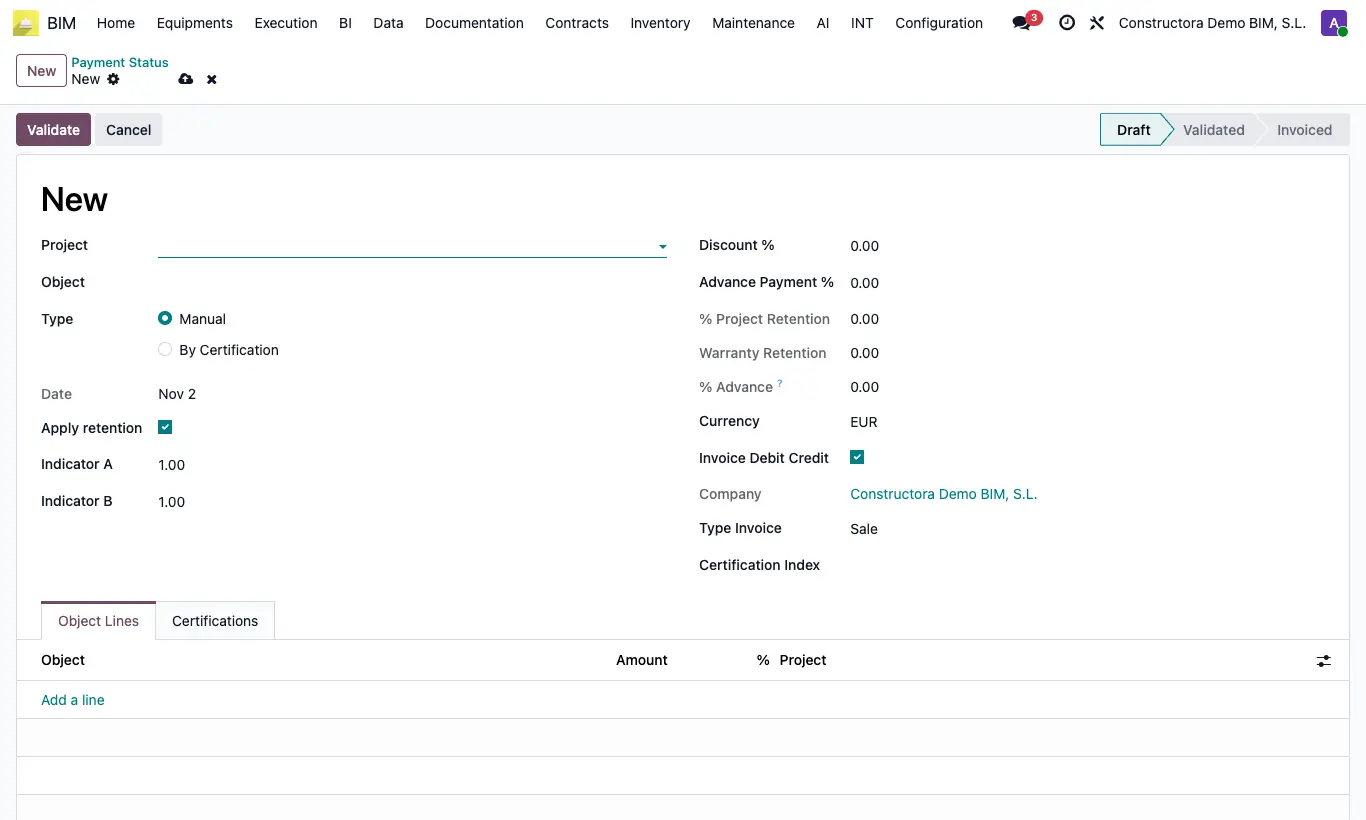
Steps
- Go to Home › Certifications › Payment Status and click New.
- Choose the Project and check the Type By Certification.
- Click Load Amount: the assistant opens with the project's budgets that have an amount To invoice.
- Remove from the list the budgets you do not want to include and click Process. One line per budget is created with what is pending and its Factor.
- If you need, add or correct lines in the Lines tab: Budget, Description, Quantity, Price and Factor.
- Save. The certified certifications of those budgets that did not yet have a payment status are linked automatically; you see them in the Certifications tab.
- Review Apply retention, Discount % and Advance Payment %, and click Validate.
If no budget has a pending amount, Load Amount warns: "No hay ningún presupuesto certificado para cargar".
Validating without lines gives the error "No hay líneas para validar".
On the lines you can only choose budgets of the project that allow certifications.
The UC button in the Certifications tab relinks the certifications in the list that were left loose.
The To invoice amount of each budget (on its form) is what was certified minus what has already been loaded in non-cancelled payment statuses.
The list is also at Accounting › Customers › BIM › Payment Status, and in the Payment Status button on the project form.