Where BIM › Documentation › Document › Document
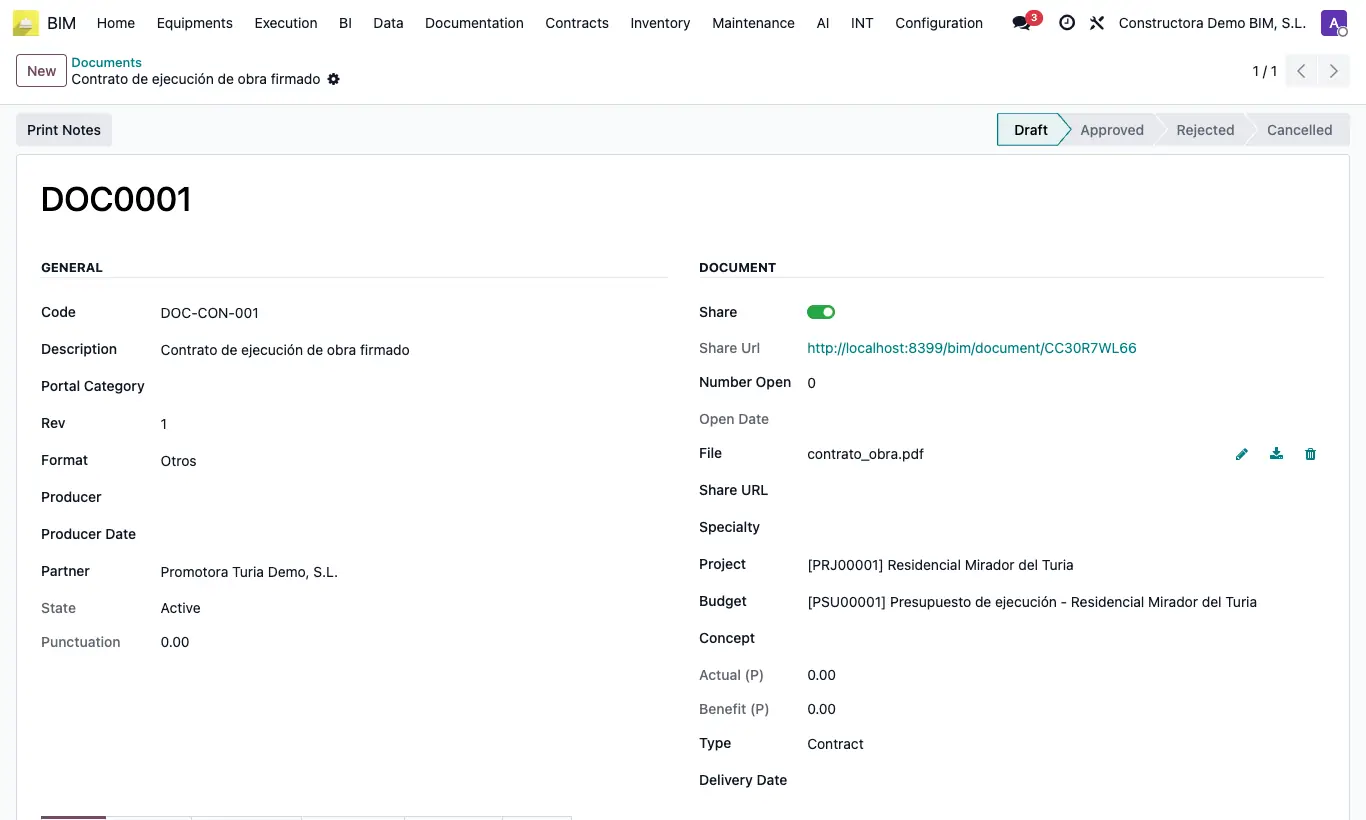
Steps
- Go to BIM › Documentation › Document › Document and click New, or click the Doc button from the project.
- In General type the document's Code, the Description and the Rev (revision, starts at 1).
- Choose the Format, who made it in Producer and Producer Date, and the Customer it is addressed to.
- Upload the File and choose Specialty, Project and, where applicable, Budget and Concept.
- Set the Type: Contract, Info, Budget or Other.
- In Other Info enter the End Date if it expires (licences, insurance, certificates).
- Save. Use Print Notes to get the text of the Note tab as a PDF.
Warning
The State changes to Expired when you save an End Date that has already passed, and a daily task marks as expired the documents whose end date has passed.
If the project has a customer with access to the BIM Portal, the customer will see the document when you enable Share.
Site note
With the portal category installed, Portal Category also appears, which groups the documents in the portal app.
From a maintenance task, the Documentations button creates documents already linked to that task.