Where BIM › Inventory › Products
Access to Inventory. To create products, in the user's form (Master data) Products must be set to Create.
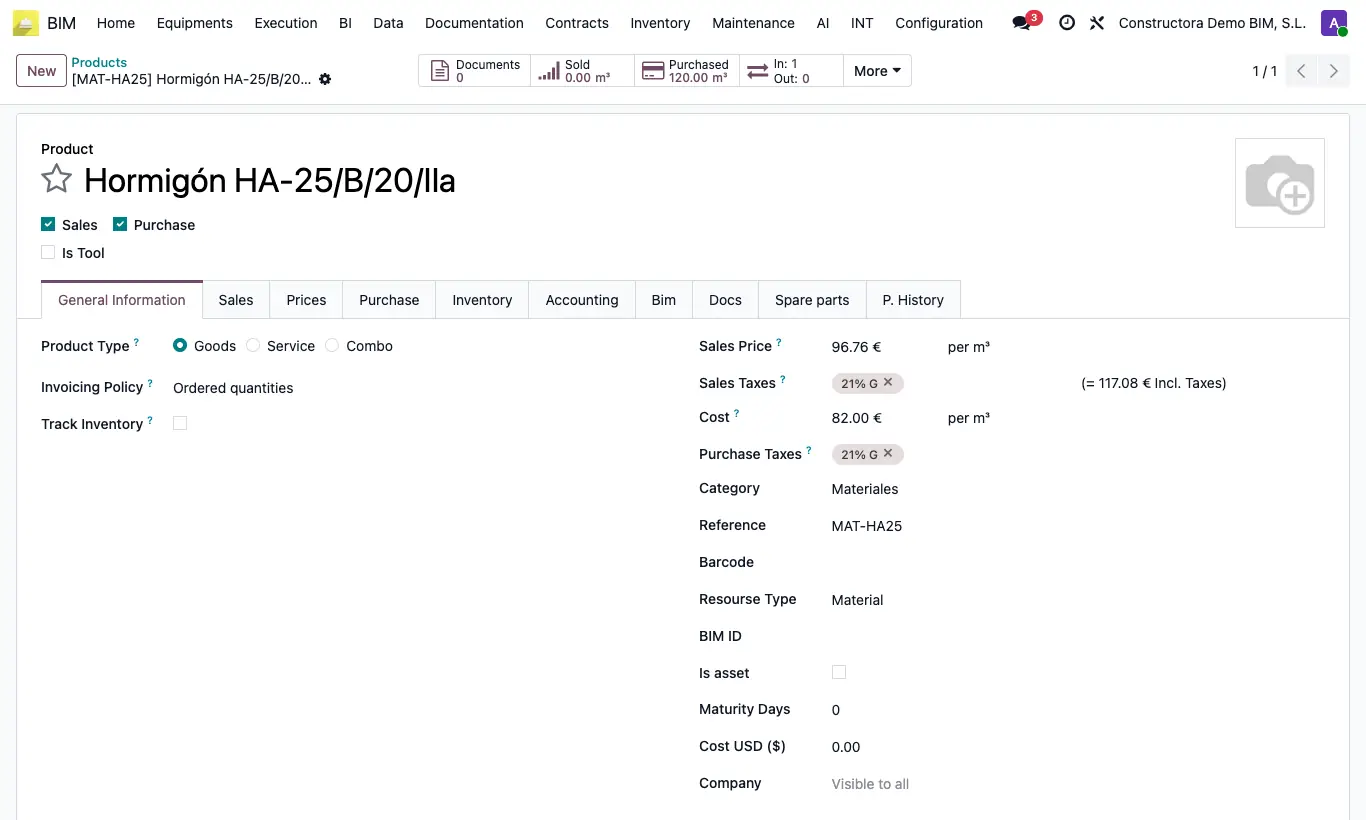
Steps
- Go to Inventory › Products and click New.
- Type the name and the Default Code: it is the code it shows under in the budget and by which imports recognize it.
- Choose the Product Type: Goods for materials you buy and store (check Track Inventory if you keep stock) or Service for labor and subcontracts.
- In Resourse Type choose Material, Labor, Equipment, Subcontract or Administrative. It is mandatory.
- Enter the Unit (m³, h, kg...), the Cost and, if you budget at sale price, the Sale Price.
- Complete what is specific to each type: for Equipment, Depreciation (factor that multiplies the amount; 1 = no change); for Labor, Bonus; for subcontract services, check Subcontract.
- In the Bim tab, classify it with Bim Group, Trade and Subtrade.
- Review Sales Taxes and Purchase Taxes and save.
If a product does not appear when choosing it in a budget resource, check its Resourse Type.
The Virtual Template type is only for virtual products: do not use it on normal resources.
In the budget tree, a MATERIAL resource only lets you choose products of type Material; LABOR, of type Labor; EQUIPMENT, of type Equipment; SUBCONTRACT, of type Subcontract; and FUNCTION / ADMINISTRATIVE, of type Administrative.
When you choose the product in a resource, its name, code, unit and price are copied (according to the Price in Budget setting).
Taxes are not applied in the budget: they are used when purchasing and invoicing. The payment status invoice uses those of the Payment Status Product.
The P. History tab records each confirmed purchase of a project: vendor, project, quantity and price.
Variants (sizes, colors) are in Inventory › Product Variants, which also shows Resourse Type and Bim Group.