Where BIM › Home › Certifications › Certifications
Stages created, with one in Current state, and a budget state with Allow Certification. BIM Certification profile.
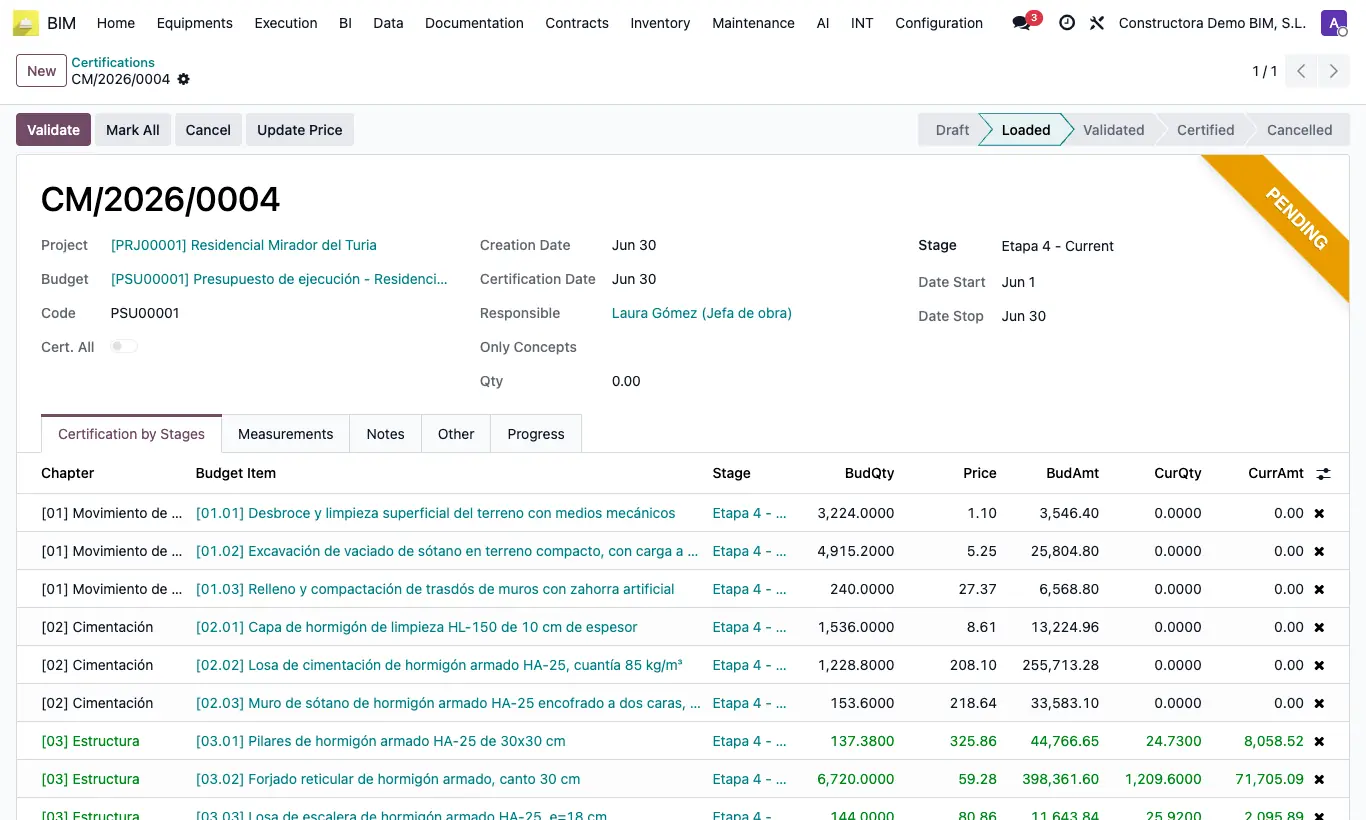
Steps
- Go to Home › Certifications › Certifications and click New.
- Choose the project and budget, and load the lines.
- Check the stage being certified.
- Write in CurQty what was executed in this period. Mark All fills in what is left to certify on each line.
- If prices have changed, click Update Price.
- Click Validate (it changes to Validated) and then Certify (it changes to Certified).
By default only one certification per stage is allowed. To certify next month, first approve the current stage.
States: Draft › Loaded › Validated › Certified. It can be cancelled at any time.
Columns: CanPres and ImpPres (budgeted), CanAct and ImpAct (this stage).
With cumulative certification you do not need to get it right the first time: next month the accumulated quantity is adjusted.
If there are no stages, the program offers to create them right then.
Once Certified, Pasar Validado returns the certification to Validated and subtracts what was applied: correct CurQty and click Certify again without it being added twice.