Where BIM › Home › Certifications › Massive Chapter Certification
Before you start
Certify by chapters profile. To certify by stage, a stage in Current.
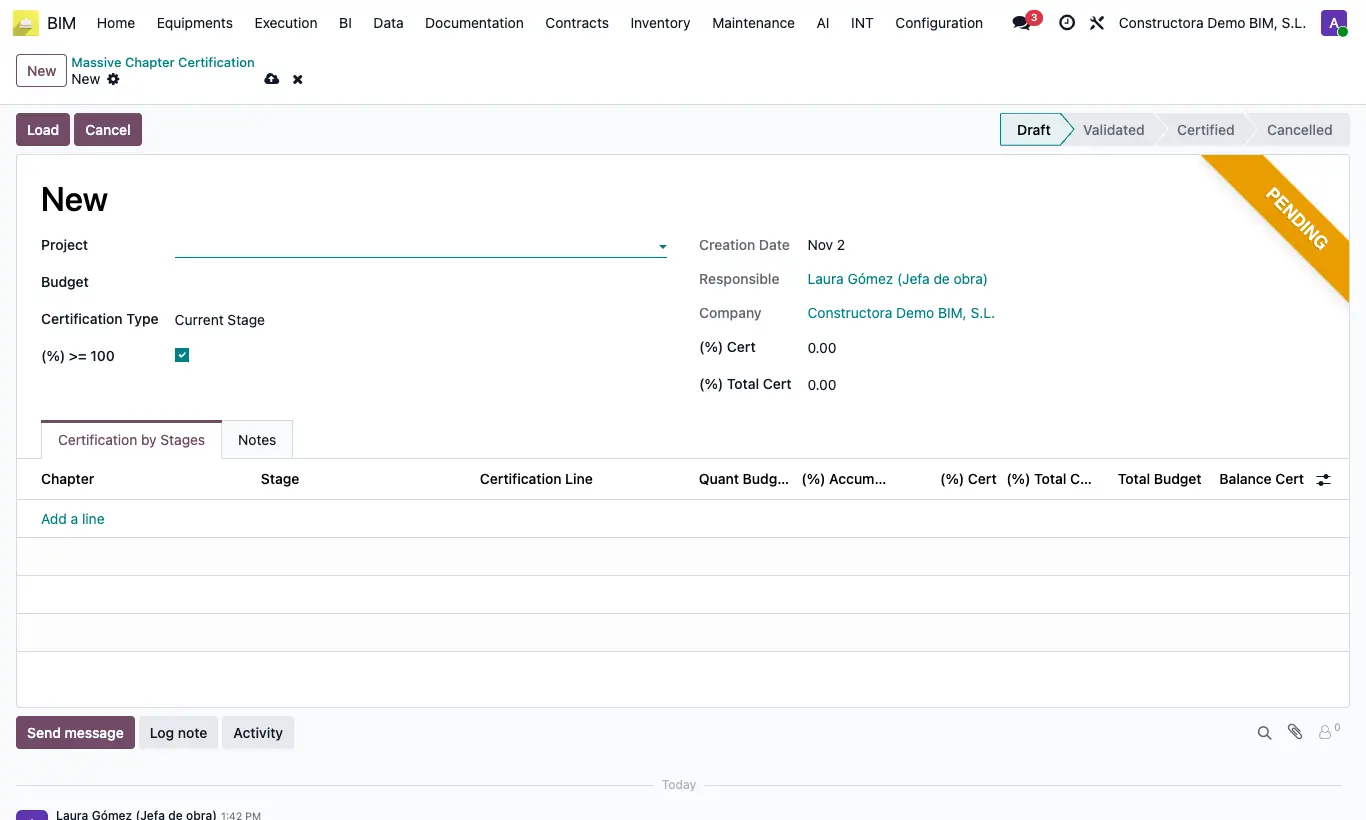
Steps
- Go to Massive Chapter Certification and click New.
- Choose Project, Budget and Certification Type: Current Stage or Manual.
- Uncheck (%) >= 100 if you do not want to see chapters already certified at 100 %.
- Click Load: one line per chapter appears with Quant Budget (N), (%) Accumulated and Budget Total, and it moves to Validated.
- In each chapter type the (%) Cert of the period or the (%) Total Certif to date. To apply the same % to all, use those fields in the header.
- If you want to start from the actual cost, click Load Consume: it proposes the executed % of each chapter.
- Click Certify. Afterwards you can click Create Paid State or, to correct, Undo.
Warning
If an item in the chapter exceeds the budget's certification limit, it does not let you certify: "El capítulo … no se puede certificar porque al menos el concepto … supera su límite…". Remove that line and continue.
If no chapter has certifiable items in the stage, when loading it warns "La certificación por etapas no es posible".
Site note
The menu only appears with the Certify by chapters profile. The Certificate Chapters option in the BIM settings shows the button for its chapter certifications in the budget.
If the budget has no stages, when loading the program offers to create them.