Where BIM › Execution › Programming › BOQs
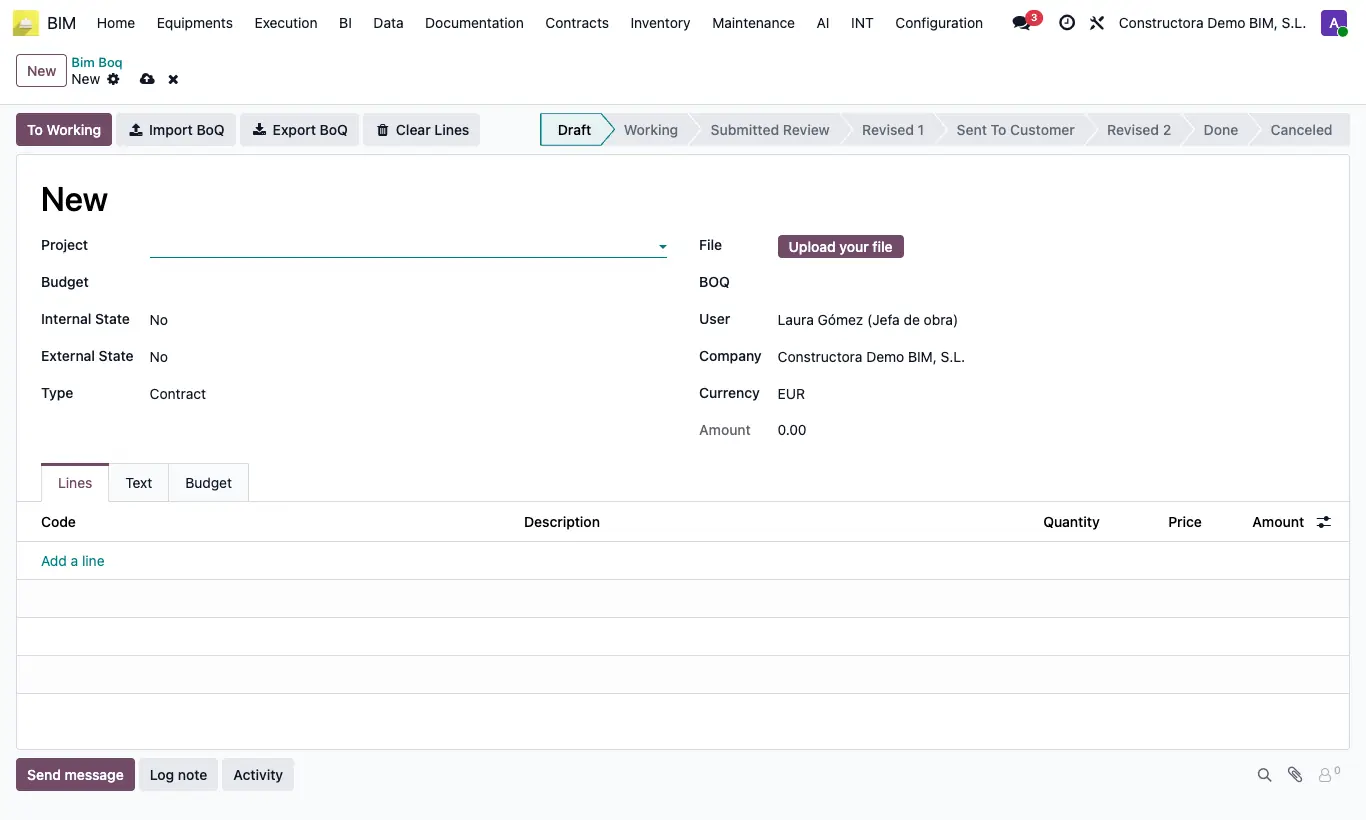
Steps
- Go to Execution › Programming › BOQs and click New. Choose Project and Type (Contract, Project, Increase or Decreases).
- Upload the customer's Excel in File and click Import BoQ. Columns: code, description, quantity, unit and price, from row 2.
- In Lines, if a line matches one of your unit prices, choose it in APU DB.
- In the Budget tab, tick Manual Prices if items without a unit price should use the BOQ price, and click Create.
- Move the flow forward: To Working, Submit Review, Review 1, Send to Client, Review 2 and To Done.
- With Update (Budget tab), each line shows the Budget Amount of its item to compare it with the BOQ's.
Warning
Review 1 requires Internal State other than No, and Review 2 requires External State other than No.
Only one budget can be created per BOQ: the second time you get “Budget already created”.
Site note
In items created from APU DB, the item carries the BOQ quantity and each resource the quantity per unit of the unit price, linked to its product: each resource's total is its quantity × the BOQ quantity. The subcontract resources of the unit price enter as SUBCONTRATO.
Export BoQ downloads the lines to Excel; Clear Lines deletes them so you can import again.