Where Purchase › Orders › Payment Schedule
Before you start
BIM Valuation profile; to approve, Payment Approver profile.
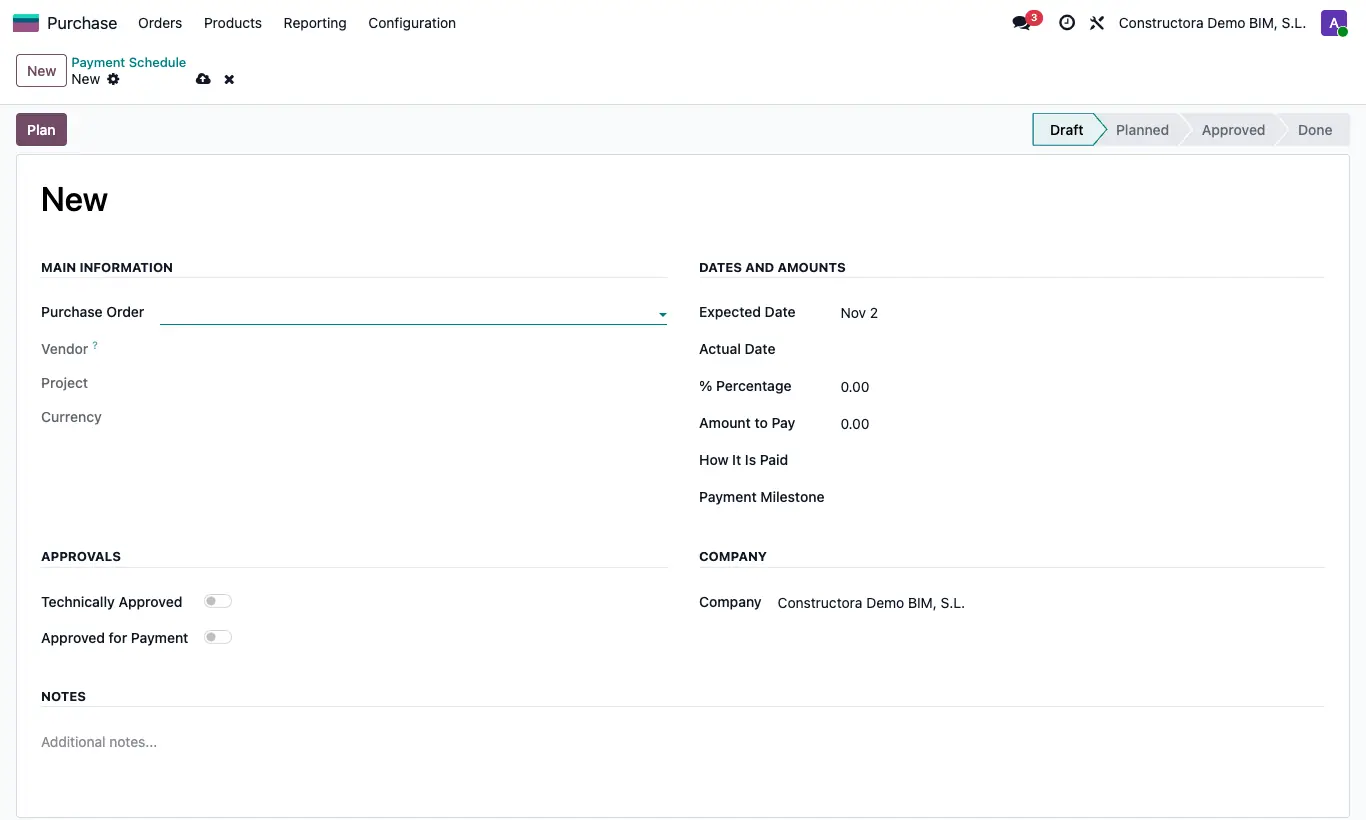
Steps
- Open the payment in Payment Schedule and click Plan.
- Whoever has the Payment Approver profile ticks Approved for Payment (Approvals group) and clicks Approve.
- When it is paid, enter the Actual Date and click Mark as Done.
- Only payments in Done count in the order's Paid.
Warning
Without Approved for Payment it does not let you approve: "You must tick Approved for Payment to be able to approve."
Site note
The pivot table view shows the amount to pay by vendor, project and month.
Draft returns the payment to the start so it can be corrected.
Whoever has the Technical Purchasing Approver profile also sees the Technically Approved box in Approvals: it is for the record, but is not required to approve.