Where Project › Inventory tab
Before you start
Inventory profile.
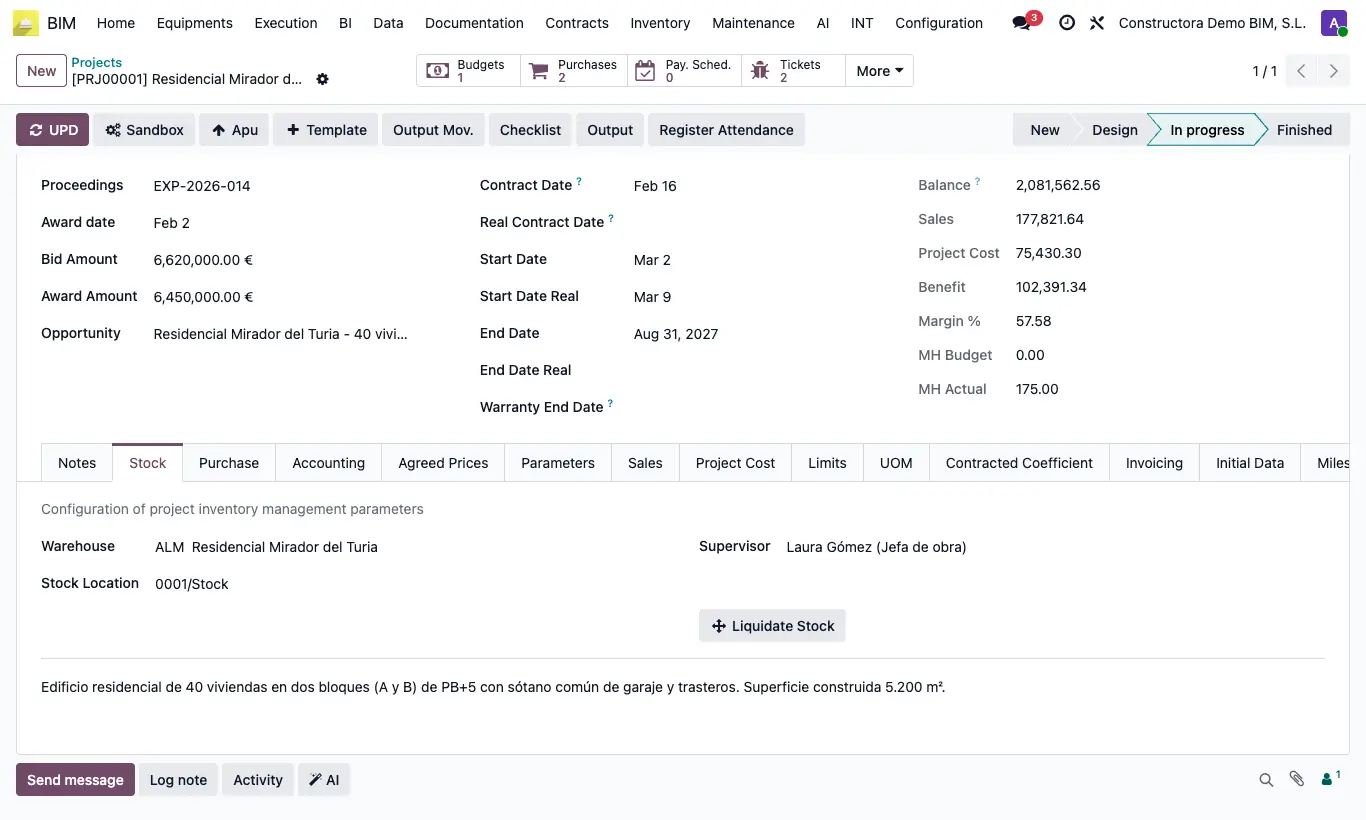
Steps
- Open the project and go to the Stock tab.
- If the project has no Warehouse, click Warehouse and confirm the warning.
- A warehouse is created with the prefix from settings plus the project name, and Warehouse and Stock Location are filled in.
- If you already have a warehouse, choose it in Warehouse: the Stock Location is taken from it.
Warning
The warehouse short code is the last 4 characters of the project code and the name must be unique: if they match another company warehouse, it is not created. In that case create the warehouse in Inventory and choose it on the project.
Site note
The prefix (by default “ALM”) is changed in the BIM 2.0 settings, INVENTORY section, Warehouse Prefix field.
With Use Project Warehouse on in the same settings, purchase orders with a project are received in that warehouse.