Where BIM › Inventory › Material Request › Material Request
Before you start
Request in Approved state.
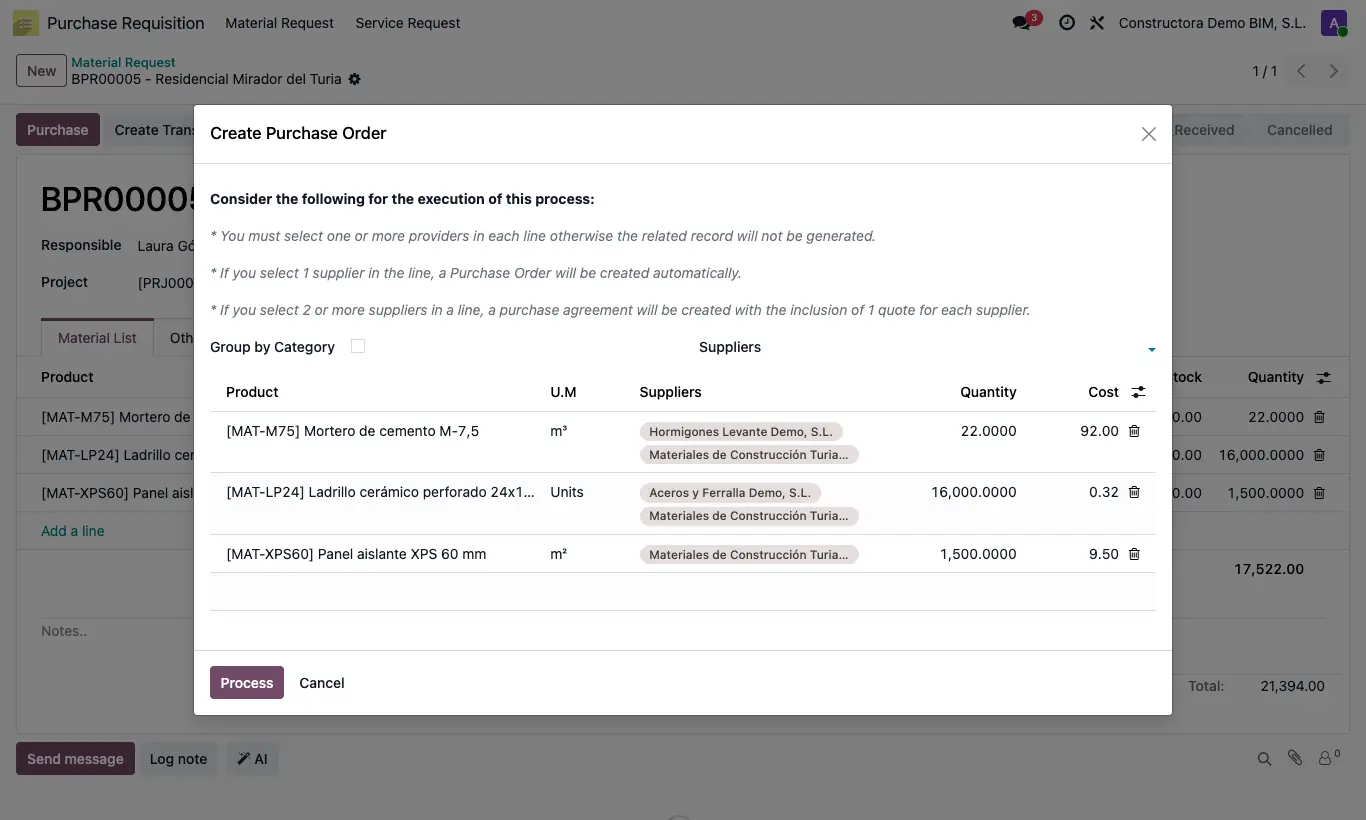
Steps
- Open the approved request and click Purchase.
- On the lines you want to compare, choose two or more Suppliers (or put them at the top, in Suppliers, for all lines).
- Check Quantity and Cost and click Process.
- Lines with a single vendor generate their normal order. Those with several vendors create a purchase agreement of type Purchase Template, already Confirmed, and a request for quotation per vendor with each line's quantity, price and analytic account.
- Open the agreement with the request's Purchase Agreements button and, from it, each vendor's requests.
- Write on each request the price the vendor offers you, confirm the one you choose and cancel the others.
Warning
The agreement's requests do not appear in the request's Purchases button nor count in its Purchased column: find them from the agreement.
Those requests are not received at the project warehouse: check the receipt type and the Bim Project before confirming them.
Site note
It works the same in service requests.
Lines with the same group of vendors share an agreement; each different combination of vendors creates its own.
The order lines carry the product's purchase taxes.