Where Budget › Update button
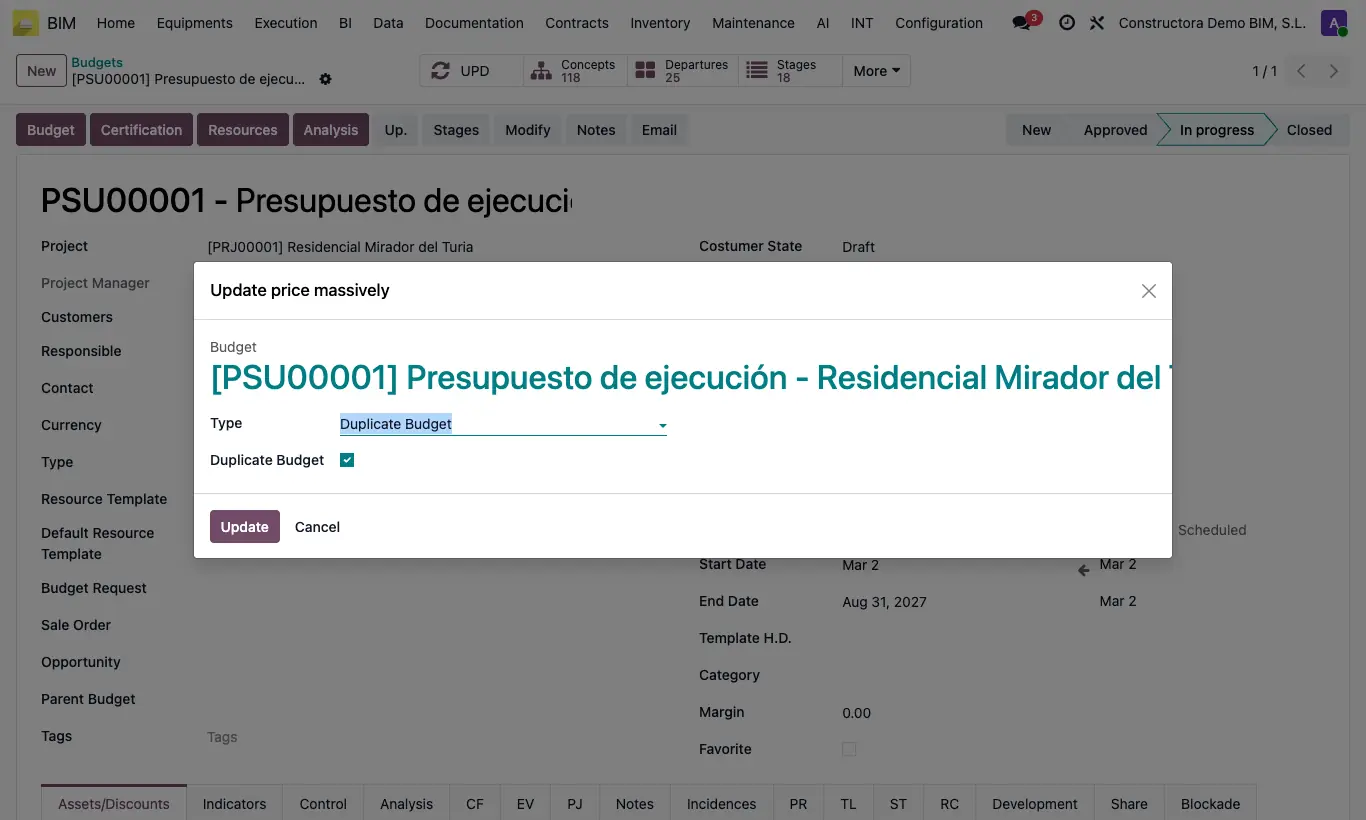
Steps
- Open the budget and click Up. (in the header, next to Stages).
- In Type choose the criterion: Update massive concepts according to current cost, Update massive concepts according to current price, Update massive concepts according to pricelist (asks for the Price List), Update massive concepts according to agreed prices or Update massive concepts according USD exchange.
- For a single product choose Update bulk concepts manually: enter the Resource, the Type Price (Price or Percent) and the Price New.
- Check Duplicate Budget if you want to apply it to a copy.
- Click Update and then UPD in the budget.
Warning
Duplicate Budget is unchecked automatically each time you change the Type: check it again if you want it.
With the manual type, the new price must be greater than zero.
Site note
The agreed prices are those in the project's Agreed Prices tab.
To protect a resource or an item, check Not Update Cost in its Tools tab: the current cost, current price and manual criteria respect it (pricelist, agreed prices and USD exchange do not).
With Percent the price is multiplied by the value/100: type 105 to raise it by 5 %.